> ## Documentation Index
> Fetch the complete documentation index at: https://docs.getjumper.io/llms.txt
> Use this file to discover all available pages before exploring further.
# Avid Media Composer Installation
> A step-by-step guide to installing Jumper for Avid Media Composer
## Instructions
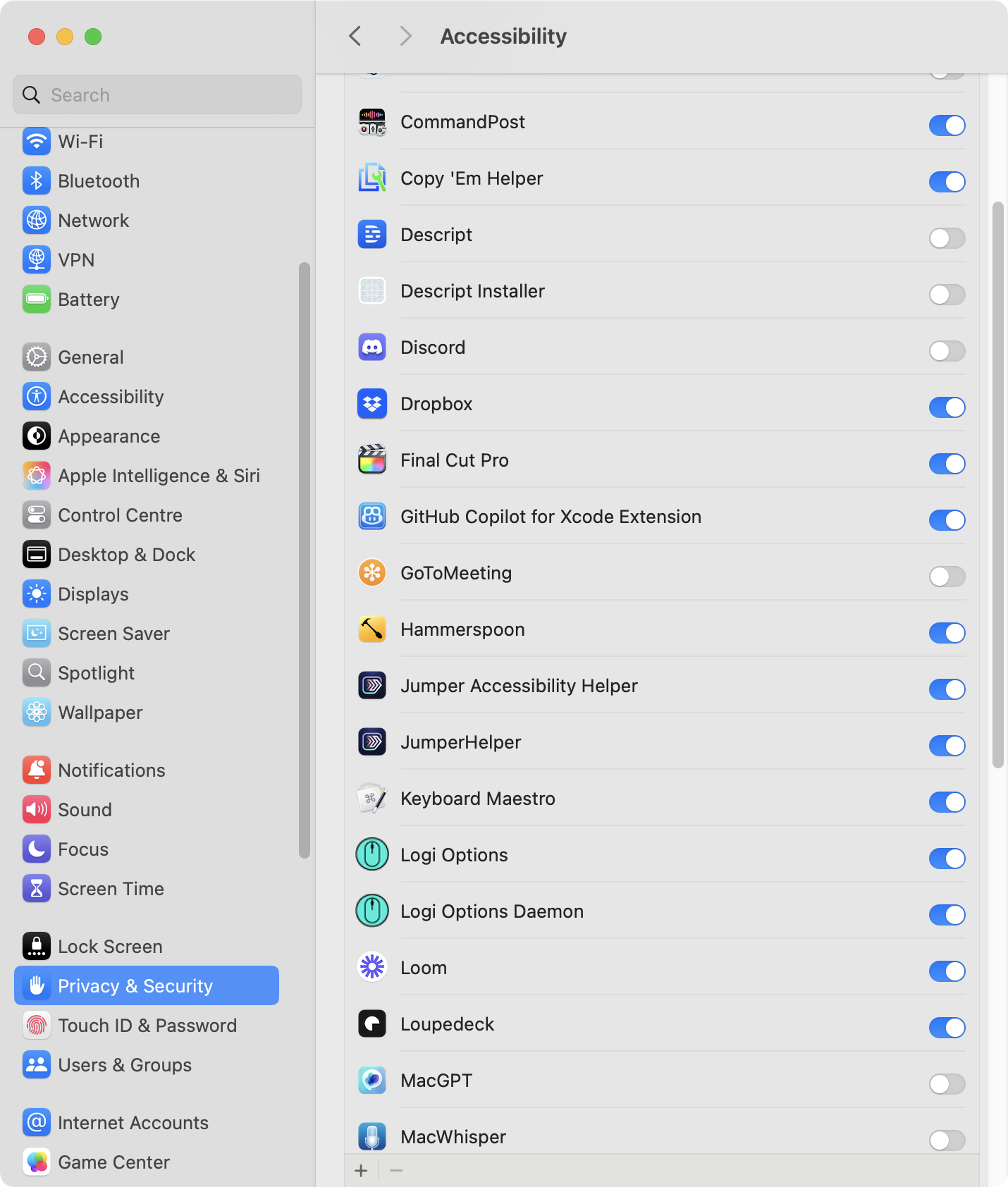
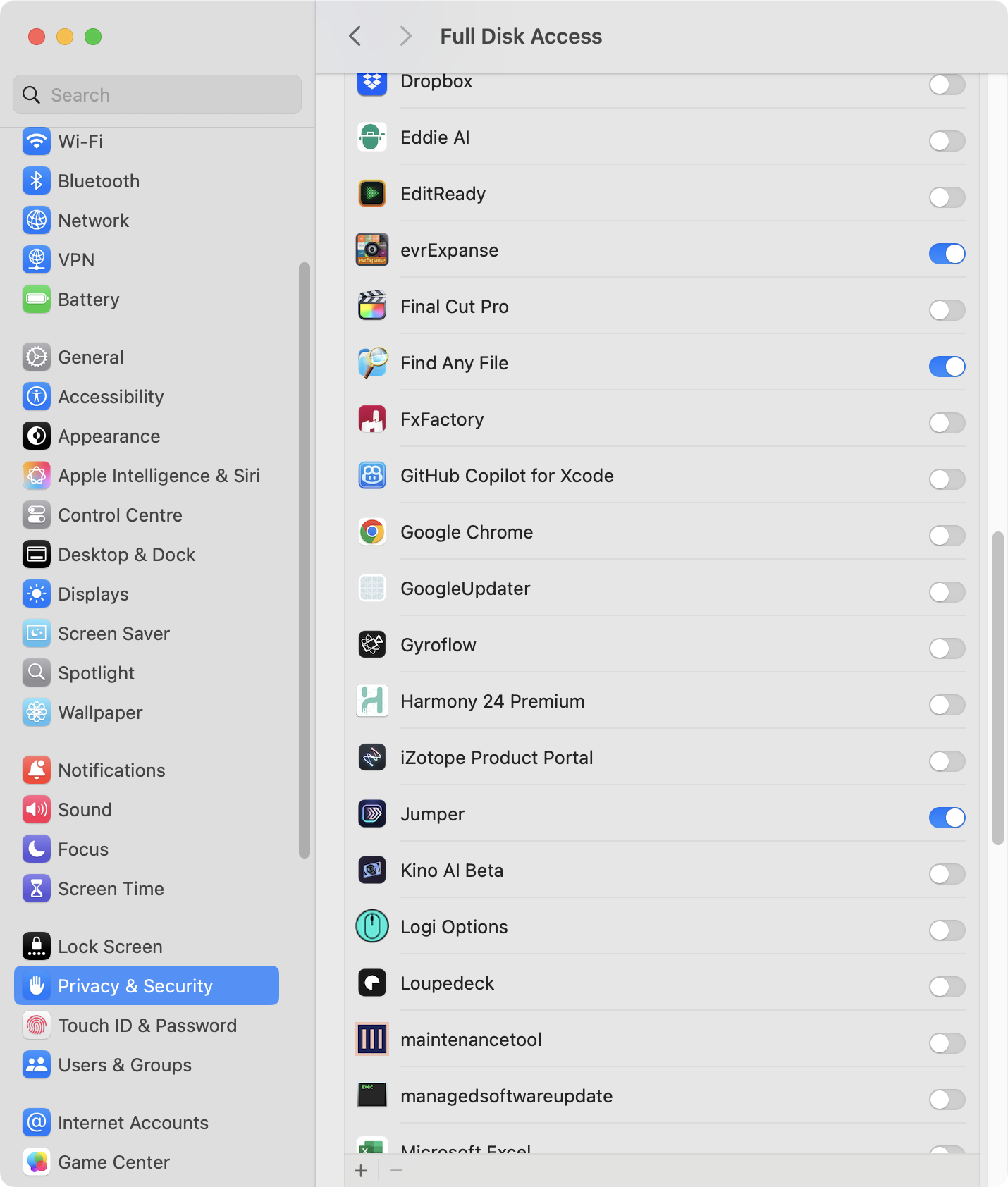
Make sure that Jumper is installed, and `JumperHelper` has **Accessibility Permission**, and `Jumper.app` has **Full Disk Access**. If you install Jumper for Final Cut Pro, it will prompt you for these.
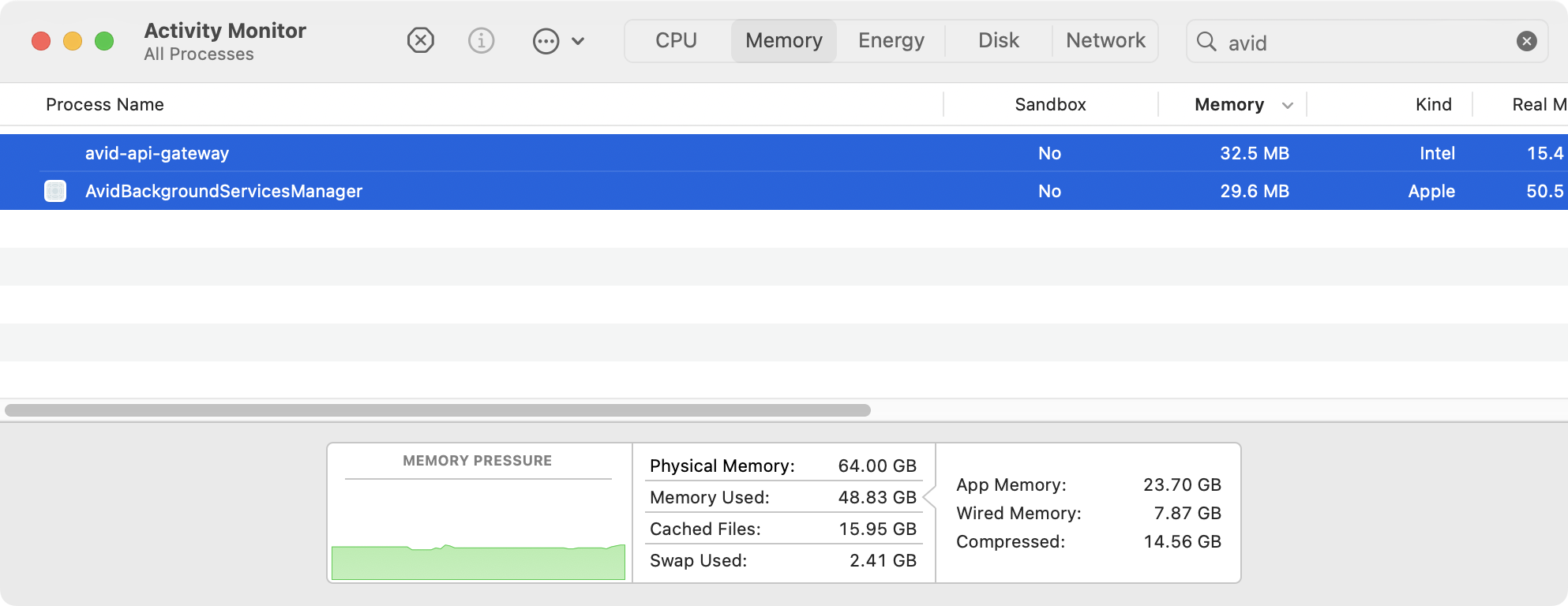
 Make sure that Avid Media Composer and all it's various helper apps (such as `avid-api-gateway`) are closed in **Activity Monitor / Task Manager**.
For example, quit these:
Make sure that Avid Media Composer and all it's various helper apps (such as `avid-api-gateway`) are closed in **Activity Monitor / Task Manager**.
For example, quit these:
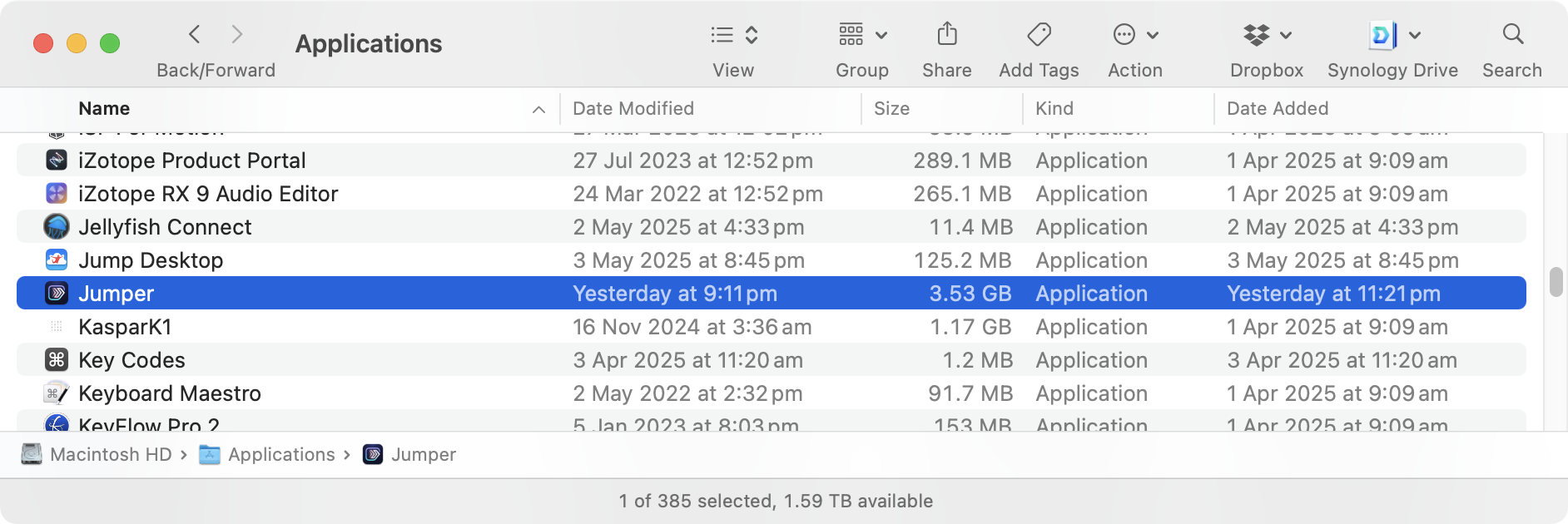
 Launch `Jumper.app` from your **Application** folder.
 Click **Enable Jumper in Avid Media Composer**.
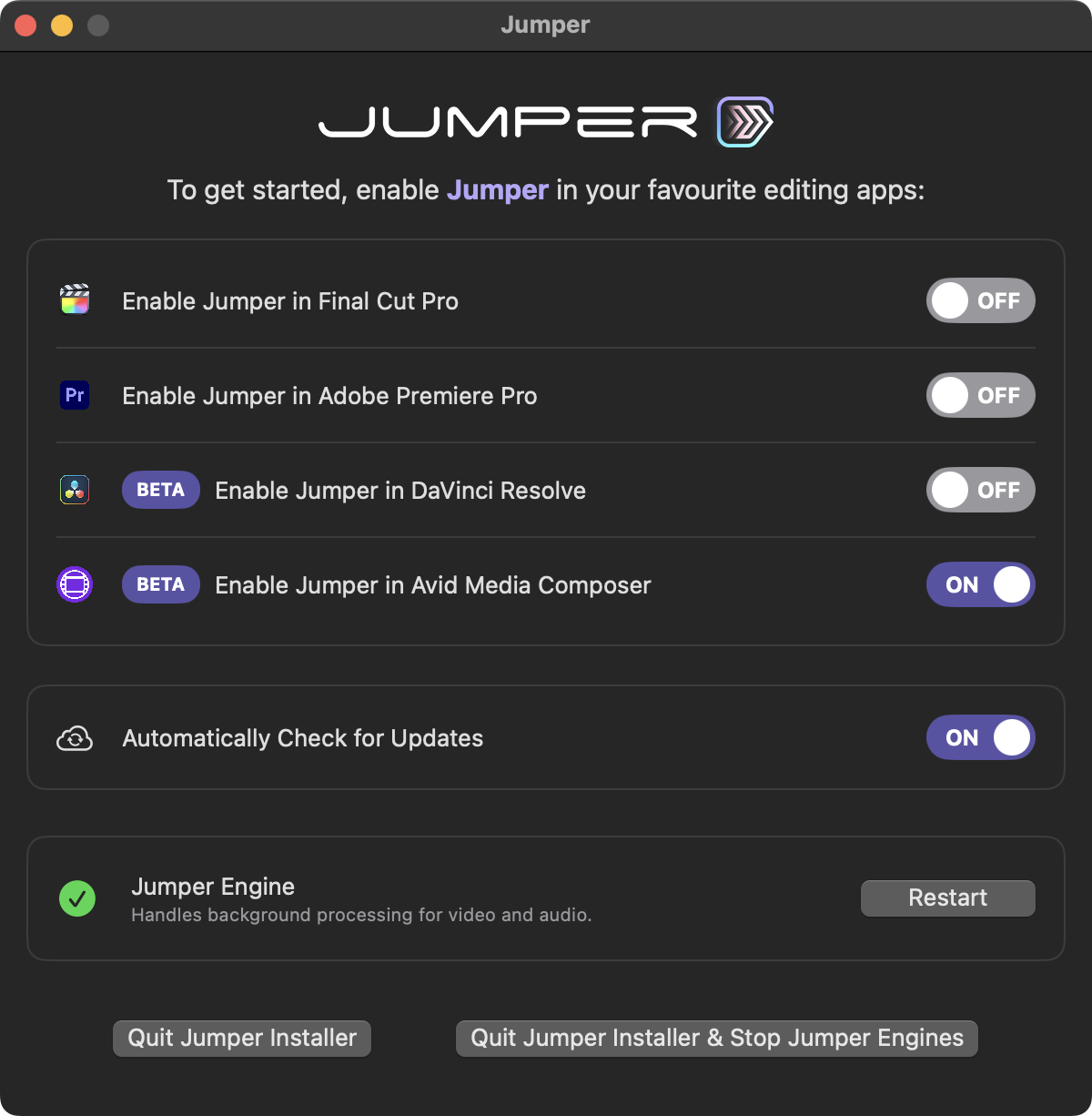 This will install the Avid Panel.
For those that care, the Jumper Avid Panel exists in `/Library/Application Support/Avid/PanelSDKPlugins/jumper.avpi`.
You can now launch **Avid Media Composer**.
Create a new Avid project or open and existing Avid project.
You'll find Jumper in **Tools -> Jumper**. In newer versions of Avid Media Composer (2025.12 and later), you can find it in **Extensions -> Jumper**.
This will install the Avid Panel.
For those that care, the Jumper Avid Panel exists in `/Library/Application Support/Avid/PanelSDKPlugins/jumper.avpi`.
You can now launch **Avid Media Composer**.
Create a new Avid project or open and existing Avid project.
You'll find Jumper in **Tools -> Jumper**. In newer versions of Avid Media Composer (2025.12 and later), you can find it in **Extensions -> Jumper**.
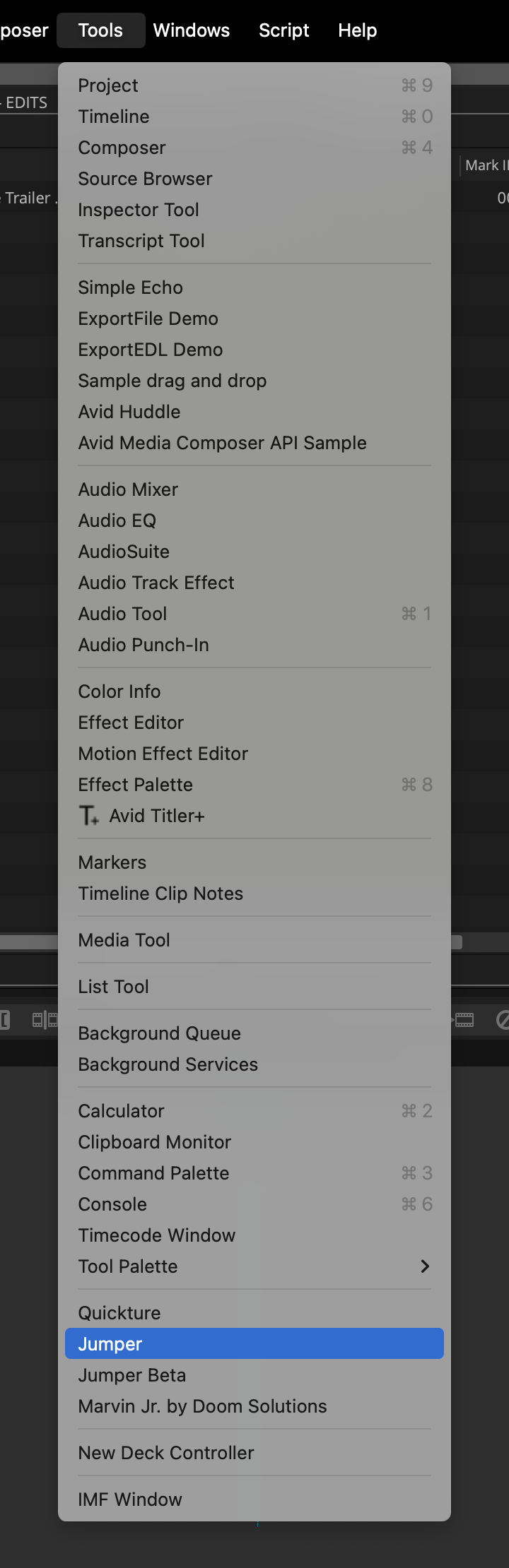 If you don't see Jumper in the **Tools** or **Extensions** list, see [Troubleshooting](/NLE/avid/avid-troubleshooting#panel-wont-open).
When you click on **Jumper** it will launch the Jumper for Avid Media Composer panel.
If you don't see Jumper in the **Tools** or **Extensions** list, see [Troubleshooting](/NLE/avid/avid-troubleshooting#panel-wont-open).
When you click on **Jumper** it will launch the Jumper for Avid Media Composer panel.
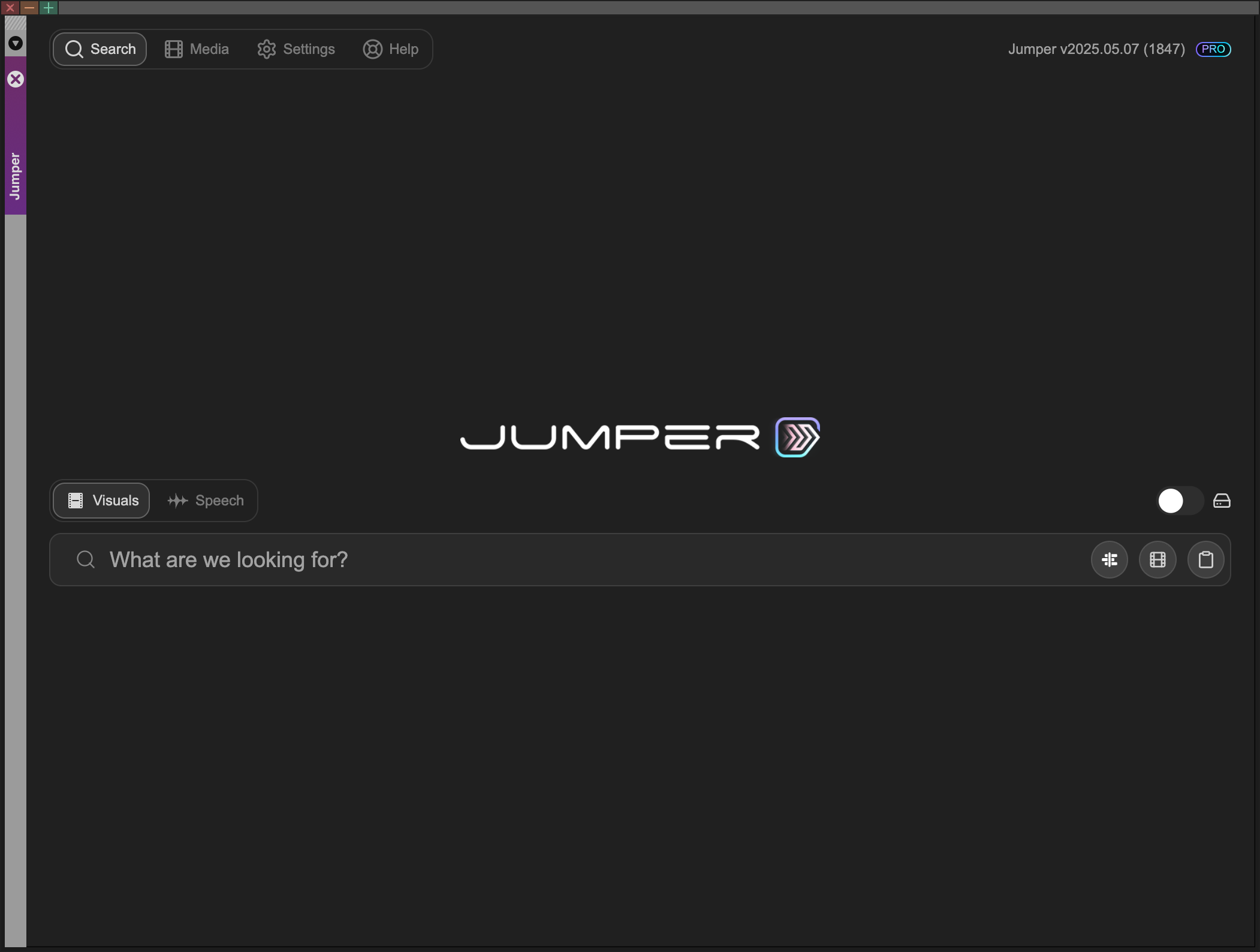 The only real difference between Jumper for Avid Media Composer and Jumper for DaVinci Resolve, Final Cut Pro and Adobe Premiere Pro is the **Media Panel**.
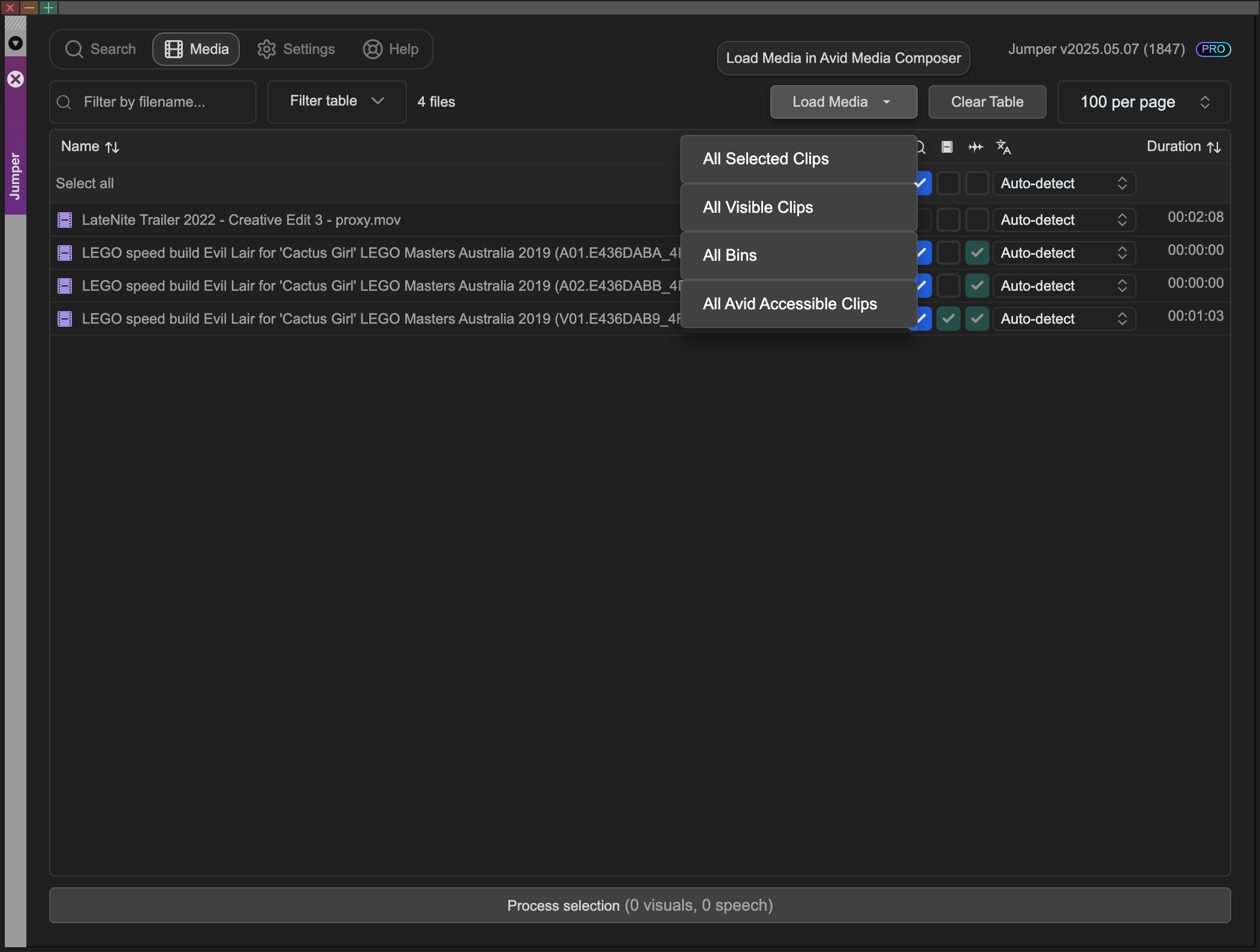
In Jumper for Avid Media Composer, you populate the Media table using the **Scan MXF Metadata** button and the **Load Media** dropdown (next to the filename filter in the Media tab). If the MXF has already been analyzed, you can often skip the scan step. See [Adding media](/NLE/avid/avid-adding-media) for the full workflow.
The only real difference between Jumper for Avid Media Composer and Jumper for DaVinci Resolve, Final Cut Pro and Adobe Premiere Pro is the **Media Panel**.
In Jumper for Avid Media Composer, you populate the Media table using the **Scan MXF Metadata** button and the **Load Media** dropdown (next to the filename filter in the Media tab). If the MXF has already been analyzed, you can often skip the scan step. See [Adding media](/NLE/avid/avid-adding-media) for the full workflow.
 ## Required shortcuts
Jumper relies on default Avid Media Composer shortcuts for Mark IN/OUT and playhead navigation. The Avid Panel SDK is unstable for some of these actions, so Jumper triggers keyboard shortcuts instead.
| Shortcut | Avid action |
| :------- | :------------- |
| **I** | Mark IN |
| **O** | Mark OUT |
| **Q** | Go to IN point |
Custom keyboard shortcuts for **I**, **O**, or **Q** will break Mark IN/OUT, Source Viewer search, and related Jumper actions. Restore Avid's defaults for these keys, or remap them back to the standard actions.
## Match Source/Record Viewer Frame
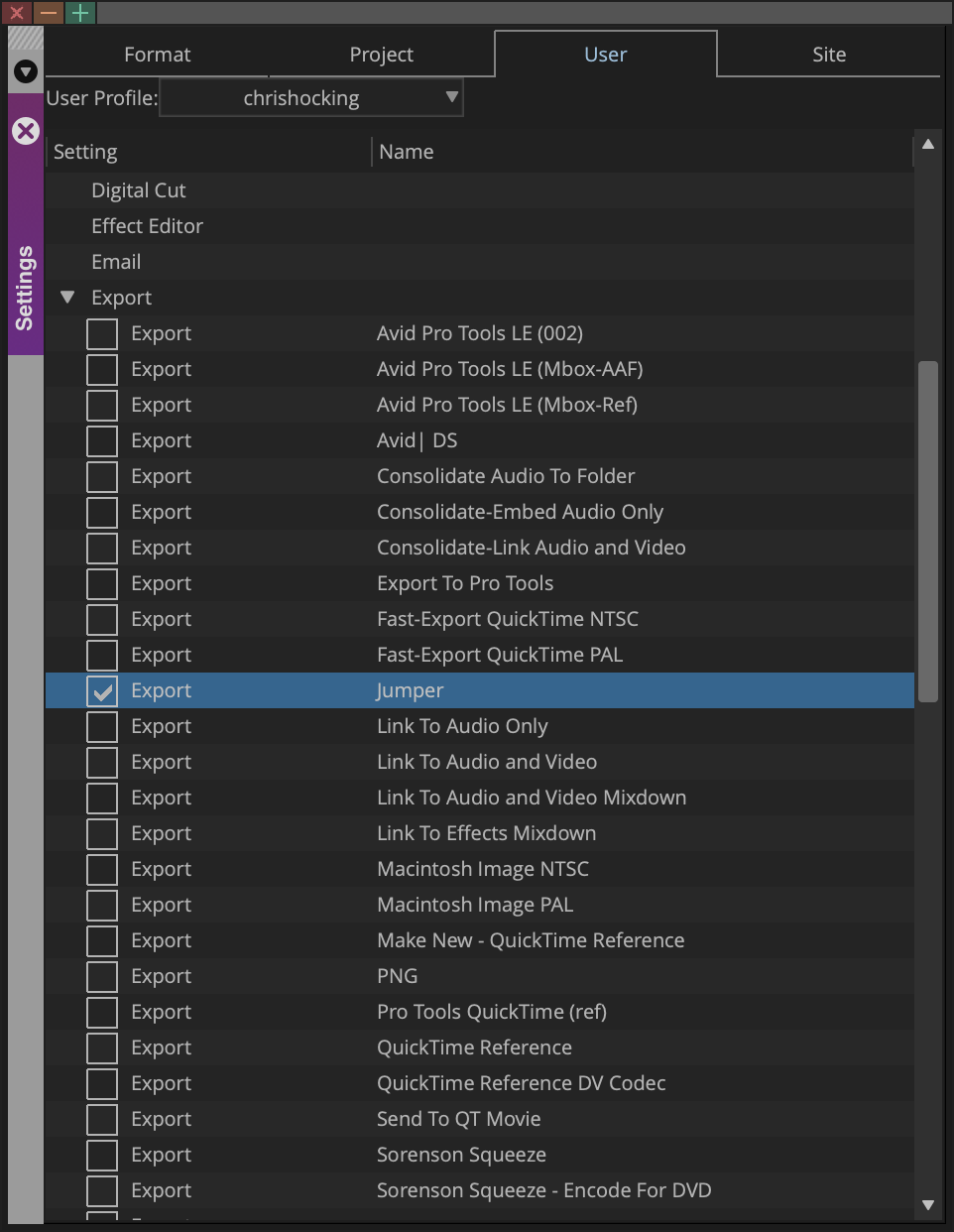
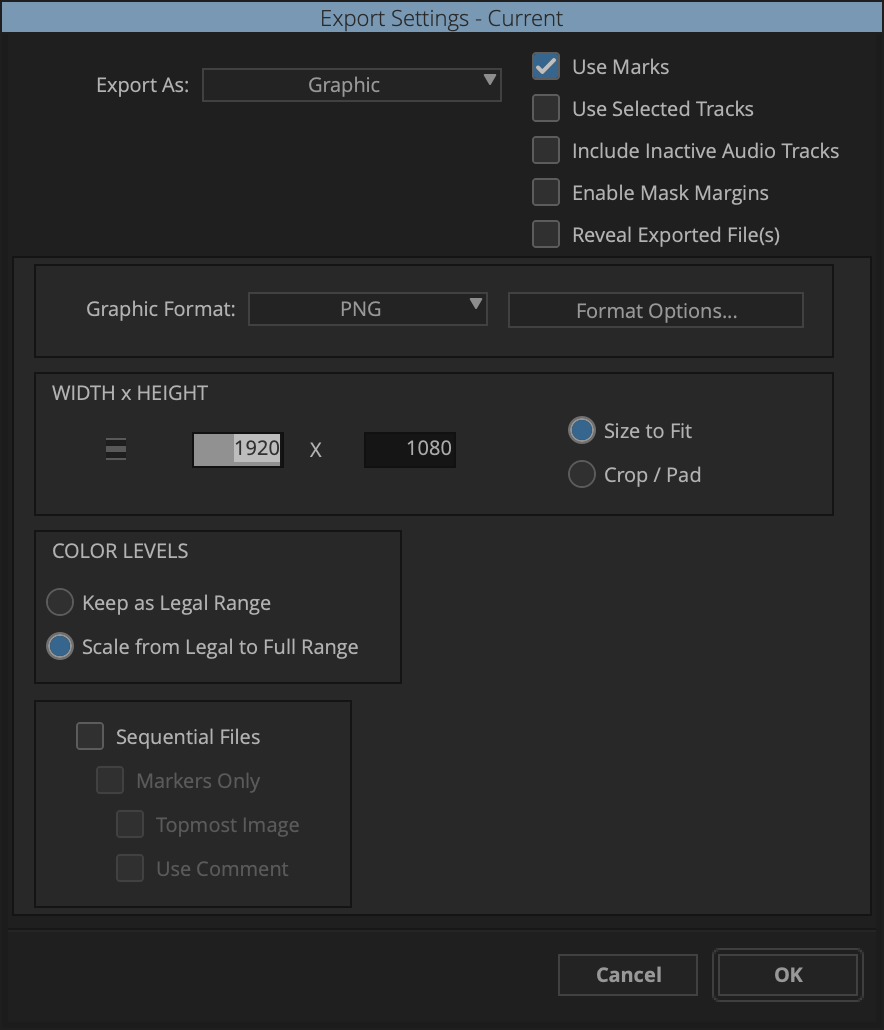
To enable this functionality you need to create a new Export Preset in Avid Media Composer called **Jumper**.
In the current version of Jumper, it will automatically create this Export Preset.
## Required shortcuts
Jumper relies on default Avid Media Composer shortcuts for Mark IN/OUT and playhead navigation. The Avid Panel SDK is unstable for some of these actions, so Jumper triggers keyboard shortcuts instead.
| Shortcut | Avid action |
| :------- | :------------- |
| **I** | Mark IN |
| **O** | Mark OUT |
| **Q** | Go to IN point |
Custom keyboard shortcuts for **I**, **O**, or **Q** will break Mark IN/OUT, Source Viewer search, and related Jumper actions. Restore Avid's defaults for these keys, or remap them back to the standard actions.
## Match Source/Record Viewer Frame
To enable this functionality you need to create a new Export Preset in Avid Media Composer called **Jumper**.
In the current version of Jumper, it will automatically create this Export Preset.