> ## Documentation Index
> Fetch the complete documentation index at: https://docs.getjumper.io/llms.txt
> Use this file to discover all available pages before exploring further.
# Speech search
> Understanding how Jumper finds spoken words and phrases in your footage using speech transcription
 ## Overview
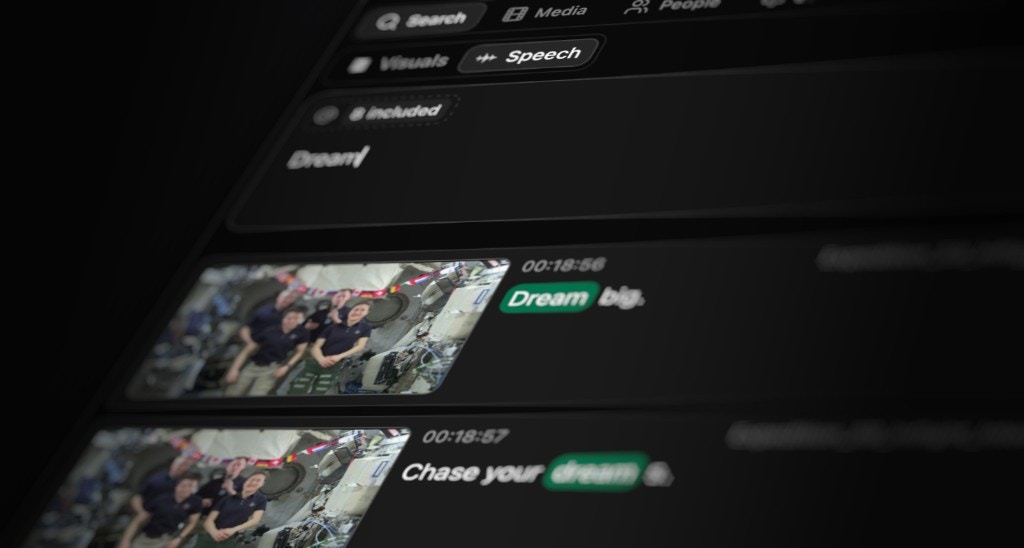
Speech search allows you to find any word or phrase that has been spoken in your footage. Unlike visual search, which understands what things look like, speech search works with the actual words and dialogue in your media files.
Speech search relies on [machine learning models](/core-concepts/machine-learning#speech-models) that transcribe spoken language into searchable text. Once your media is analyzed, you can search for any word or phrase that was spoken, and Jumper will find and rank every exact or fuzzy match.
## How transcription works
During the analysis phase, Jumper's speech models process the audio track of your media files and convert spoken words into text transcriptions. This happens automatically when you analyze media for speech.
The transcription process:
* Converts speech to text with timestamps
* Stores the transcription data for searching
* Handles different accents, background noise, and varying audio quality
Once transcribed, every spoken word becomes searchable, even if it wasn't explicitly tagged or labeled. The transcription happens entirely on your local machine.
## How search works
When you perform a speech search, Jumper searches through the transcriptions of your analyzed media files. The search finds and ranks every exact or fuzzy match of the word or phrase you type in.
**Exact matches:** When you search for a specific word or phrase, Jumper finds all instances where that exact text appears in the transcriptions.
**Fuzzy matches:** The search also handles variations and similar-sounding words, so you can find what you're looking for even if the exact spelling or phrasing differs slightly.
Results are ranked by relevance, showing you the most likely matches first. Each result includes timestamps so you can see exactly when the words were spoken in your footage.
## Language support
Jumper supports over 100 languages for speech transcription. The speech models can automatically detect the language being spoken, or you can specify the language during analysis for improved transcription accuracy.
When you know the spoken language in a particular file, specifying it explicitly helps the model focus on that language's characteristics, resulting in more accurate transcriptions. The default setting is auto-detection, which works well for most cases but may benefit from manual language selection when dealing with mixed-language content or specific dialects.
For a complete list of supported languages, see [Supported Languages](/reference/supported-languages).
## Transcription files
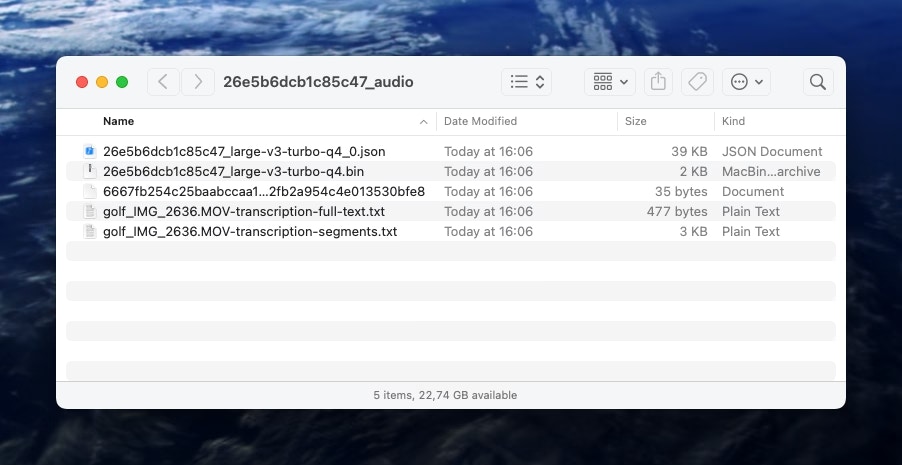
Along with making your footage searchable, Jumper also generates plain text transcription files when you analyze media for speech. These files contain the complete transcriptions of what was said in your media.
To work with the transcript inside Jumper (jump to lines, hide segments, export), use the [Script Editor](/guides/script-editor).
The transcription files are stored alongside your analysis data and can be accessed by right-clicking on a media file in the Media table.
## Overview
Speech search allows you to find any word or phrase that has been spoken in your footage. Unlike visual search, which understands what things look like, speech search works with the actual words and dialogue in your media files.
Speech search relies on [machine learning models](/core-concepts/machine-learning#speech-models) that transcribe spoken language into searchable text. Once your media is analyzed, you can search for any word or phrase that was spoken, and Jumper will find and rank every exact or fuzzy match.
## How transcription works
During the analysis phase, Jumper's speech models process the audio track of your media files and convert spoken words into text transcriptions. This happens automatically when you analyze media for speech.
The transcription process:
* Converts speech to text with timestamps
* Stores the transcription data for searching
* Handles different accents, background noise, and varying audio quality
Once transcribed, every spoken word becomes searchable, even if it wasn't explicitly tagged or labeled. The transcription happens entirely on your local machine.
## How search works
When you perform a speech search, Jumper searches through the transcriptions of your analyzed media files. The search finds and ranks every exact or fuzzy match of the word or phrase you type in.
**Exact matches:** When you search for a specific word or phrase, Jumper finds all instances where that exact text appears in the transcriptions.
**Fuzzy matches:** The search also handles variations and similar-sounding words, so you can find what you're looking for even if the exact spelling or phrasing differs slightly.
Results are ranked by relevance, showing you the most likely matches first. Each result includes timestamps so you can see exactly when the words were spoken in your footage.
## Language support
Jumper supports over 100 languages for speech transcription. The speech models can automatically detect the language being spoken, or you can specify the language during analysis for improved transcription accuracy.
When you know the spoken language in a particular file, specifying it explicitly helps the model focus on that language's characteristics, resulting in more accurate transcriptions. The default setting is auto-detection, which works well for most cases but may benefit from manual language selection when dealing with mixed-language content or specific dialects.
For a complete list of supported languages, see [Supported Languages](/reference/supported-languages).
## Transcription files
Along with making your footage searchable, Jumper also generates plain text transcription files when you analyze media for speech. These files contain the complete transcriptions of what was said in your media.
To work with the transcript inside Jumper (jump to lines, hide segments, export), use the [Script Editor](/guides/script-editor).
The transcription files are stored alongside your analysis data and can be accessed by right-clicking on a media file in the Media table.
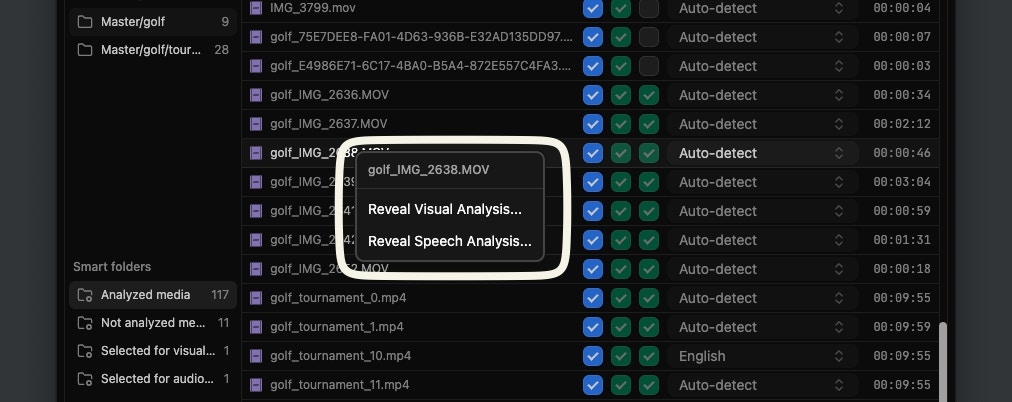 If you click `Reveal Speech Analysis...` you will find two plain text files with the actual transcriptions.
1. `transcription-full-text.txt` contains the entire transcript
2. `transcription-segments.txt` contains the entire transcript but segmented with time codes
If you click `Reveal Speech Analysis...` you will find two plain text files with the actual transcriptions.
1. `transcription-full-text.txt` contains the entire transcript
2. `transcription-segments.txt` contains the entire transcript but segmented with time codes
 These transcription files are useful if you want to:
* Review or edit the transcriptions outside of Jumper
* Share transcriptions with others
* Use the transcriptions in other applications
* Verify what was transcribed
## Frequently Asked Questions
Jumper does not currently support speaker diarization. The transcription shows what was said, but does not identify which person said it.
Speaker diarization is on our roadmap for future development.
These transcription files are useful if you want to:
* Review or edit the transcriptions outside of Jumper
* Share transcriptions with others
* Use the transcriptions in other applications
* Verify what was transcribed
## Frequently Asked Questions
Jumper does not currently support speaker diarization. The transcription shows what was said, but does not identify which person said it.
Speaker diarization is on our roadmap for future development.