> ## Documentation Index
> Fetch the complete documentation index at: https://docs.getjumper.io/llms.txt
> Use this file to discover all available pages before exploring further.
# Summary Analysis
> Create layered, navigable descriptions of your footage for editorial research and AI-assisted workflows
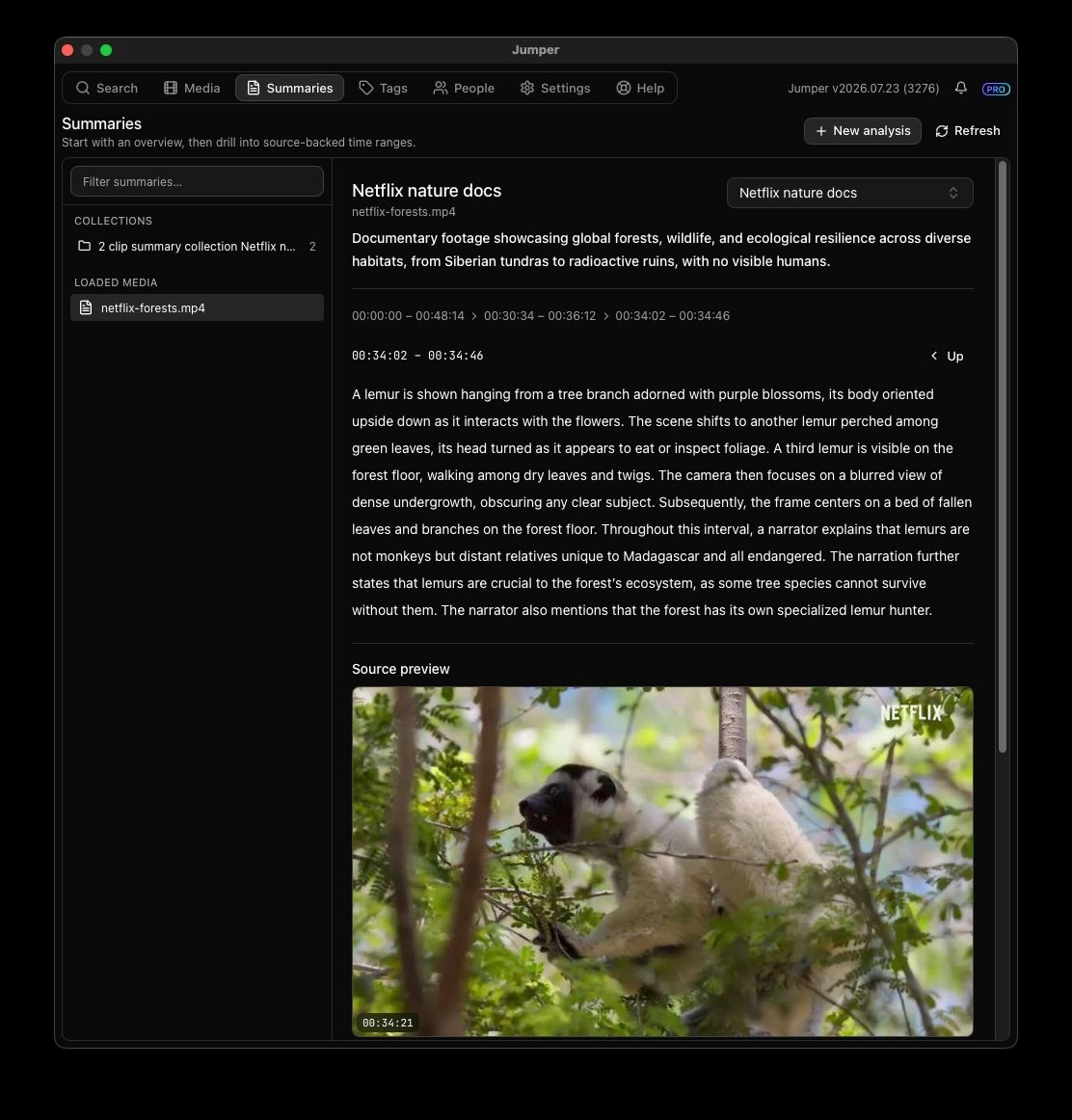
Summary Analysis gives you and your AI agent a fast way to understand footage before searching for individual shots, quotes, or people. It creates a layered textual description of each media file, beginning with a concise overview of the entire clip.
From that overview, you can progressively open more focused sections. Each level adds detail and points back to source time ranges, so you can move from “What is this clip about?” to the moments that deserve closer review.
 ## Why use Summary Analysis
Visual, speech, and people searches are most effective when you already know where to look. A Summary Analysis gives an editor or agent that initial map of the footage.
For example, an agent can read the overview of a long interview, open only the sections about a promising topic, and then limit its transcript search to those source ranges. On a documentary archive, it can compare overviews across many files before spending time on detailed searches.
A summary is navigation and reasoning context, not final source evidence. Verify exact quotations in the underlying transcript, identities with frames or People analysis, and edit points against the source media before using them in an edit or factual claim.
## Before you begin
* **Summary Analysis requires Jumper Pro.**
* The file must have completed [visual analysis](/core-concepts/processing).
* [Speech analysis](/core-concepts/speech-search) and [face analysis](/core-concepts/face-detection) are optional, but they can add useful dialogue and character context.
* Naming recognized people in the [People tab](/interface/people-tab) can make the result more useful.
* An AI summarization model must be downloaded to your computer. The available choices are **Small**, **Medium**, **Large**, and **Extra large**.
The summarization model runs locally with the rest of Jumper's analysis.
## Create a Summary Analysis
Open **Media** and make sure the footage has completed visual analysis.
For a batch, select the media and use the **Summary Analysis** document control. For one file, use its configuration gear.
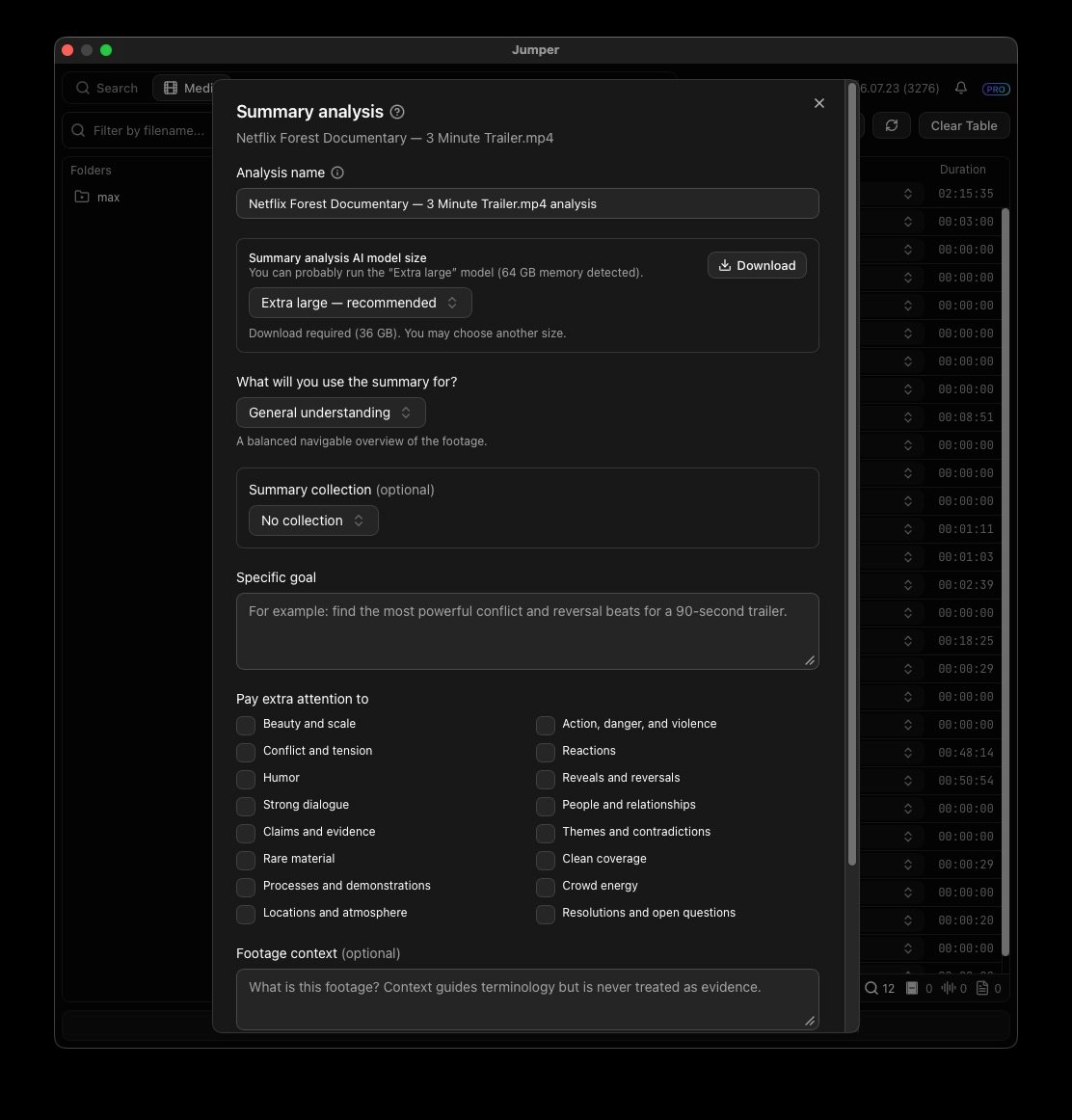
Enter a meaningful **Analysis name** that describes its editorial use, such as “Day 2 interviews — documentary research” or “Championship final — highlight moments.”
Select **Small**, **Medium**, **Large**, or **Extra large**. Download the selected AI summarization model if it is not already available locally.
Select a built-in purpose to give the analysis an editorial lens, or choose **Use only my instructions** when you want the analysis guided only by your own directions and priorities.
Optionally describe the question or deliverable you have in mind. Keep it concrete, such as “Identify the strongest conflict and reversal beats for a 90-second trailer.”
Under **Pay extra attention to**, select the areas that matter most to the edit, such as strong dialogue, reactions, people and relationships, themes, reveals, action, or atmosphere.
If useful, add **Footage context**, choose a **Summary collection**, include the transcript, select an output language, and allow named-person evidence from face analysis.
Add the analysis, then start processing the selected media.
Open **Summaries**. Start with the overview, then navigate into progressively more detailed sections, source time ranges, and source previews.
## Why use Summary Analysis
Visual, speech, and people searches are most effective when you already know where to look. A Summary Analysis gives an editor or agent that initial map of the footage.
For example, an agent can read the overview of a long interview, open only the sections about a promising topic, and then limit its transcript search to those source ranges. On a documentary archive, it can compare overviews across many files before spending time on detailed searches.
A summary is navigation and reasoning context, not final source evidence. Verify exact quotations in the underlying transcript, identities with frames or People analysis, and edit points against the source media before using them in an edit or factual claim.
## Before you begin
* **Summary Analysis requires Jumper Pro.**
* The file must have completed [visual analysis](/core-concepts/processing).
* [Speech analysis](/core-concepts/speech-search) and [face analysis](/core-concepts/face-detection) are optional, but they can add useful dialogue and character context.
* Naming recognized people in the [People tab](/interface/people-tab) can make the result more useful.
* An AI summarization model must be downloaded to your computer. The available choices are **Small**, **Medium**, **Large**, and **Extra large**.
The summarization model runs locally with the rest of Jumper's analysis.
## Create a Summary Analysis
Open **Media** and make sure the footage has completed visual analysis.
For a batch, select the media and use the **Summary Analysis** document control. For one file, use its configuration gear.
Enter a meaningful **Analysis name** that describes its editorial use, such as “Day 2 interviews — documentary research” or “Championship final — highlight moments.”
Select **Small**, **Medium**, **Large**, or **Extra large**. Download the selected AI summarization model if it is not already available locally.
Select a built-in purpose to give the analysis an editorial lens, or choose **Use only my instructions** when you want the analysis guided only by your own directions and priorities.
Optionally describe the question or deliverable you have in mind. Keep it concrete, such as “Identify the strongest conflict and reversal beats for a 90-second trailer.”
Under **Pay extra attention to**, select the areas that matter most to the edit, such as strong dialogue, reactions, people and relationships, themes, reveals, action, or atmosphere.
If useful, add **Footage context**, choose a **Summary collection**, include the transcript, select an output language, and allow named-person evidence from face analysis.
Add the analysis, then start processing the selected media.
Open **Summaries**. Start with the overview, then navigate into progressively more detailed sections, source time ranges, and source previews.
 ## Purpose and Specific goal
Purpose and goal work together, but they do different jobs.
| Setting | What it does | Example |
| ---------------------------- | ------------------------------------------------------------------------------------------------------------------------- | -------------------------------------------------------------------------------------------------- |
| **Built-in purpose** | Adds a familiar editorial lens to the whole analysis. | Documentary research, trailer creation, archive discovery, interview selects, or continuity review |
| **Specific goal** | Adds your instructions to the selected purpose. | “Track how the relationship changes after the second interview.” |
| **Use only my instructions** | Applies your **Specific goal** and selected **Pay extra attention to** priorities without adding a built-in purpose lens. | A specialized review that does not fit the available purposes |
Choose the purpose that is closest to the work you are doing, then use **Specific goal** to make it particular to this footage and deliverable.
## Reuse the same footage for different questions
The first Summary Analysis of a file takes longer because Jumper creates the initial factual observations it needs to describe the media. Later analyses of the same file can reuse those observations and concentrate on a different editing goal.
You can create multiple Summary Analyses for one file. A documentary team might create one analysis for story research and another for trailer moments. Give each analysis a meaningful name so collaborators and AI agents can identify the right one without opening every result.
**Summary collections** organize related analyses across multiple files—for example, all interviews from one production day or all reels from one archive box. Collections keep every source file distinguishable, allowing you and an agent to compare related material without losing track of where each observation came from.
## Practical uses
Understand interviews, observational scenes, characters, relationships, and themes before deciding on a story structure.
Surface promising hooks, confrontations, reversals, striking images, and memorable reactions for closer review.
Locate topic changes, strong statements, personal stories, and sections that may become selects.
Survey large collections, compare files, and focus detailed searches on the most relevant source ranges.
Find key moments, crowd energy, turning points, reactions, and sequences worth considering for a highlight reel.
Follow characters, relationships, themes, locations, props, or continuity details across related footage.
## How AI agents use summaries
When Summary Analysis is available, an AI agent such as Claude or ChatGPT can use it quietly in the background to orient its work:
1. Inventory the available summary collections and their source files.
2. Read concise whole-clip overviews first.
3. Drill only into branches that look promising for the task.
4. Narrow later visual, transcript, or people searches to the relevant source time ranges.
5. Verify selected material against the transcript, frames, People analysis, or source media before creating an edit or making a factual claim.
This progressive approach gives the agent useful context without treating every summary sentence as proof. It spends detailed search and review effort where it is most likely to help the edit.
Prepare footage for visual, speech, face, and summary workflows.
Learn how Claude, ChatGPT, and other AI agents work with Jumper.
## Purpose and Specific goal
Purpose and goal work together, but they do different jobs.
| Setting | What it does | Example |
| ---------------------------- | ------------------------------------------------------------------------------------------------------------------------- | -------------------------------------------------------------------------------------------------- |
| **Built-in purpose** | Adds a familiar editorial lens to the whole analysis. | Documentary research, trailer creation, archive discovery, interview selects, or continuity review |
| **Specific goal** | Adds your instructions to the selected purpose. | “Track how the relationship changes after the second interview.” |
| **Use only my instructions** | Applies your **Specific goal** and selected **Pay extra attention to** priorities without adding a built-in purpose lens. | A specialized review that does not fit the available purposes |
Choose the purpose that is closest to the work you are doing, then use **Specific goal** to make it particular to this footage and deliverable.
## Reuse the same footage for different questions
The first Summary Analysis of a file takes longer because Jumper creates the initial factual observations it needs to describe the media. Later analyses of the same file can reuse those observations and concentrate on a different editing goal.
You can create multiple Summary Analyses for one file. A documentary team might create one analysis for story research and another for trailer moments. Give each analysis a meaningful name so collaborators and AI agents can identify the right one without opening every result.
**Summary collections** organize related analyses across multiple files—for example, all interviews from one production day or all reels from one archive box. Collections keep every source file distinguishable, allowing you and an agent to compare related material without losing track of where each observation came from.
## Practical uses
Understand interviews, observational scenes, characters, relationships, and themes before deciding on a story structure.
Surface promising hooks, confrontations, reversals, striking images, and memorable reactions for closer review.
Locate topic changes, strong statements, personal stories, and sections that may become selects.
Survey large collections, compare files, and focus detailed searches on the most relevant source ranges.
Find key moments, crowd energy, turning points, reactions, and sequences worth considering for a highlight reel.
Follow characters, relationships, themes, locations, props, or continuity details across related footage.
## How AI agents use summaries
When Summary Analysis is available, an AI agent such as Claude or ChatGPT can use it quietly in the background to orient its work:
1. Inventory the available summary collections and their source files.
2. Read concise whole-clip overviews first.
3. Drill only into branches that look promising for the task.
4. Narrow later visual, transcript, or people searches to the relevant source time ranges.
5. Verify selected material against the transcript, frames, People analysis, or source media before creating an edit or making a factual claim.
This progressive approach gives the agent useful context without treating every summary sentence as proof. It spends detailed search and review effort where it is most likely to help the edit.
Prepare footage for visual, speech, face, and summary workflows.
Learn how Claude, ChatGPT, and other AI agents work with Jumper.