> ## Documentation Index
> Fetch the complete documentation index at: https://docs.getjumper.io/llms.txt
> Use this file to discover all available pages before exploring further.
# Configure company SSO
> Connect your organization's OpenID Connect identity provider to the Enterprise Admin Panel.
Connect your organization's identity provider through **OpenID Connect (OIDC)** so users can sign in with company credentials. The Admin Panel supports one OIDC connection for the organization.
Before you begin:
* You have the **Issuer URL**, **Client ID**, and **Client secret** from your identity provider administrator.
* The [Admin Panel is open](/enterprise/access-policies#open-the-admin-panel).
Open **Company SSO** in the Admin Panel.
Enter the **Issuer URL**, **Client ID**, and **Client secret**.
Click **Save candidate** to save the proposed connection.
Click **Test login** and complete the sign-in in your system browser.
Return to the Admin Panel and confirm that the status is **Enabled**.
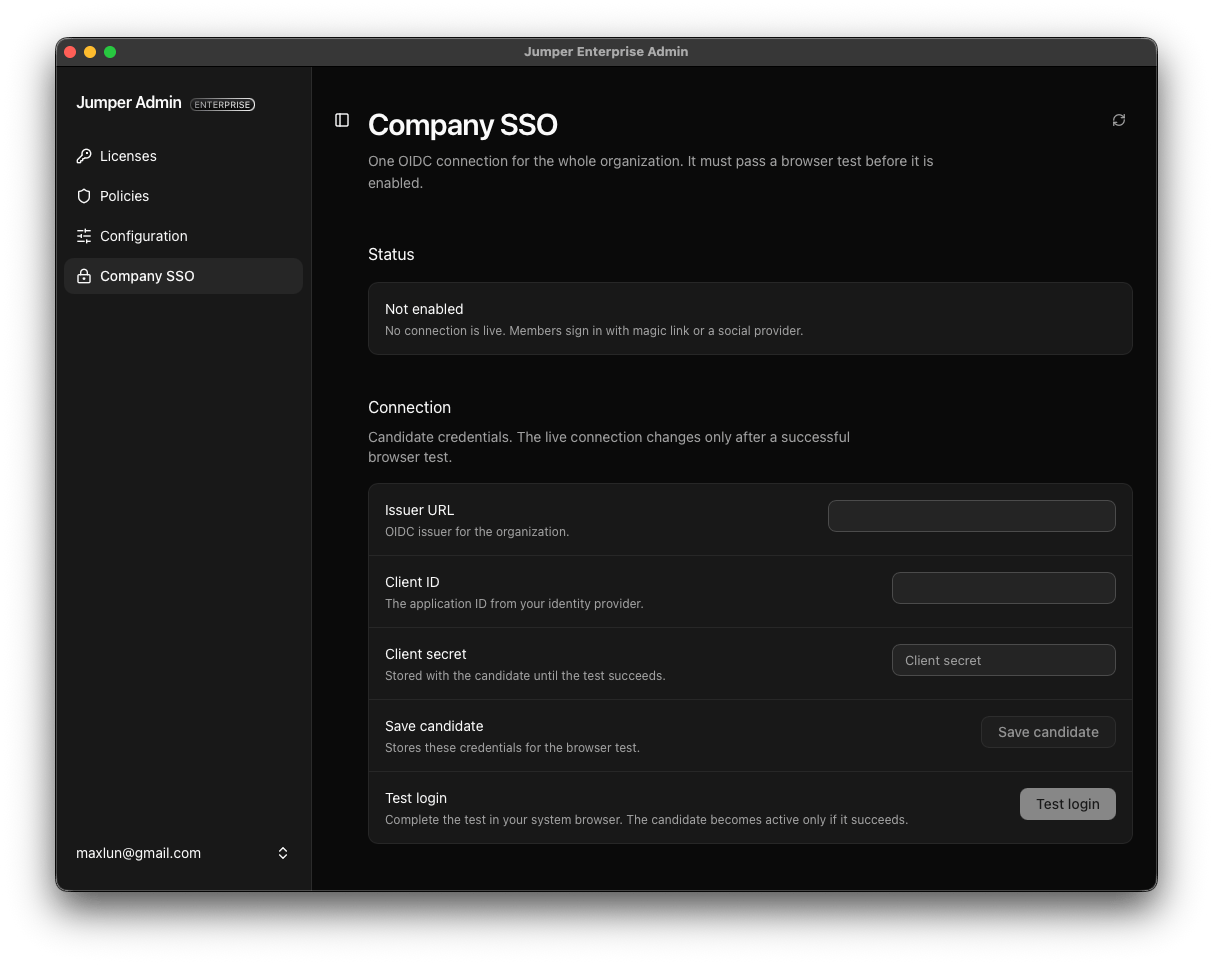 The connection becomes active only after a successful browser test. When replacing an existing connection, the current connection remains active until the replacement passes its test.
Once configured, users can enter their work email on the sign-in screen and select **Company SSO**.
For help setting up Enterprise licenses or your organization's SSO connection, contact [Jumper support](mailto:hello@getjumper.io).
This documentation is built and hosted on [Mintlify](https://mintlify.com), a developer documentation platform.
The connection becomes active only after a successful browser test. When replacing an existing connection, the current connection remains active until the replacement passes its test.
Once configured, users can enter their work email on the sign-in screen and select **Company SSO**.
For help setting up Enterprise licenses or your organization's SSO connection, contact [Jumper support](mailto:hello@getjumper.io).
This documentation is built and hosted on [Mintlify](https://mintlify.com), a developer documentation platform.