> ## Documentation Index
> Fetch the complete documentation index at: https://docs.getjumper.io/llms.txt
> Use this file to discover all available pages before exploring further.
# Send a configuration
> Send a prepared Jumper setup to selected Enterprise licenses from the Admin Panel.
Send a prepared Jumper setup to the licenses that should start with it. Each editor receives the configuration when they activate their license.
Before you begin:
* You have [prepared the editor setup](/enterprise/prepare-editor-setup), or you have an [exported settings ZIP](/interface/settings-tab#export-and-import-settings).
* The licenses have [policies assigned](/enterprise/access-policies#assign-policies-to-licenses). A configuration alone does not grant access.
* The [Admin Panel is open](/enterprise/access-policies#open-the-admin-panel).
Open **Configuration**.
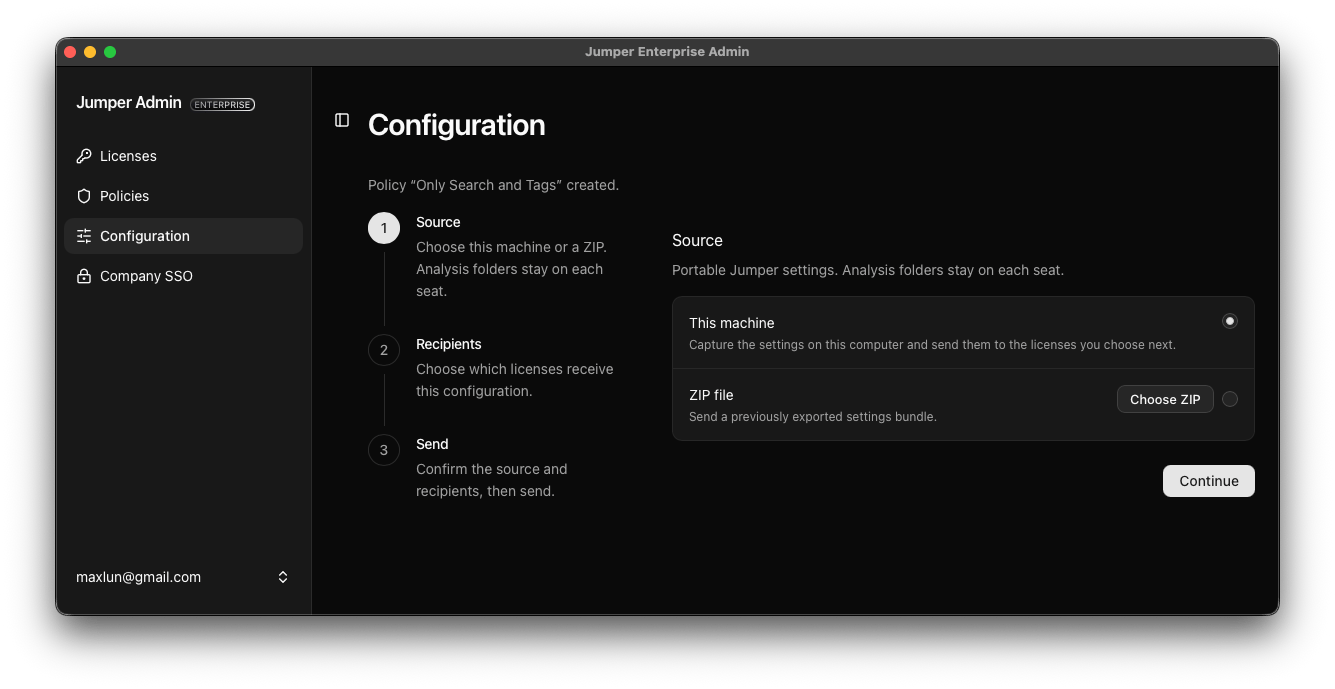
Select **This machine** to capture the Jumper setup you prepared, or choose **ZIP file** and select a previously [exported settings bundle](/interface/settings-tab#export-and-import-settings). Click **Continue**.
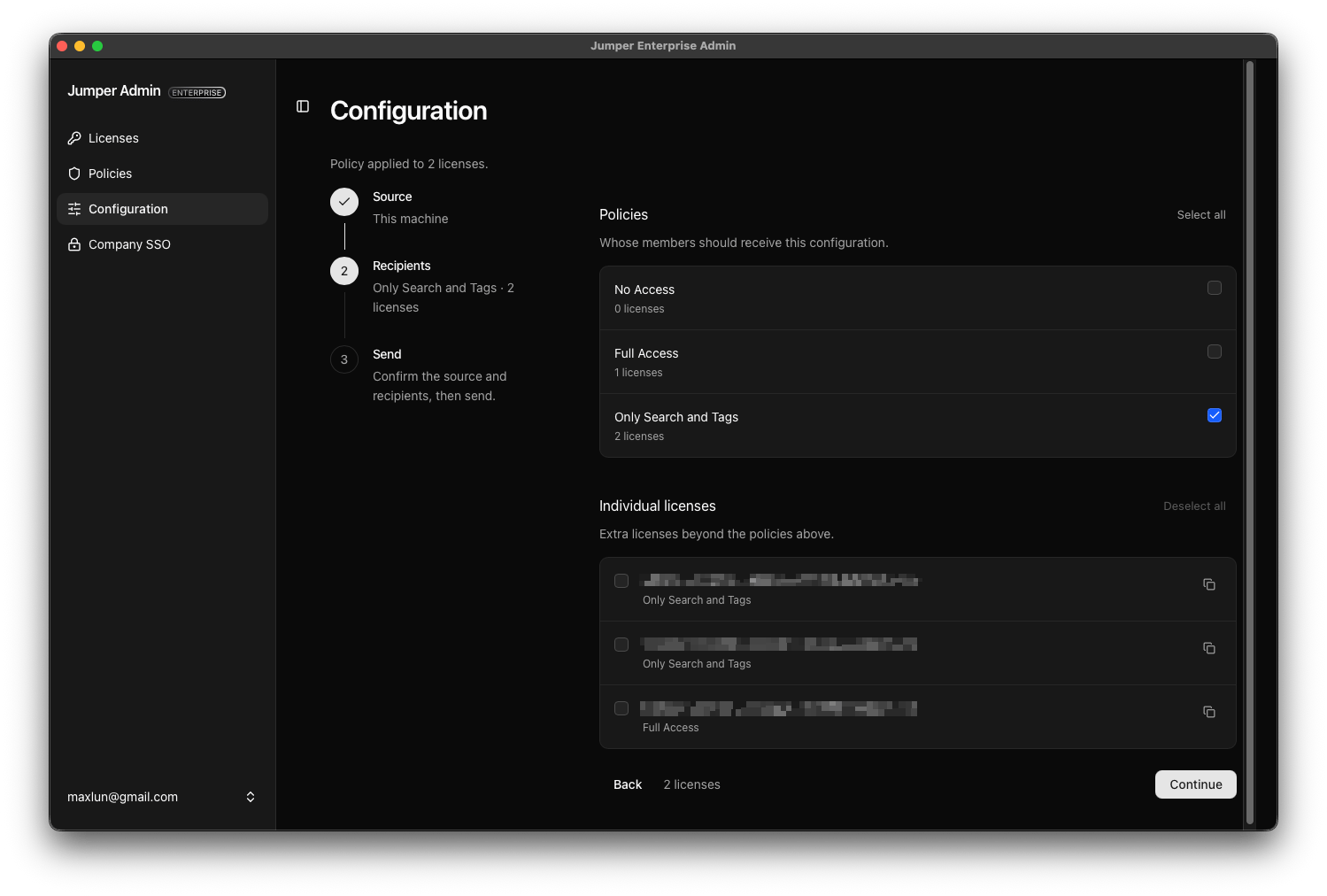
 Select policies to send the configuration to their current members. Under **Individual licenses**, you can add recipients beyond those policies. Check the total number of licenses, then click **Continue**.
In this example, both licenses in the **Only Search and Tags** policy receive the same setup.
Select policies to send the configuration to their current members. Under **Individual licenses**, you can add recipients beyond those policies. Check the total number of licenses, then click **Continue**.
In this example, both licenses in the **Only Search and Tags** policy receive the same setup.
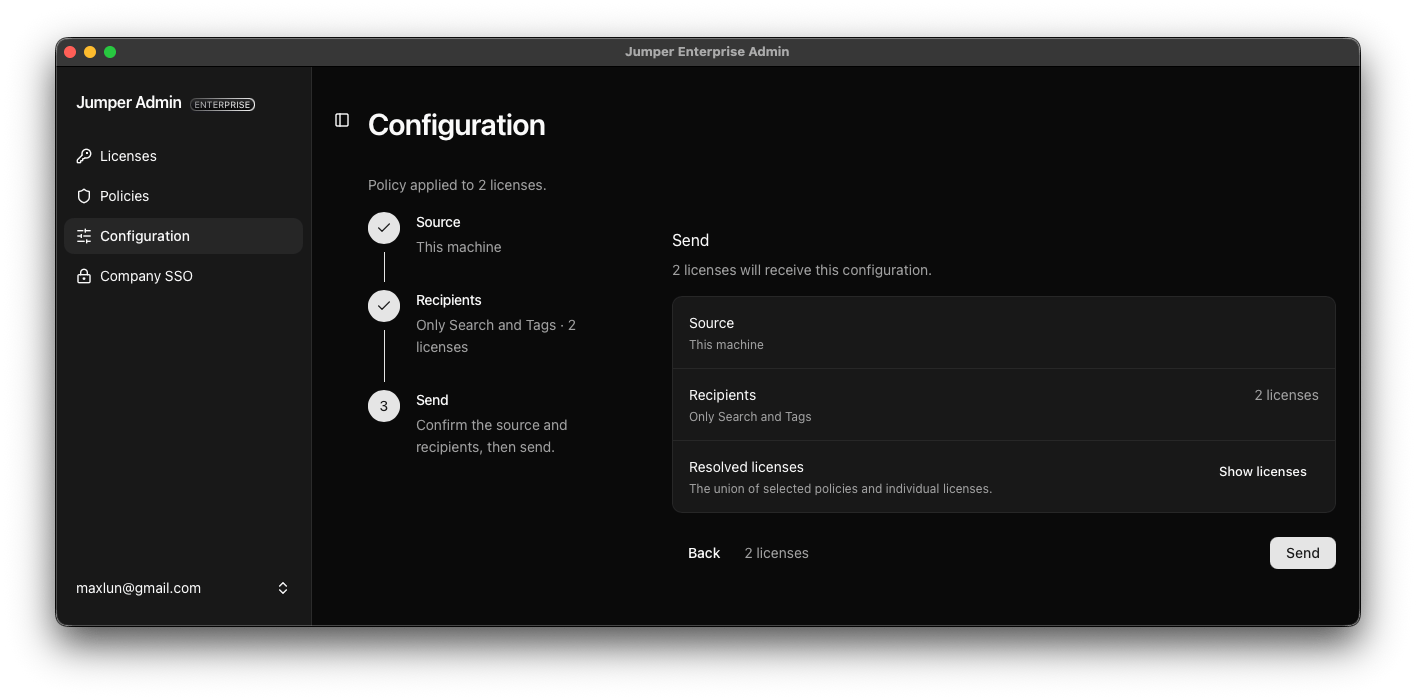
 Confirm the source and recipients. Use **Show licenses** to inspect the complete recipient list, then click **Send**. A license selected through both a policy and the individual list is included only once.
 To distribute a revised setup, prepare the changes and send the configuration again to the intended recipients.
For what editors see when they activate, see the [Enterprise overview](/enterprise/overview#what-the-editor-sees).
This documentation is built and hosted on [Mintlify](https://mintlify.com), a developer documentation platform.
To distribute a revised setup, prepare the changes and send the configuration again to the intended recipients.
For what editors see when they activate, see the [Enterprise overview](/enterprise/overview#what-the-editor-sees).
This documentation is built and hosted on [Mintlify](https://mintlify.com), a developer documentation platform.