> ## Documentation Index
> Fetch the complete documentation index at: https://docs.getjumper.io/llms.txt
> Use this file to discover all available pages before exploring further.
# Open and sign in
> Open the Enterprise Admin Panel, sign in, and set or enter the organization admin password.
Open the Admin Panel from Jumper, sign in, and unlock it with the organization admin password. The first time, you also create that password.
Before you begin: you have a Jumper Enterprise license. For background, see the [Enterprise overview](/enterprise/overview).
## Open the Admin Panel
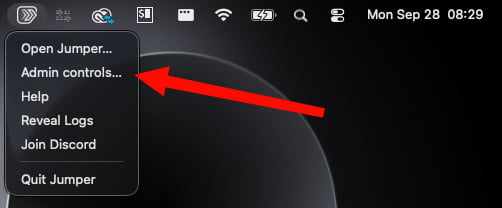
On macOS, select **Admin controls…** from the Jumper menu bar menu. On Windows, select **Admin controls** from the Jumper system tray menu.
The screenshot below shows the macOS menu.
 ## Sign in
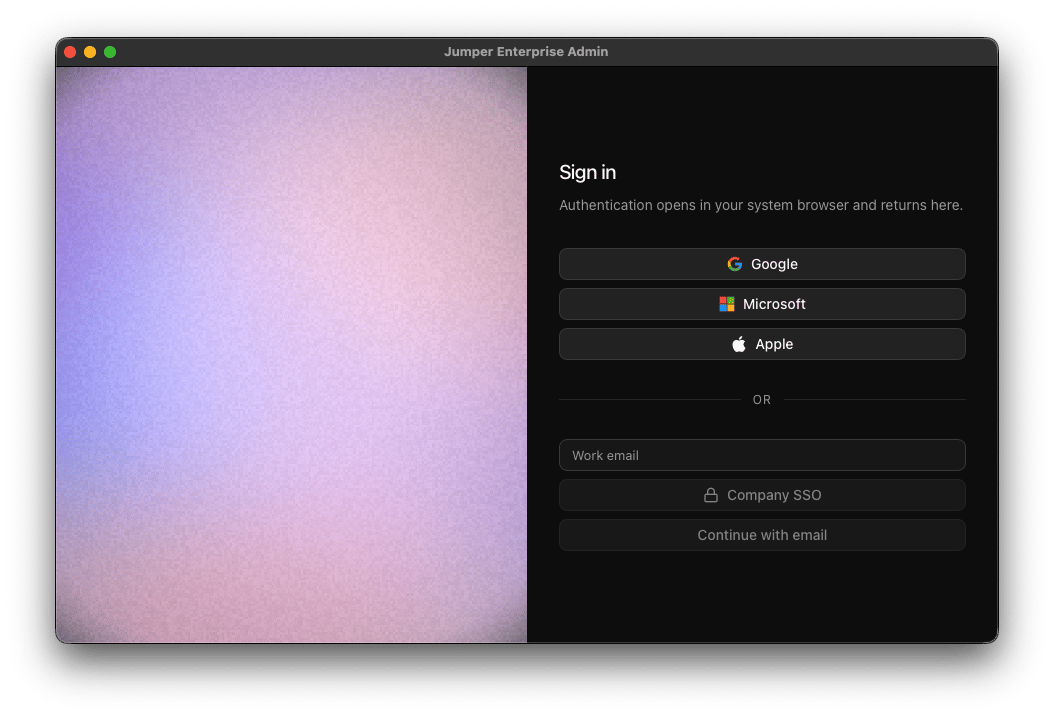
Sign in with the account that manages your organization's Enterprise licenses.
**Google**, **Microsoft**, and **Apple** continue in your system browser and return to the Admin Panel.
For email, enter a work email and select **Continue with email**. Open the sign-in link Jumper sends.
**Company SSO** is available after you [configure company SSO](/enterprise/company-sso). Enter a work email, then select **Company SSO**.
Sign-in times out after five minutes. Start it again if it does.
## Sign in
Sign in with the account that manages your organization's Enterprise licenses.
**Google**, **Microsoft**, and **Apple** continue in your system browser and return to the Admin Panel.
For email, enter a work email and select **Continue with email**. Open the sign-in link Jumper sends.
**Company SSO** is available after you [configure company SSO](/enterprise/company-sso). Enter a work email, then select **Company SSO**.
Sign-in times out after five minutes. Start it again if it does.
 ## Set the admin password
The first time you sign in, Jumper asks you to set up administration. This creates one organization admin password. Later sign-ins use that same password to unlock the Admin Panel.
Enter the Enterprise license key that owns the organization. Select **Paste** to insert it from the clipboard.
Enter a new organization admin password of at least 12 characters, then enter it again to confirm.
Select **Finish setup**. The Admin Panel opens.
The first setup assigns every license to **Full Access**. Remove that policy when a license should see less. See [Create and assign access policies](/enterprise/access-policies).
## Unlock the Admin Panel
On a later visit, sign in, then enter the organization admin password and select **Unlock**. Select **Paste** to insert the password from the clipboard.
To leave, open the account menu at the bottom of the sidebar and select **Log out**. The menu shows the signed-in email.
## Change the admin password
Open the account menu and select **Account**.
Enter the current password, then a new password of at least 12 characters, and confirm the new password.
Select **Change password**.
Changing the password signs out other Admin sessions.
## Next
[Prepare the editor setup](/enterprise/prepare-editor-setup), then [create access policies](/enterprise/access-policies).
This documentation is built and hosted on [Mintlify](https://mintlify.com), a developer documentation platform.
## Set the admin password
The first time you sign in, Jumper asks you to set up administration. This creates one organization admin password. Later sign-ins use that same password to unlock the Admin Panel.
Enter the Enterprise license key that owns the organization. Select **Paste** to insert it from the clipboard.
Enter a new organization admin password of at least 12 characters, then enter it again to confirm.
Select **Finish setup**. The Admin Panel opens.
The first setup assigns every license to **Full Access**. Remove that policy when a license should see less. See [Create and assign access policies](/enterprise/access-policies).
## Unlock the Admin Panel
On a later visit, sign in, then enter the organization admin password and select **Unlock**. Select **Paste** to insert the password from the clipboard.
To leave, open the account menu at the bottom of the sidebar and select **Log out**. The menu shows the signed-in email.
## Change the admin password
Open the account menu and select **Account**.
Enter the current password, then a new password of at least 12 characters, and confirm the new password.
Select **Change password**.
Changing the password signs out other Admin sessions.
## Next
[Prepare the editor setup](/enterprise/prepare-editor-setup), then [create access policies](/enterprise/access-policies).
This documentation is built and hosted on [Mintlify](https://mintlify.com), a developer documentation platform.