> ## Documentation Index
> Fetch the complete documentation index at: https://docs.getjumper.io/llms.txt
> Use this file to discover all available pages before exploring further.
# Frequently Asked Questions
> Here are some of the most commonly asked questions.
Can't find the answer to your question here? Use the Search bar above or join our [Discord](https://discord.getjumper.io) server to ask your question to the community and get in contact with other users.
## General
Fast.
We've tested on a few different machines (MBP M1, Windows i5 laptop, 2019 Ryzen desktop) and all were able to search through roughly 100 hours of footage in about 0.2 seconds.
We are also actively and constantly trying to improve performance.
This depends mainly on three factors:
* Your machine
* The resolution of the footage
* The [model you are using](/reference/machine-learning-models)
We've found that a MacBook M1 Pro can visually analyze around 15 minutes of footage in 1 minute but Windows users with Nvidia GPUs can analyze significantly faster.
An Nvidia GPU provides the fastest analysis, followed by Apple Silicon (due to GPU acceleration). Running on the CPU is significantly slower.
Jumper should not inherently affect the boot time of your NLE. If you experience slow boot times, it's likely due to the NLE having a massive master project open, causing slow indexing.
You can select one or more audio channels to transcribe. When the same dialogue appears on multiple channels, Jumper merges the transcripts and removes the duplicate speech.
See [Audio channels](/core-concepts/speech-search#audio-channels) for details.
## Licensing & Account management
A license is for one active computer. You can activate it on as many computers as you want but only one computer can be active at a time.
Yes, any workstation that needs to read or access shared analysis data created on a different machine must have a Pro tier license.
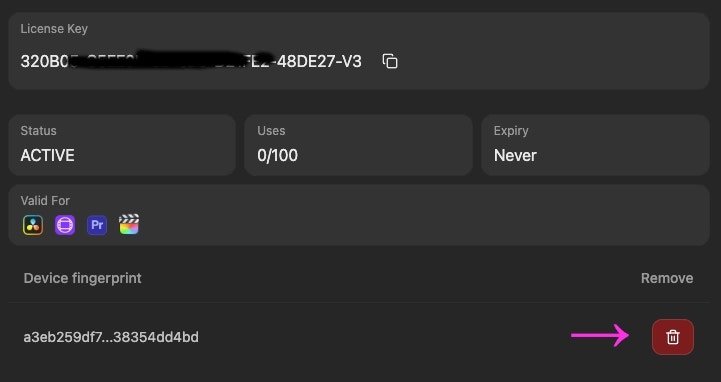
Use the email associated with your license key and go to [getjumper.io](https://getjumper.io/) and click the **Log in** button, and enter your email there.
A login link should be emailed to you shortly. Click it and you will be taken to the License Management portal at the website.
There you will see a red trashcan under the "Device fingerprint" for your license. Click the red trash can to sign out the currently active computer.
Now you can apply your license key on another computer.
 **For paid licenses:** Yes. Licenses require re-validation only once a week via an internet connection. After successful validation, the license is valid for one week of fully offline use. **For trial licenses:** An internet connection is always required.
Click **Log in** at the top of the main website [here](https://getjumper.io/account) to cancel your subscription.
Click **Log in** at the top of the main website [here](https://getjumper.io/account) to change your payment method.
You can see our Refund Policy [here](/about/refund/).
## Privacy & Data
No, we don't upload the data analyzed from your footage, or any part of your footage.
The analysis is done **locally** and **stays on your computer**.
No.
Jumper only requires an Internet connection for **license verification**.
Once your license key is verified, you can run everything offline - no Internet required.
Jumper only requires an Internet connection for license verification.
Once your license key is verified, you can run everything offline - no Internet required.
Nothing related to you or your footage ever leaves your computer, apart from licensing information and crash reports.
You can read our Privacy Policy [here](/about/privacy/).
Jumper uses [Keygen](https://keygen.sh) for managing licenses, and therefore you should whitelist the `api.keygen.sh` domain in your firewall settings.
## Storage & Files
When analyzing footage, Jumper generates Analysis files.
The size of these Analysis files varies depending on a few factors like resolution and frame rate.
As a rough guide, the analysis data is about 0.1% of the size of the original media file.
The analysis files are saved permanently in the analysis folder. The **Clear Media** button only removes the clips from the current view in the Jumper Media Panel; it does not delete the actual analysis files. Analysis files can only be deleted by physically removing them from the analysis folder.
Yes, to transfer the Analysis Files on macOS:
* Open the `Terminal.app` from Spotlight, and navigate to the cache directory:
```
open ~/Library/Application\ Support/
```
Then you can copy the `jumper-cache` folder to the same location on the other editor's machine.
No, copying the Analysis Files will be additive.
It will not overwrite existing files but add to them.
Yes, you can change the location of your Analysis Files Folder under the `Settings` tab in Jumper.
## Permissions
Short answer: Because Final Cut Pro is a bit of a walled garden.
Longer answer: Jumper uses macOS's Accessibility API to simulate button presses and menu clicks, just like Automator or BetterTouchTool. This is necessary to control FCP, since its native API doesn't expose everything we need.
We're not recording video. Jumper uses Apple's screen APIs to read info like window titles and whether Final Cut Pro is playing or paused. This lets us be smart about what's happening on screen without saving or sending anything.
This permission is only needed for Final Cut Pro.
We need access to your Library folder to read FCP's preferences and current command set. Without this, we can't adapt to your customised setup. This is read-only and stays local.
Only if you're using Final Cut Pro. If you're using Jumper with Premiere, Resolve, or Avid, skip 'em all. These permissions are FCP-specific workarounds for Apple's limitations.
## Search & Metadata
Yes. Use [tag collections](/guides/tag-collections) to save search results, segments, or whole clips into personal or shared collections, then filter your search to a curated set of clips. Collections support comments, color markers, and sorting.
Not yet. Search covers visual, speech, and facial metadata. It does not search technical metadata (e.g., "50 fps") or folder path names (e.g., "Paris"). This is on the roadmap, especially for the standalone application.
The "Match Source," "Match Timeline," and "Match Pasteboard frame" buttons are designed to find a frame within a maximum of a one-second difference from the input frame, as Jumper samples at 1 frame per second (FPS) during analysis.
## Workflow & Integration
No, Jumper currently focuses on media files and does not replicate the directory structure or file names. The ability to view the folder hierarchy is on the roadmap.
**Multicam:** Jumper supports Multicam sequences in Premiere. If the source footage is analyzed, clicking a search result will open the Multicam sequence, not just the source file. **Proxies:** The application is not yet designed to automatically match a search result from a proxy file back to the full-resolution source file. However, analyzing proxy files is faster than full-resolution files.
Yes. Jumper includes Watch Folders for automatically analyzing new media added to selected directories.
See [Watch Folders](/guides/watch-folders) for setup and current behavior.
Jumper relies on default DaVinci Resolve shortcuts. **Shift + I** ("Go to in point") moves the playhead when marking in/out. **Ctrl + 3** (Windows) / **Cmd + 3** (macOS) exports the current frame for the Match Source button. DaVinci Resolve must be in English for menu automation to work.
Custom keyboard shortcuts will break these features. See the [DaVinci Resolve installation guide](/NLE/resolve/resolve-guide#required-shortcuts) for details.
Jumper uses Avid's default **I** (Mark IN), **O** (Mark OUT), and **Q** (Go to IN point) shortcuts for Source Viewer navigation and Mark IN/OUT.
Custom shortcuts for these keys will break related Jumper features. See [Required shortcuts](/NLE/avid/avid-guide#required-shortcuts) in the Avid installation guide.
## Performance & Scaling
Performance on a Network Attached Storage (NAS) is heavily dependent on your network speed (e.g., 10GbE connections have been tested to work well).
**For paid licenses:** Yes. Licenses require re-validation only once a week via an internet connection. After successful validation, the license is valid for one week of fully offline use. **For trial licenses:** An internet connection is always required.
Click **Log in** at the top of the main website [here](https://getjumper.io/account) to cancel your subscription.
Click **Log in** at the top of the main website [here](https://getjumper.io/account) to change your payment method.
You can see our Refund Policy [here](/about/refund/).
## Privacy & Data
No, we don't upload the data analyzed from your footage, or any part of your footage.
The analysis is done **locally** and **stays on your computer**.
No.
Jumper only requires an Internet connection for **license verification**.
Once your license key is verified, you can run everything offline - no Internet required.
Jumper only requires an Internet connection for license verification.
Once your license key is verified, you can run everything offline - no Internet required.
Nothing related to you or your footage ever leaves your computer, apart from licensing information and crash reports.
You can read our Privacy Policy [here](/about/privacy/).
Jumper uses [Keygen](https://keygen.sh) for managing licenses, and therefore you should whitelist the `api.keygen.sh` domain in your firewall settings.
## Storage & Files
When analyzing footage, Jumper generates Analysis files.
The size of these Analysis files varies depending on a few factors like resolution and frame rate.
As a rough guide, the analysis data is about 0.1% of the size of the original media file.
The analysis files are saved permanently in the analysis folder. The **Clear Media** button only removes the clips from the current view in the Jumper Media Panel; it does not delete the actual analysis files. Analysis files can only be deleted by physically removing them from the analysis folder.
Yes, to transfer the Analysis Files on macOS:
* Open the `Terminal.app` from Spotlight, and navigate to the cache directory:
```
open ~/Library/Application\ Support/
```
Then you can copy the `jumper-cache` folder to the same location on the other editor's machine.
No, copying the Analysis Files will be additive.
It will not overwrite existing files but add to them.
Yes, you can change the location of your Analysis Files Folder under the `Settings` tab in Jumper.
## Permissions
Short answer: Because Final Cut Pro is a bit of a walled garden.
Longer answer: Jumper uses macOS's Accessibility API to simulate button presses and menu clicks, just like Automator or BetterTouchTool. This is necessary to control FCP, since its native API doesn't expose everything we need.
We're not recording video. Jumper uses Apple's screen APIs to read info like window titles and whether Final Cut Pro is playing or paused. This lets us be smart about what's happening on screen without saving or sending anything.
This permission is only needed for Final Cut Pro.
We need access to your Library folder to read FCP's preferences and current command set. Without this, we can't adapt to your customised setup. This is read-only and stays local.
Only if you're using Final Cut Pro. If you're using Jumper with Premiere, Resolve, or Avid, skip 'em all. These permissions are FCP-specific workarounds for Apple's limitations.
## Search & Metadata
Yes. Use [tag collections](/guides/tag-collections) to save search results, segments, or whole clips into personal or shared collections, then filter your search to a curated set of clips. Collections support comments, color markers, and sorting.
Not yet. Search covers visual, speech, and facial metadata. It does not search technical metadata (e.g., "50 fps") or folder path names (e.g., "Paris"). This is on the roadmap, especially for the standalone application.
The "Match Source," "Match Timeline," and "Match Pasteboard frame" buttons are designed to find a frame within a maximum of a one-second difference from the input frame, as Jumper samples at 1 frame per second (FPS) during analysis.
## Workflow & Integration
No, Jumper currently focuses on media files and does not replicate the directory structure or file names. The ability to view the folder hierarchy is on the roadmap.
**Multicam:** Jumper supports Multicam sequences in Premiere. If the source footage is analyzed, clicking a search result will open the Multicam sequence, not just the source file. **Proxies:** The application is not yet designed to automatically match a search result from a proxy file back to the full-resolution source file. However, analyzing proxy files is faster than full-resolution files.
Yes. Jumper includes Watch Folders for automatically analyzing new media added to selected directories.
See [Watch Folders](/guides/watch-folders) for setup and current behavior.
Jumper relies on default DaVinci Resolve shortcuts. **Shift + I** ("Go to in point") moves the playhead when marking in/out. **Ctrl + 3** (Windows) / **Cmd + 3** (macOS) exports the current frame for the Match Source button. DaVinci Resolve must be in English for menu automation to work.
Custom keyboard shortcuts will break these features. See the [DaVinci Resolve installation guide](/NLE/resolve/resolve-guide#required-shortcuts) for details.
Jumper uses Avid's default **I** (Mark IN), **O** (Mark OUT), and **Q** (Go to IN point) shortcuts for Source Viewer navigation and Mark IN/OUT.
Custom shortcuts for these keys will break related Jumper features. See [Required shortcuts](/NLE/avid/avid-guide#required-shortcuts) in the Avid installation guide.
## Performance & Scaling
Performance on a Network Attached Storage (NAS) is heavily dependent on your network speed (e.g., 10GbE connections have been tested to work well).