> ## Documentation Index
> Fetch the complete documentation index at: https://docs.getjumper.io/llms.txt
> Use this file to discover all available pages before exploring further.
# Using face detection
> Step-by-step guide to detecting faces, naming people, and searching for them in your footage
This feature requires a Jumper Pro license
This guide walks you through the process of detecting faces in your footage, organizing them into collections, and searching for specific people. For an overview of how face detection works and what Collections are, see [Face detection](/core-concepts/face-detection).
## Detecting faces in media
To detect faces in a media file, you need to mark the media file for face detection in the [Media tab](/interface/media-tab) (tick the checkbox in the `Mark for face detection` column) and choose a Collection to add the faces to.
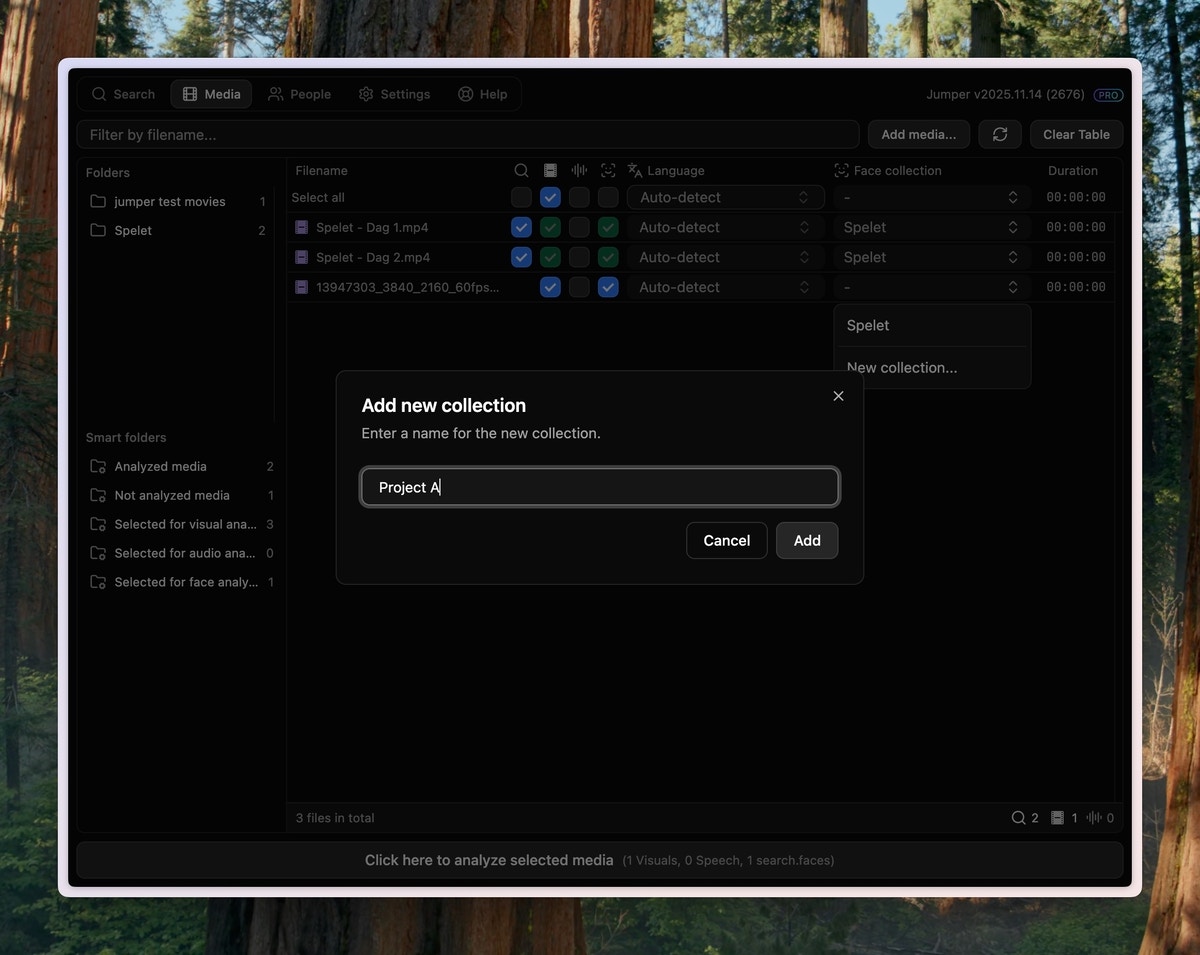
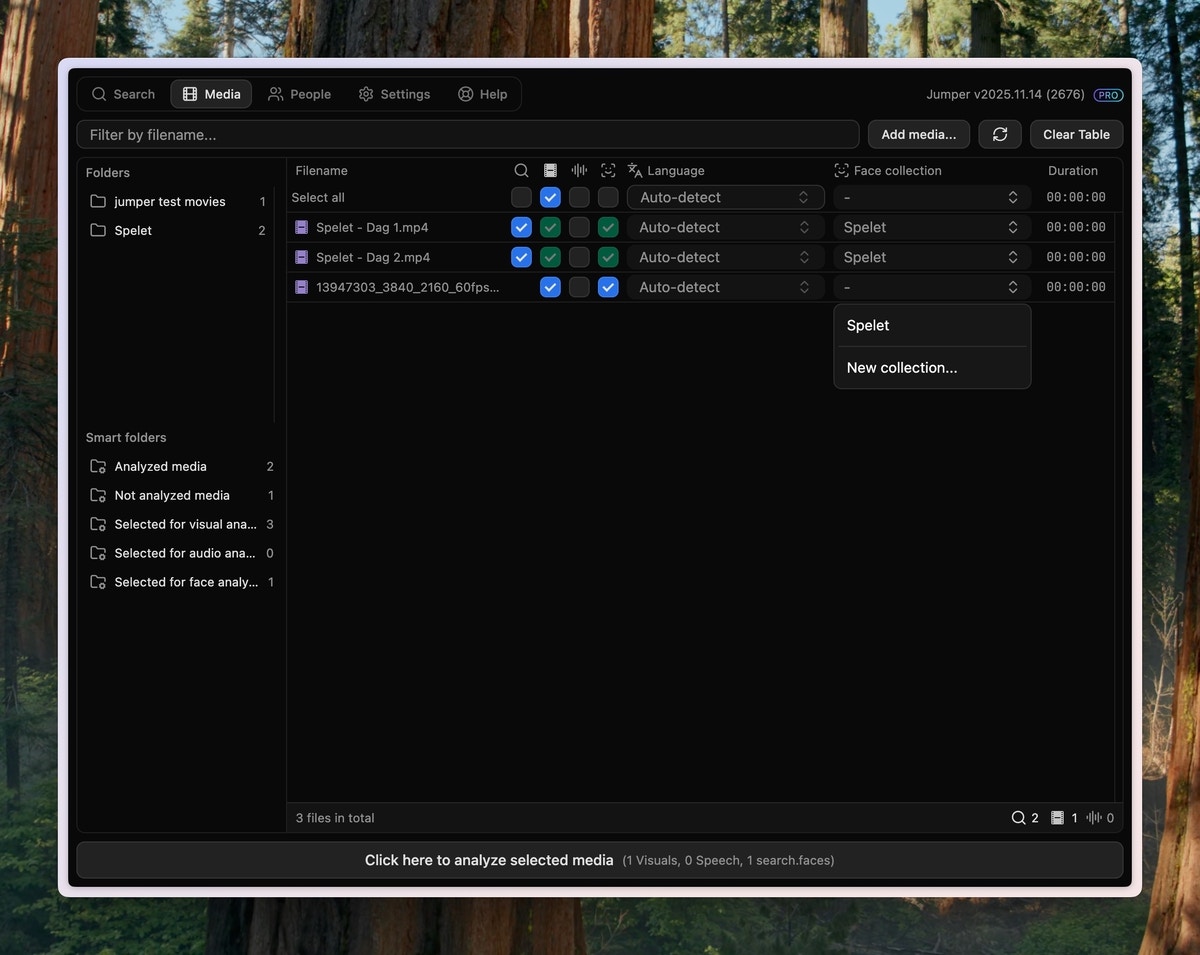 By clicking the dropdown menu, you can choose a Collection or create a new one.
 ## Viewing detected faces
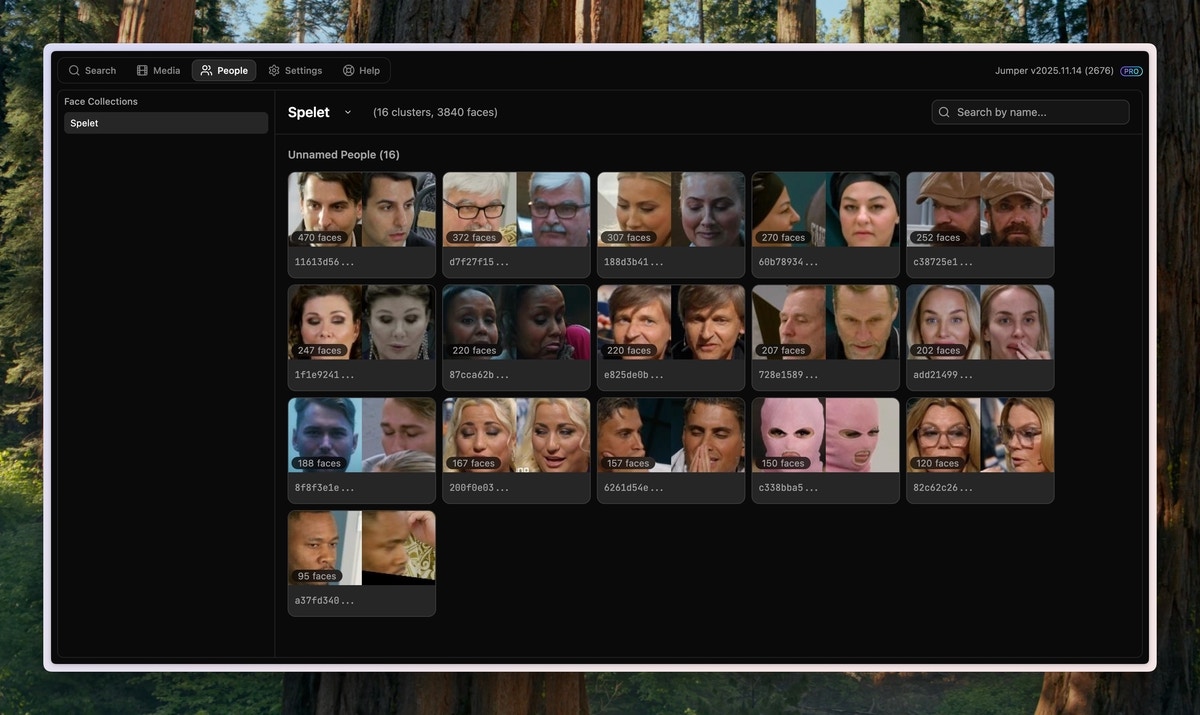
Once the media file has been analyzed, you can see your collection of faces in the [People tab](/interface/people-tab). By default, all people are unnamed.
With default settings, the People Grid shows all the people that occur in at least 5 seconds of footage.
## Viewing detected faces
Once the media file has been analyzed, you can see your collection of faces in the [People tab](/interface/people-tab). By default, all people are unnamed.
With default settings, the People Grid shows all the people that occur in at least 5 seconds of footage.
 ## Naming people
To assign a name to a person, click the name field and type the name.
## Naming people
To assign a name to a person, click the name field and type the name.
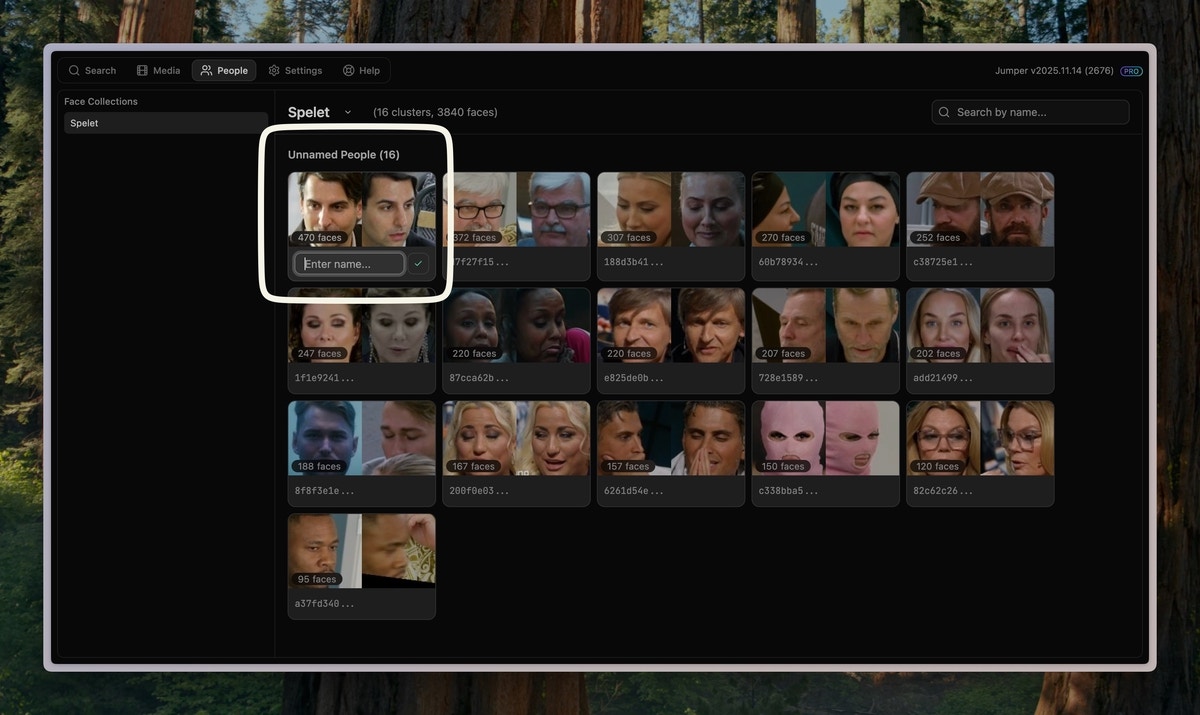
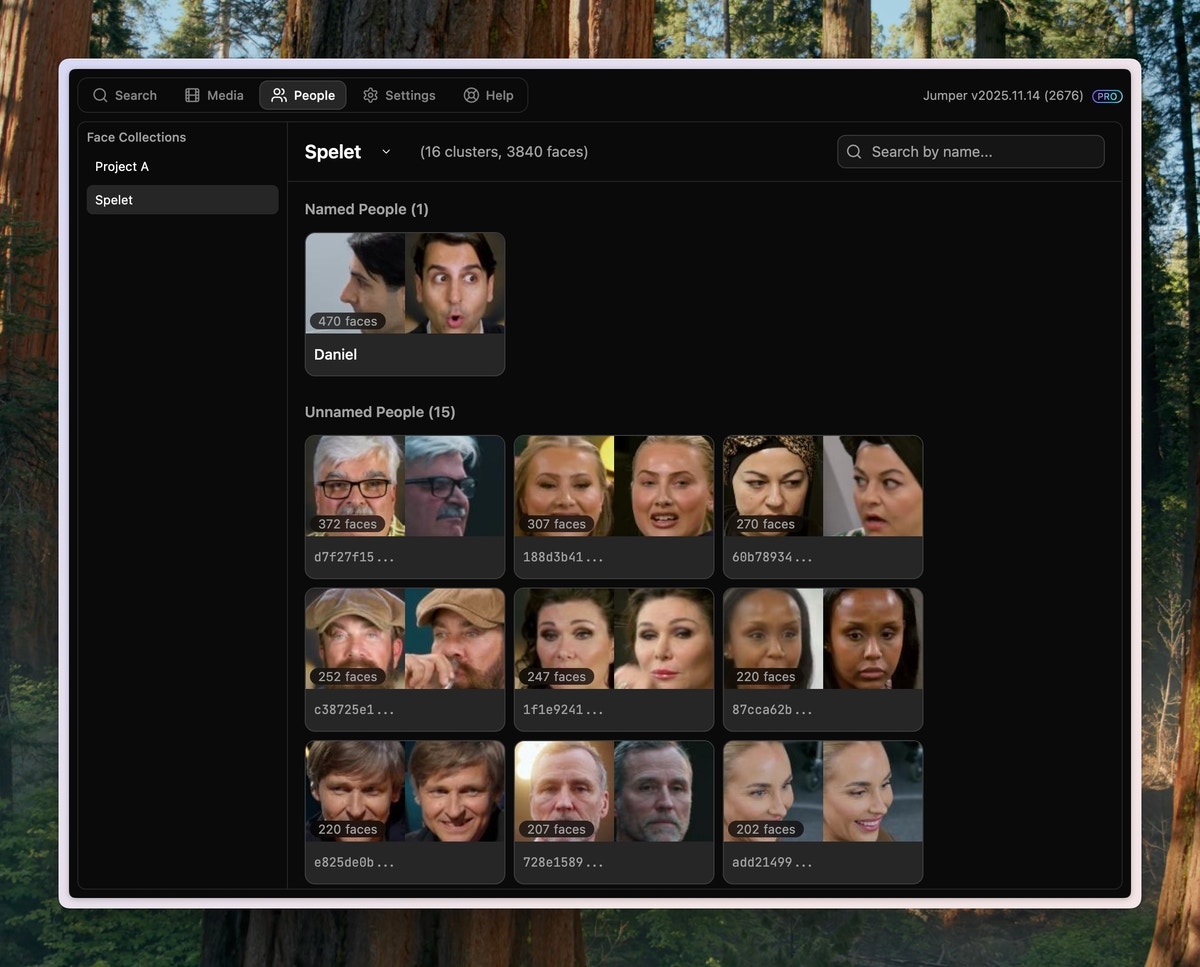 After assigning a name, that person becomes searchable in the [Search tab](/interface/search-tab).
## Searching for people
To search for a person, click the Face icon button to bring up a list of all named people and select the person you want to search for.
Pro tip: You can also type '@' in the search bar to bring up the People dropdown.
After assigning a name, that person becomes searchable in the [Search tab](/interface/search-tab).
## Searching for people
To search for a person, click the Face icon button to bring up a list of all named people and select the person you want to search for.
Pro tip: You can also type '@' in the search bar to bring up the People dropdown.
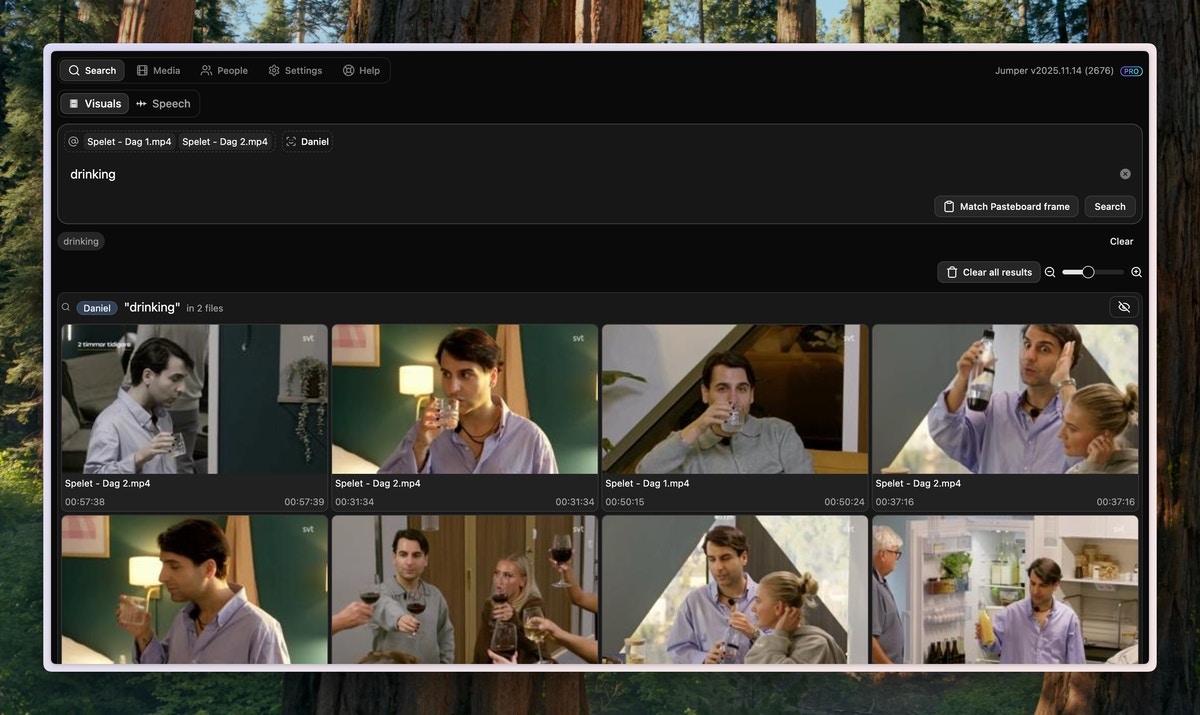
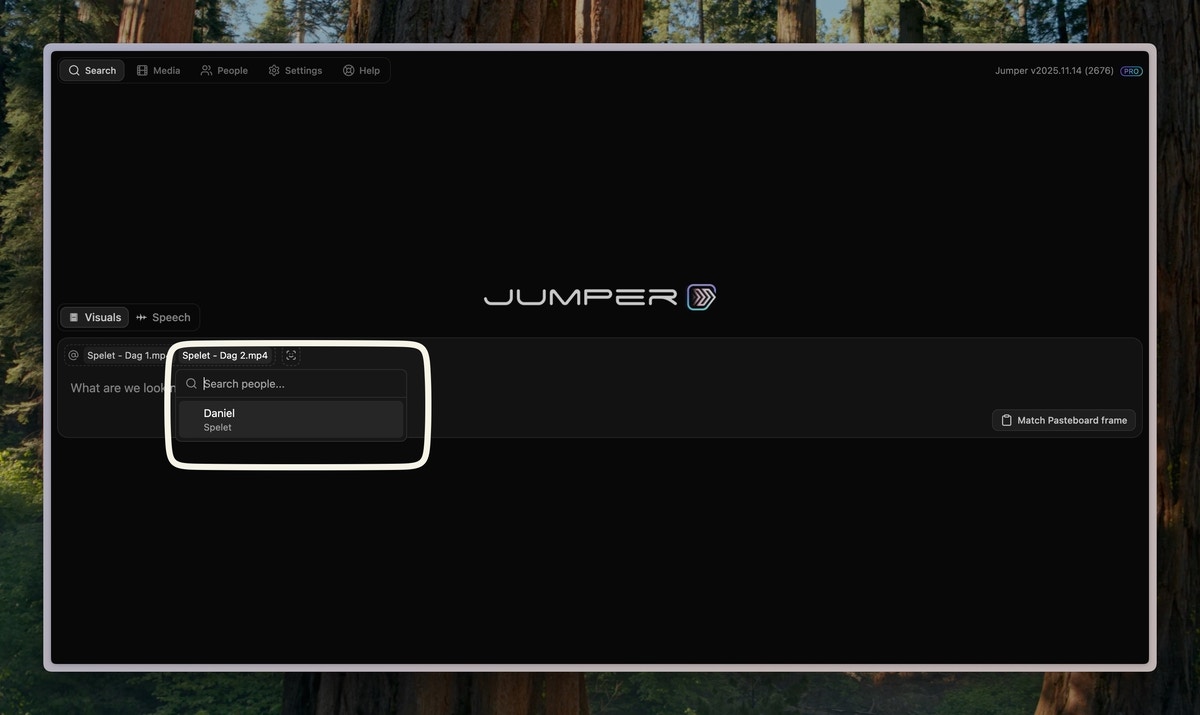 You can now search for any keywords or context and Jumper will find scenes of that person with the search query.
 ### Multi-person search
Select multiple named people from the Face search control to narrow results by cast or interview participants.
| Mode | Finds |
| :------ | :---------------------------------------------------------- |
| **AND** | Shots where every selected person appears in the same frame |
| **OR** | Shots where any of the selected people appear |
Combine people filters with a visual search query. For example, select **Anna** and **Ben** with **AND**, then search for `walking outside` to find exterior shots of both people together.
## Merging groups
Occasionally, Jumper might create multiple groups for the same person. This is because the face detection algorithm might have low confidence in the detection.
You can merge any group with any already named person by clicking the button on a group and selecting the person you want to merge it with.
## Regrouping faces
If you are not happy with the grouping of the faces, you can regroup them with different parameters to improve the accuracy of the grouping.
You can regroup faces by clicking the ellipsis button () next to the collection name and selecting `Regroup` in the [People tab](/interface/people-tab).
### Multi-person search
Select multiple named people from the Face search control to narrow results by cast or interview participants.
| Mode | Finds |
| :------ | :---------------------------------------------------------- |
| **AND** | Shots where every selected person appears in the same frame |
| **OR** | Shots where any of the selected people appear |
Combine people filters with a visual search query. For example, select **Anna** and **Ben** with **AND**, then search for `walking outside` to find exterior shots of both people together.
## Merging groups
Occasionally, Jumper might create multiple groups for the same person. This is because the face detection algorithm might have low confidence in the detection.
You can merge any group with any already named person by clicking the button on a group and selecting the person you want to merge it with.
## Regrouping faces
If you are not happy with the grouping of the faces, you can regroup them with different parameters to improve the accuracy of the grouping.
You can regroup faces by clicking the ellipsis button () next to the collection name and selecting `Regroup` in the [People tab](/interface/people-tab).
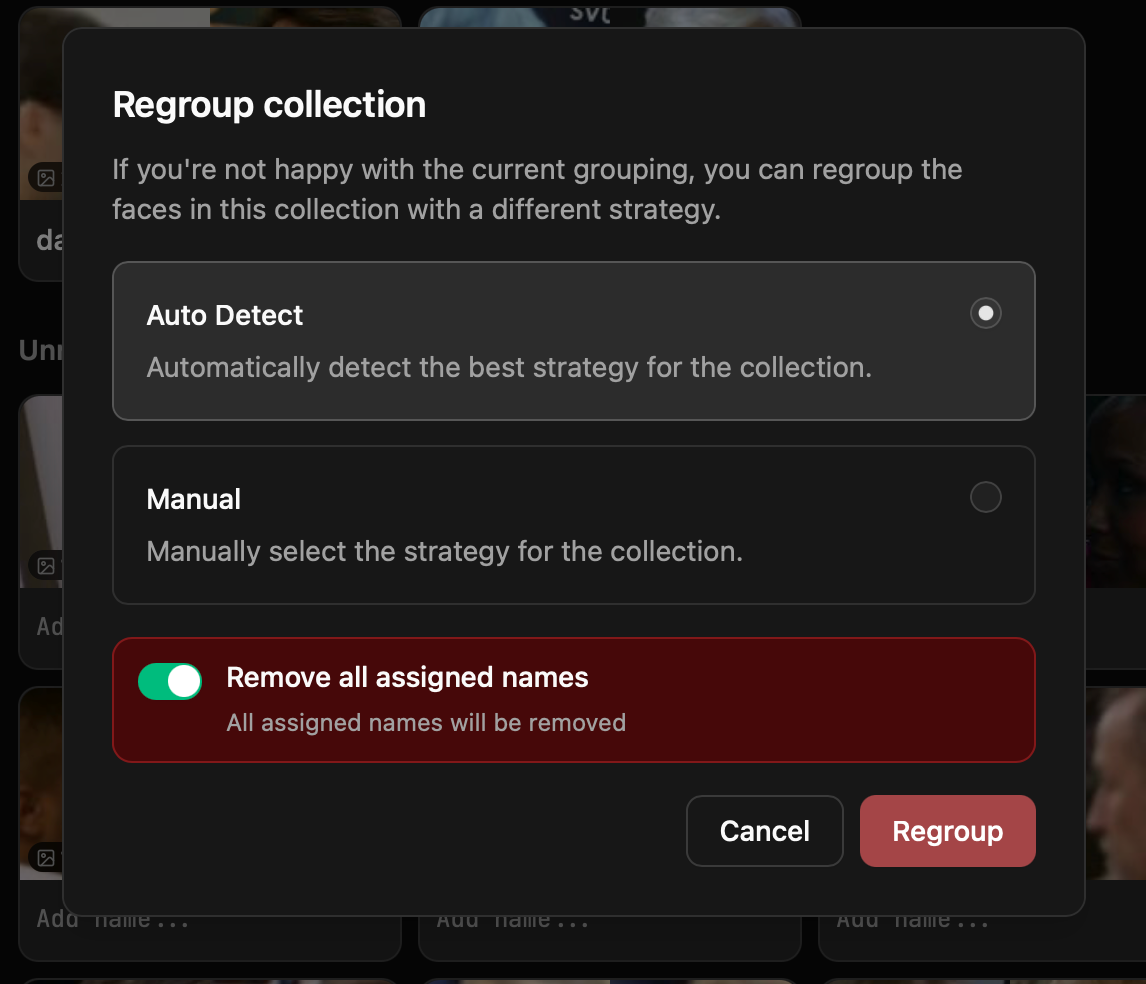 In the dialog, set the **Grouping strictness**. The scale runs from loose to strict. The stricter the setting, the more similar faces must be before Jumper groups them together.
| Level | Behavior |
| ---------------------- | ------------------------------------------------------- |
| **Very Loose** | Faces that look different may be grouped together. |
| **Loose** | Faces that look somewhat similar are grouped together. |
| **Balanced** (default) | Faces are grouped by reasonable similarity. |
| **Strict** | Faces that look similar are grouped together. |
| **Very Strict** | Faces must be very similar to be grouped together. |
| **Ultra Strict** | Faces must be extremely similar to be grouped together. |
A looser setting collects more appearances of the same person but risks mixing people who look alike. A stricter setting keeps people apart but may split one person into several groups, which you can fix by [merging groups](/guides/face-detection#merging-groups).
### Remove all assigned names
You can choose whether to preserve existing names when regrouping:
* **Off (default)**: Already assigned names will be preserved. Only unassigned faces will be regrouped.
* **On**: All assigned names will be removed before regrouping. This gives you a fresh start with the new grouping strategy.
To confirm the regrouping, click the `Regroup` button. Regrouping will typically not take very long to complete, a few seconds to a minute depending on the size of the collection.
## Troubleshooting
This could be because the person got grouped with another person. Regroup the collection at a stricter level (** -> Regroup**, then **Very Strict** or **Ultra Strict**) to improve the accuracy of the grouping.
Regroup the collection at a stricter level (** -> Regroup**, then **Very Strict** or **Ultra Strict**) to separate people who look alike.
In the dialog, set the **Grouping strictness**. The scale runs from loose to strict. The stricter the setting, the more similar faces must be before Jumper groups them together.
| Level | Behavior |
| ---------------------- | ------------------------------------------------------- |
| **Very Loose** | Faces that look different may be grouped together. |
| **Loose** | Faces that look somewhat similar are grouped together. |
| **Balanced** (default) | Faces are grouped by reasonable similarity. |
| **Strict** | Faces that look similar are grouped together. |
| **Very Strict** | Faces must be very similar to be grouped together. |
| **Ultra Strict** | Faces must be extremely similar to be grouped together. |
A looser setting collects more appearances of the same person but risks mixing people who look alike. A stricter setting keeps people apart but may split one person into several groups, which you can fix by [merging groups](/guides/face-detection#merging-groups).
### Remove all assigned names
You can choose whether to preserve existing names when regrouping:
* **Off (default)**: Already assigned names will be preserved. Only unassigned faces will be regrouped.
* **On**: All assigned names will be removed before regrouping. This gives you a fresh start with the new grouping strategy.
To confirm the regrouping, click the `Regroup` button. Regrouping will typically not take very long to complete, a few seconds to a minute depending on the size of the collection.
## Troubleshooting
This could be because the person got grouped with another person. Regroup the collection at a stricter level (** -> Regroup**, then **Very Strict** or **Ultra Strict**) to improve the accuracy of the grouping.
Regroup the collection at a stricter level (** -> Regroup**, then **Very Strict** or **Ultra Strict**) to separate people who look alike.