> ## Documentation Index
> Fetch the complete documentation index at: https://docs.getjumper.io/llms.txt
> Use this file to discover all available pages before exploring further.
# Script Editor
> Open a file’s full transcription in Jumper, edit the script view, send segments to the timeline, and export
The file must be analyzed for speech. See [Speech search](/core-concepts/speech-search) and the [Media tab](/interface/media-tab).
The **Script Editor** shows the full transcription for a single media file inside Jumper. Use it to review dialogue, hide segments you do not need, jump to timecode in the Source Monitor, and export.
## Open the Script Editor
**From the Media tab**
1. Right-click a file that has speech analysis (green checkmark in **Mark for Speech analysis**).
2. Choose **Open Script Editor**.
**From Speech search**
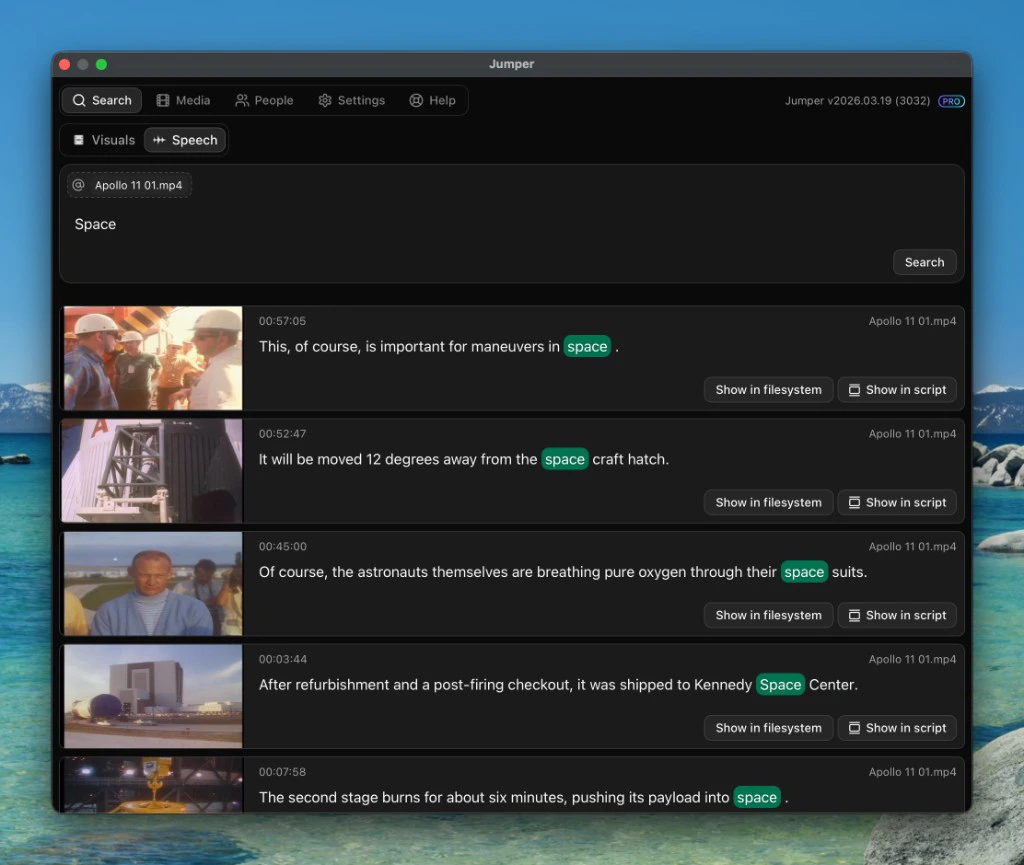
1. Open the [Search tab](/interface/search-tab), switch to **Speech**, and run a search.
2. On a result, click **Show in script**.
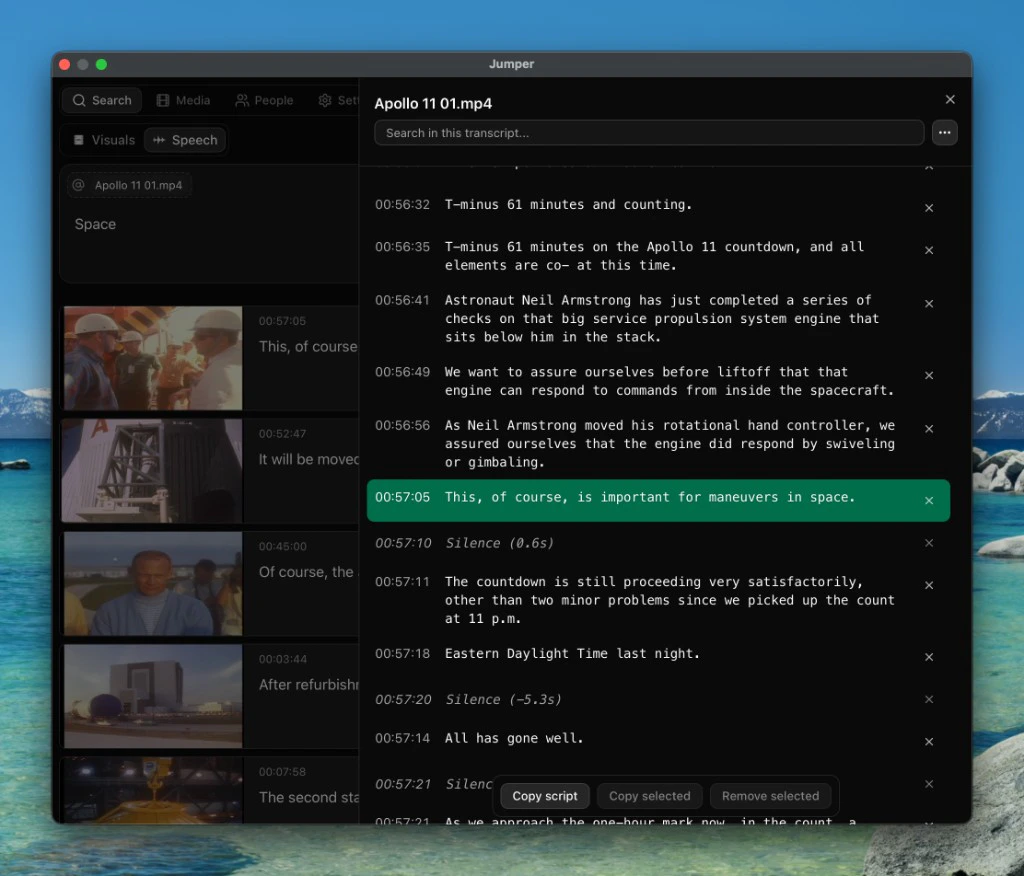
The editor opens as a modal with the file name at the top and a search field to find text inside this transcript.
## Jump to timecode in the Source Monitor
Double-click a transcript line. Jumper seeks the Source Monitor to that segment’s timecode.
## Edit the script
Removing segments in the Script Editor does **not** delete your speech analysis or the files on disk. You are changing what appears in this editor session until you restore or re-open.
* Click a segment to select it. **Shift**-click to extend the selection across multiple segments.
* You can delete the selected segment(s) by clicking **Remove selected** on the floating bar, clicking the **x** button at the right of a segment, or pressing the **Backspace** key.
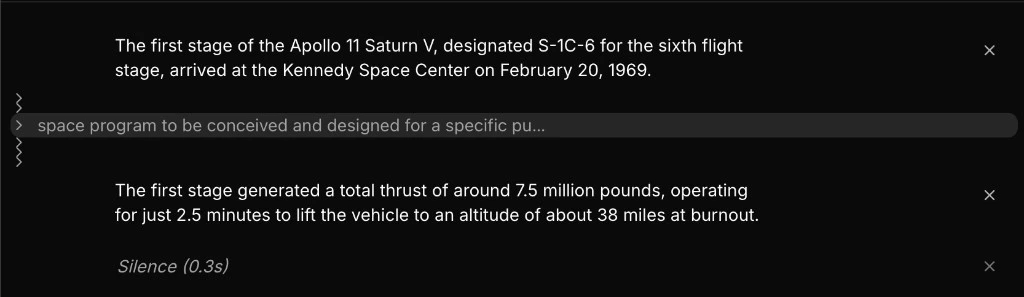
* Removed segments appear as a chevron in the left margin. Click the chevron to restore that segment.
Use **Restore all removed** in the **Ellipsis ()** menu when you want every hidden segment back.
## Remove silence
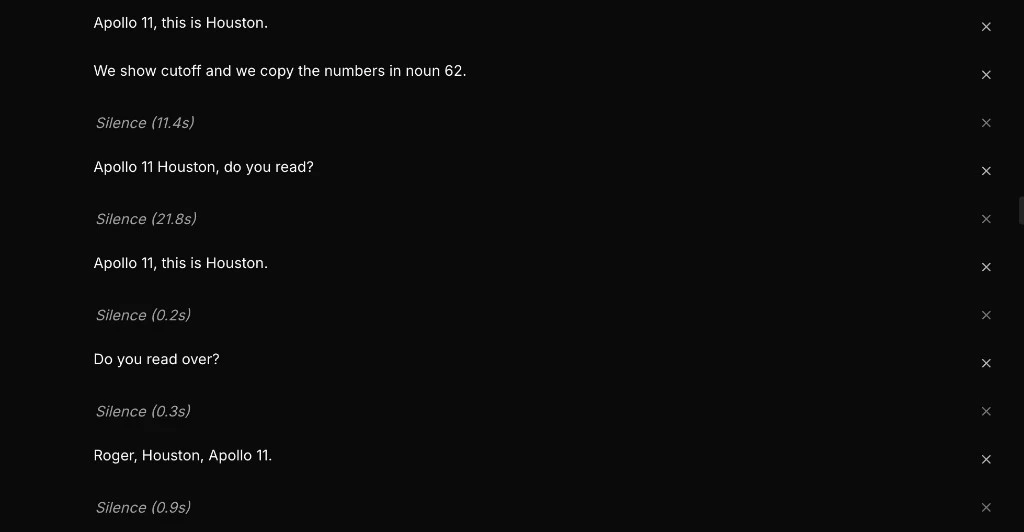
When transcribing, Jumper will detect silence between speech segments and mark it as such.
1. Click **Ellipsis ()** in the top right of the Script Editor.
2. Choose **Remove silence** (the menu shows how much silence Jumper detected).
## Add segments to the timeline
After you remove segments from the script list, add what you still need:
* Add the **current selection** to the timeline.
* **Add all remaining** segments in one step (for example, strip filler in the editor, then send everything left to the timeline).
## Export and copy
In the Ellipsis () menu:
* **Copy transcript** — full transcript to the clipboard.
* **Export** — **Plain text (.txt)**, **CSV**, **PDF**, or **Word (.docx)**.
On the floating bar you can also **Copy script** (entire script text) and **Copy selected** (only the highlighted segments).
## Display options
In the **Ellipsis ()** menu under **Font**, choose **Inter**, **Georgia**, or **Courier**.
* **Hide timestamps** — toggle timecodes in the list.
* **Use light theme** — switch the editor from dark to light.
 The editor opens as a modal with the file name at the top and a search field to find text inside this transcript.
 ## Jump to timecode in the Source Monitor
Double-click a transcript line. Jumper seeks the Source Monitor to that segment’s timecode.
## Edit the script
Removing segments in the Script Editor does **not** delete your speech analysis or the files on disk. You are changing what appears in this editor session until you restore or re-open.
* Click a segment to select it. **Shift**-click to extend the selection across multiple segments.
* You can delete the selected segment(s) by clicking **Remove selected** on the floating bar, clicking the **x** button at the right of a segment, or pressing the **Backspace** key.
* Removed segments appear as a chevron in the left margin. Click the chevron to restore that segment.
## Jump to timecode in the Source Monitor
Double-click a transcript line. Jumper seeks the Source Monitor to that segment’s timecode.
## Edit the script
Removing segments in the Script Editor does **not** delete your speech analysis or the files on disk. You are changing what appears in this editor session until you restore or re-open.
* Click a segment to select it. **Shift**-click to extend the selection across multiple segments.
* You can delete the selected segment(s) by clicking **Remove selected** on the floating bar, clicking the **x** button at the right of a segment, or pressing the **Backspace** key.
* Removed segments appear as a chevron in the left margin. Click the chevron to restore that segment.
 Use **Restore all removed** in the **Ellipsis (
 ## Add segments to the timeline
After you remove segments from the script list, add what you still need:
* Add the **current selection** to the timeline.
* **Add all remaining** segments in one step (for example, strip filler in the editor, then send everything left to the timeline).
## Export and copy
In the Ellipsis (
## Add segments to the timeline
After you remove segments from the script list, add what you still need:
* Add the **current selection** to the timeline.
* **Add all remaining** segments in one step (for example, strip filler in the editor, then send everything left to the timeline).
## Export and copy
In the Ellipsis (