> ## Documentation Index
> Fetch the complete documentation index at: https://docs.getjumper.io/llms.txt
> Use this file to discover all available pages before exploring further.
# Watch Folders
> Automatically analyze media as it is added to a folder
This feature requires a Jumper Pro license.
 ## Overview
Watch Folders allow you to specify directories that Jumper will monitor. When new, un-analyzed media files are added to these folders, Jumper will automatically start analyzing them. This is especially useful for workflows where media is regularly imported or transferred to specific locations.
## Setting up Watch Folders
Navigate to the [Settings tab](/interface/settings-tab) in Jumper.
Locate the Watch Folders section in the settings.
Click the `Add Watch Folder` button to add a new Watch Folder to bring up the Add Watch Folder dialog.
In the dialog, you can set up:
* **Folder path**: The directory to monitor
* **Analysis types**: Choose which types of analysis to perform (visual analysis, speech analysis, face detection, or any combination)
* **Language**: Select the language for speech analysis
* **Face collection**: Choose which face collection to add detected faces to
* **Analysis output folder**: Optionally specify a custom location for analysis files (otherwise uses the default analysis folder)
* **Exclusions**: Optionally skip media inside the Watch Folder using **Excluded folders** (folder name patterns), **Excluded filename patterns**, or **Excluded extensions**
Click the `Start` button to start monitoring the Watch Folder. When new media is added to the Watch Folder, Jumper will automatically start analyzing it.
Files analyzed through Watch Folders are not currently added to the Media Table, so they won't appear in search results even after analysis completes. To make analyzed files searchable, manually add the folder or files to the [Media Table](/interface/media-tab). This limitation will be addressed in a future update.
You can add multiple Watch Folders to monitor different directories simultaneously with different settings.
## Managing Watch Folders
### Global start/stop button
The global start/stop button at the top-right of the Watch Folders section controls all Watch Folders at once. When stopped, no Watch Folders will monitor or analyze files, regardless of their individual settings.
### Individual Watch Folder control
Each Watch Folder has its own toggle switch that enables or disables monitoring for that specific folder. This allows you to:
* Keep some Watch Folders active while pausing others
* Temporarily disable a specific Watch Folder without removing it
### Editing Watch Folder settings
## Overview
Watch Folders allow you to specify directories that Jumper will monitor. When new, un-analyzed media files are added to these folders, Jumper will automatically start analyzing them. This is especially useful for workflows where media is regularly imported or transferred to specific locations.
## Setting up Watch Folders
Navigate to the [Settings tab](/interface/settings-tab) in Jumper.
Locate the Watch Folders section in the settings.
Click the `Add Watch Folder` button to add a new Watch Folder to bring up the Add Watch Folder dialog.
In the dialog, you can set up:
* **Folder path**: The directory to monitor
* **Analysis types**: Choose which types of analysis to perform (visual analysis, speech analysis, face detection, or any combination)
* **Language**: Select the language for speech analysis
* **Face collection**: Choose which face collection to add detected faces to
* **Analysis output folder**: Optionally specify a custom location for analysis files (otherwise uses the default analysis folder)
* **Exclusions**: Optionally skip media inside the Watch Folder using **Excluded folders** (folder name patterns), **Excluded filename patterns**, or **Excluded extensions**
Click the `Start` button to start monitoring the Watch Folder. When new media is added to the Watch Folder, Jumper will automatically start analyzing it.
Files analyzed through Watch Folders are not currently added to the Media Table, so they won't appear in search results even after analysis completes. To make analyzed files searchable, manually add the folder or files to the [Media Table](/interface/media-tab). This limitation will be addressed in a future update.
You can add multiple Watch Folders to monitor different directories simultaneously with different settings.
## Managing Watch Folders
### Global start/stop button
The global start/stop button at the top-right of the Watch Folders section controls all Watch Folders at once. When stopped, no Watch Folders will monitor or analyze files, regardless of their individual settings.
### Individual Watch Folder control
Each Watch Folder has its own toggle switch that enables or disables monitoring for that specific folder. This allows you to:
* Keep some Watch Folders active while pausing others
* Temporarily disable a specific Watch Folder without removing it
### Editing Watch Folder settings
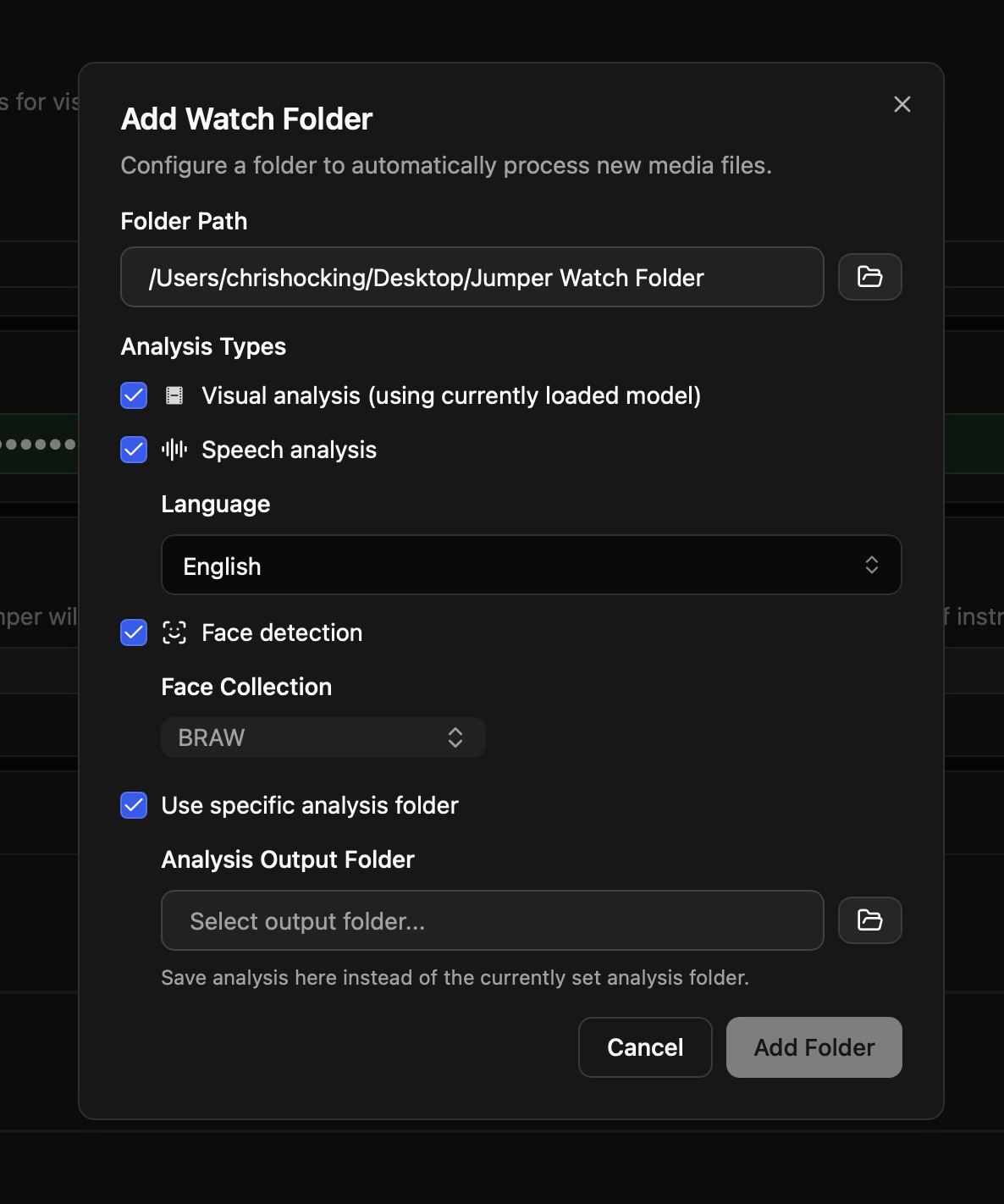 You can edit a Watch Folder's configuration at any time by selecting it in the list. This allows you to change the analysis types, language, face collection, output folder, or exclusions without removing and re-adding the Watch Folder.
### Removing Watch Folders
To stop monitoring a directory permanently, you can remove the Watch Folder from your settings. This will stop automatic analysis for that location, but any files already analyzed will remain searchable.
## Troubleshooting
Files analyzed through Watch Folders are not currently added to the Media Table, so they won't appear in search results even after analysis completes.
**Workaround:** To make analyzed files searchable, manually add the folder or files to the [Media Table](/interface/media-tab). This limitation will be addressed in a future update.
You can edit a Watch Folder's configuration at any time by selecting it in the list. This allows you to change the analysis types, language, face collection, output folder, or exclusions without removing and re-adding the Watch Folder.
### Removing Watch Folders
To stop monitoring a directory permanently, you can remove the Watch Folder from your settings. This will stop automatic analysis for that location, but any files already analyzed will remain searchable.
## Troubleshooting
Files analyzed through Watch Folders are not currently added to the Media Table, so they won't appear in search results even after analysis completes.
**Workaround:** To make analyzed files searchable, manually add the folder or files to the [Media Table](/interface/media-tab). This limitation will be addressed in a future update.