> ## Documentation Index
> Fetch the complete documentation index at: https://docs.getjumper.io/llms.txt
> Use this file to discover all available pages before exploring further.
# Interface
> Learn about the Jumper interface
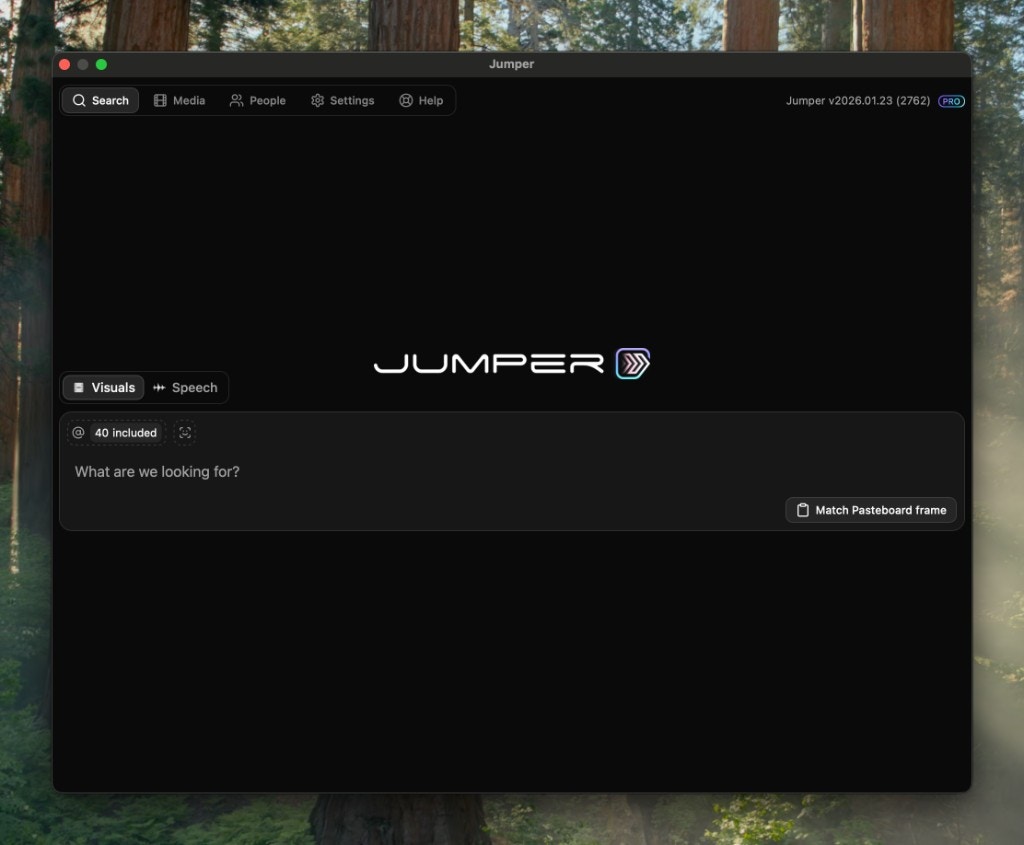 ## Navigation Tabs
The Jumper interface is organized into main tabs, each accessible through tabs at the top of the window.
The primary workspace for searching your analyzed media. Switch between visual and speech search, manage search context, and view results.
Manage the media files that Jumper has access to. Mark files for analysis, monitor analysis progress, and control which files are included in searches.
Read whole-clip overviews, navigate into detailed sections and source ranges, and organize related analyses in collections.
View and manage tag collections. Save segments and whole clips into personal or shared collections, organize them with comments and color markers, and sort them.
View and manage face collections. See all detected people across your media and organize them into collections for different projects.
Configure Jumper's behavior, including machine learning models, analysis folder location, timeline insertion settings, and license management.
Access help resources and documentation directly from within Jumper.
## Notification center
The notification center collects all messages received during a Jumper session in one place, so you can review anything you missed while working.
## Navigation Tabs
The Jumper interface is organized into main tabs, each accessible through tabs at the top of the window.
The primary workspace for searching your analyzed media. Switch between visual and speech search, manage search context, and view results.
Manage the media files that Jumper has access to. Mark files for analysis, monitor analysis progress, and control which files are included in searches.
Read whole-clip overviews, navigate into detailed sections and source ranges, and organize related analyses in collections.
View and manage tag collections. Save segments and whole clips into personal or shared collections, organize them with comments and color markers, and sort them.
View and manage face collections. See all detected people across your media and organize them into collections for different projects.
Configure Jumper's behavior, including machine learning models, analysis folder location, timeline insertion settings, and license management.
Access help resources and documentation directly from within Jumper.
## Notification center
The notification center collects all messages received during a Jumper session in one place, so you can review anything you missed while working.