> ## Documentation Index
> Fetch the complete documentation index at: https://docs.getjumper.io/llms.txt
> Use this file to discover all available pages before exploring further.
# Search tab
> Learn about the Search tab in Jumper
## Visual Search
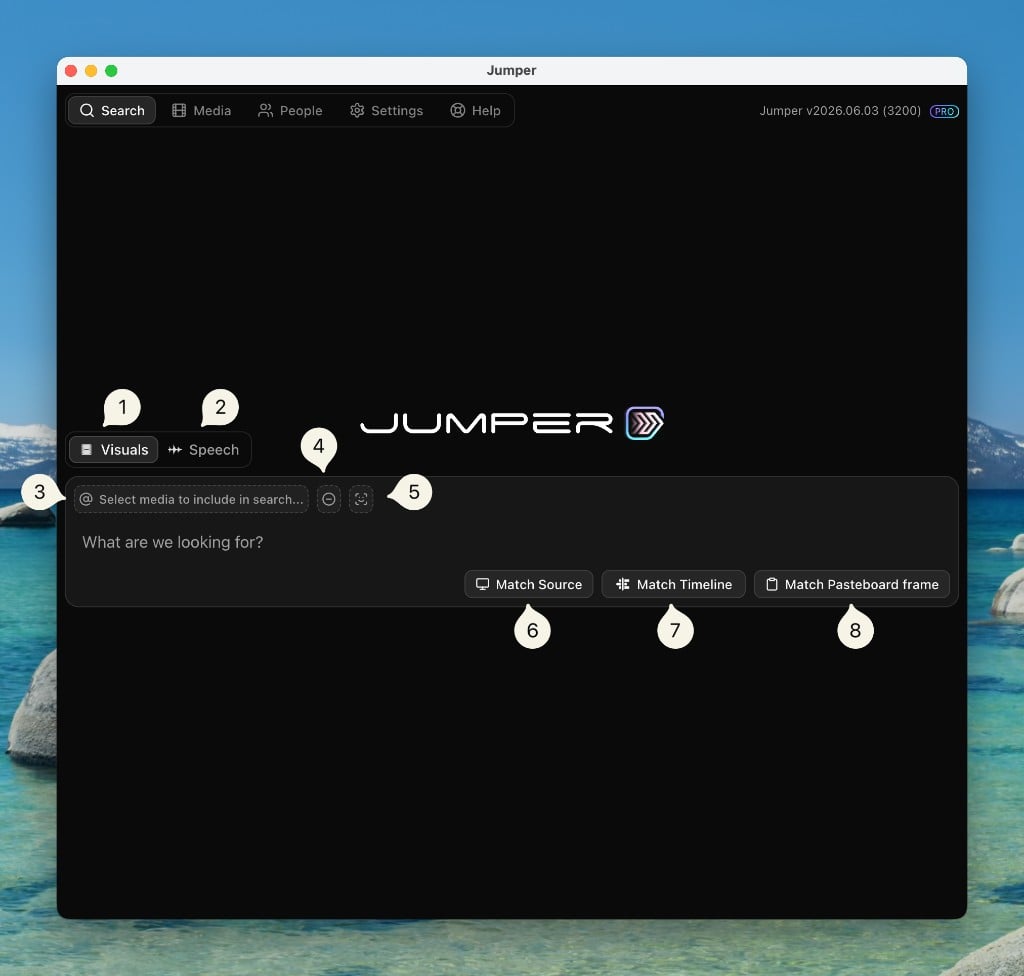 Enter your search query in the main search box. The numbered callouts below match the annotations in the screenshot.
Switch to [Visual search](/interface/search-tab#visual-search). Search by describing what you see or matching a frame.
Switch to [Speech search](/interface/search-tab#speech-search). Search by word or phrase in transcribed dialogue.
Choose files or bins to include in your search. See [Context Picker](/interface/search-tab#context-picker).
Add one or more terms to exclude from your search. For example, search for `people talking` but exclude `meeting room`. See [Exclude search terms](/interface/search-tab#exclude-search-terms).
Select one or more named people to search for. Opens a list of people from your [Collections](/core-concepts/face-detection#collections). You can also type `@` in the search box to bring up the People dropdown. With multiple people selected, use the **AND/OR** control to require every person in the same frame (**AND**) or match any selected person (**OR**). See [Face detection](/core-concepts/face-detection) and [Searching for people](/guides/face-detection#searching-for-people).
Takes the frame currently visible in your editing software's Source Monitor (or Event Viewer in Final Cut Pro) and performs a search with it.
Takes the frame currently visible in your Timeline Monitor (or Timeline Viewer in Final Cut Pro) and performs a search with it.
Takes the image currently in your pasteboard and performs a search with it.
## Exclude search terms
To exclude terms from your search, open the exclude dropdown and enter one or many terms. Jumper will penalize results that match the excluded terms.
**Example:** Search for `people talking` and exclude `meeting room` to favor interviews and casual conversations over conference-room setups.
The exclude control is in Visual search only. It does not apply to Speech search.
Open the exclude dropdown and type a term, such as `meeting room` or `outdoor`. Add as many terms as you need.
Choose which terms apply to the current search. You can turn individual terms on or off without deleting them.
Use the slider to control how strongly excluded concepts are pushed down in the results. A lower setting nudges matching shots lower. A higher setting penalizes them more heavily.
## Visual Search result view
After performing a search, the results are shown in a grid below the search box.
Enter your search query in the main search box. The numbered callouts below match the annotations in the screenshot.
Switch to [Visual search](/interface/search-tab#visual-search). Search by describing what you see or matching a frame.
Switch to [Speech search](/interface/search-tab#speech-search). Search by word or phrase in transcribed dialogue.
Choose files or bins to include in your search. See [Context Picker](/interface/search-tab#context-picker).
Add one or more terms to exclude from your search. For example, search for `people talking` but exclude `meeting room`. See [Exclude search terms](/interface/search-tab#exclude-search-terms).
Select one or more named people to search for. Opens a list of people from your [Collections](/core-concepts/face-detection#collections). You can also type `@` in the search box to bring up the People dropdown. With multiple people selected, use the **AND/OR** control to require every person in the same frame (**AND**) or match any selected person (**OR**). See [Face detection](/core-concepts/face-detection) and [Searching for people](/guides/face-detection#searching-for-people).
Takes the frame currently visible in your editing software's Source Monitor (or Event Viewer in Final Cut Pro) and performs a search with it.
Takes the frame currently visible in your Timeline Monitor (or Timeline Viewer in Final Cut Pro) and performs a search with it.
Takes the image currently in your pasteboard and performs a search with it.
## Exclude search terms
To exclude terms from your search, open the exclude dropdown and enter one or many terms. Jumper will penalize results that match the excluded terms.
**Example:** Search for `people talking` and exclude `meeting room` to favor interviews and casual conversations over conference-room setups.
The exclude control is in Visual search only. It does not apply to Speech search.
Open the exclude dropdown and type a term, such as `meeting room` or `outdoor`. Add as many terms as you need.
Choose which terms apply to the current search. You can turn individual terms on or off without deleting them.
Use the slider to control how strongly excluded concepts are pushed down in the results. A lower setting nudges matching shots lower. A higher setting penalizes them more heavily.
## Visual Search result view
After performing a search, the results are shown in a grid below the search box.
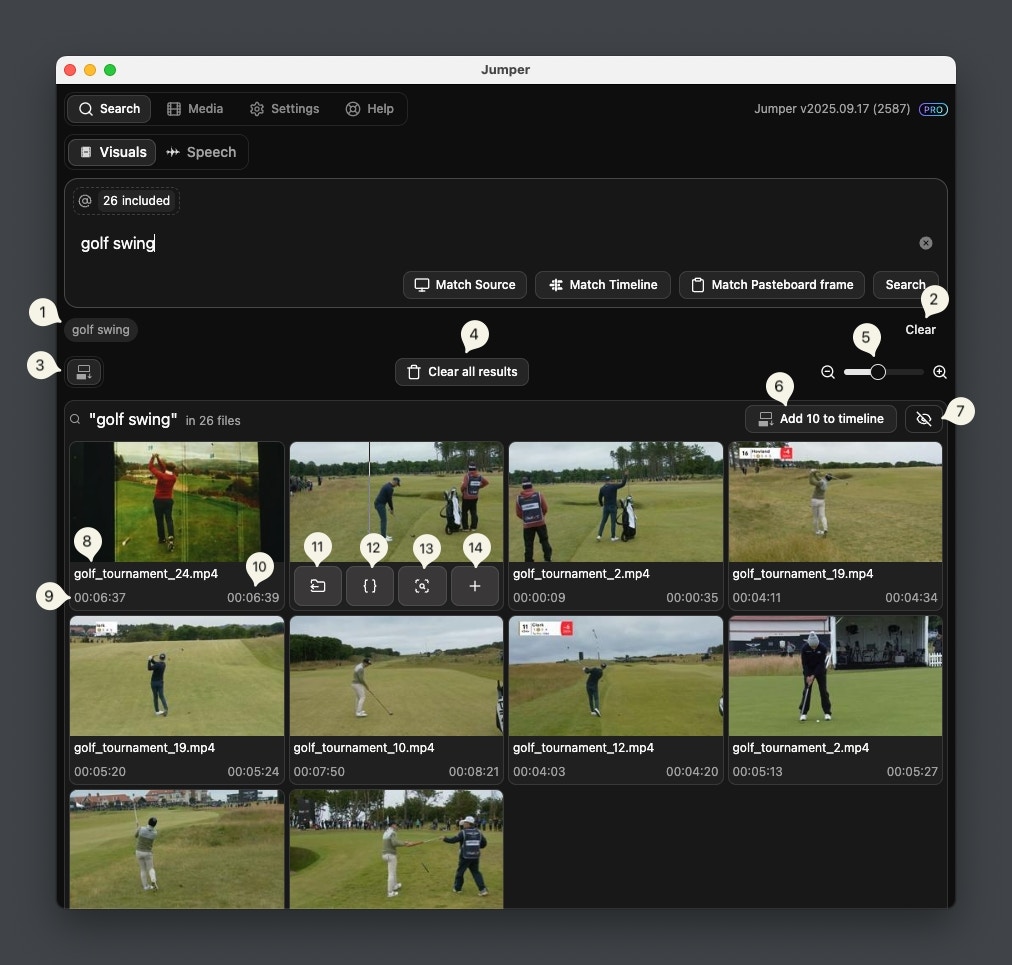 Jumper will rank the results by relevance, with the highest confidence result in the top-left.
Shows a list of the last searches you have performed. Clicking on a previous query will perform a new search with the same parameters.
Clears the search history.
Change the insertion mode (varies by editing software)
Clears the results of all previous searches.
Adjust the thumbnail size of the results to fit more or less results on the screen.
Add all results from this search to your timeline with the selected insertion mode.
Hide this search result from the search history.
The file in which the scene is found.
The start time of the scene.
The end time of the scene.
Click to open the file in the project.
Click to Mark the In/Out of the scene in the Source Monitor.
Click to make a new search for scenes similar to this one.
Click to add the scene to your timeline with the selected insertion mode.
## Speech Search
Jumper will rank the results by relevance, with the highest confidence result in the top-left.
Shows a list of the last searches you have performed. Clicking on a previous query will perform a new search with the same parameters.
Clears the search history.
Change the insertion mode (varies by editing software)
Clears the results of all previous searches.
Adjust the thumbnail size of the results to fit more or less results on the screen.
Add all results from this search to your timeline with the selected insertion mode.
Hide this search result from the search history.
The file in which the scene is found.
The start time of the scene.
The end time of the scene.
Click to open the file in the project.
Click to Mark the In/Out of the scene in the Source Monitor.
Click to make a new search for scenes similar to this one.
Click to add the scene to your timeline with the selected insertion mode.
## Speech Search
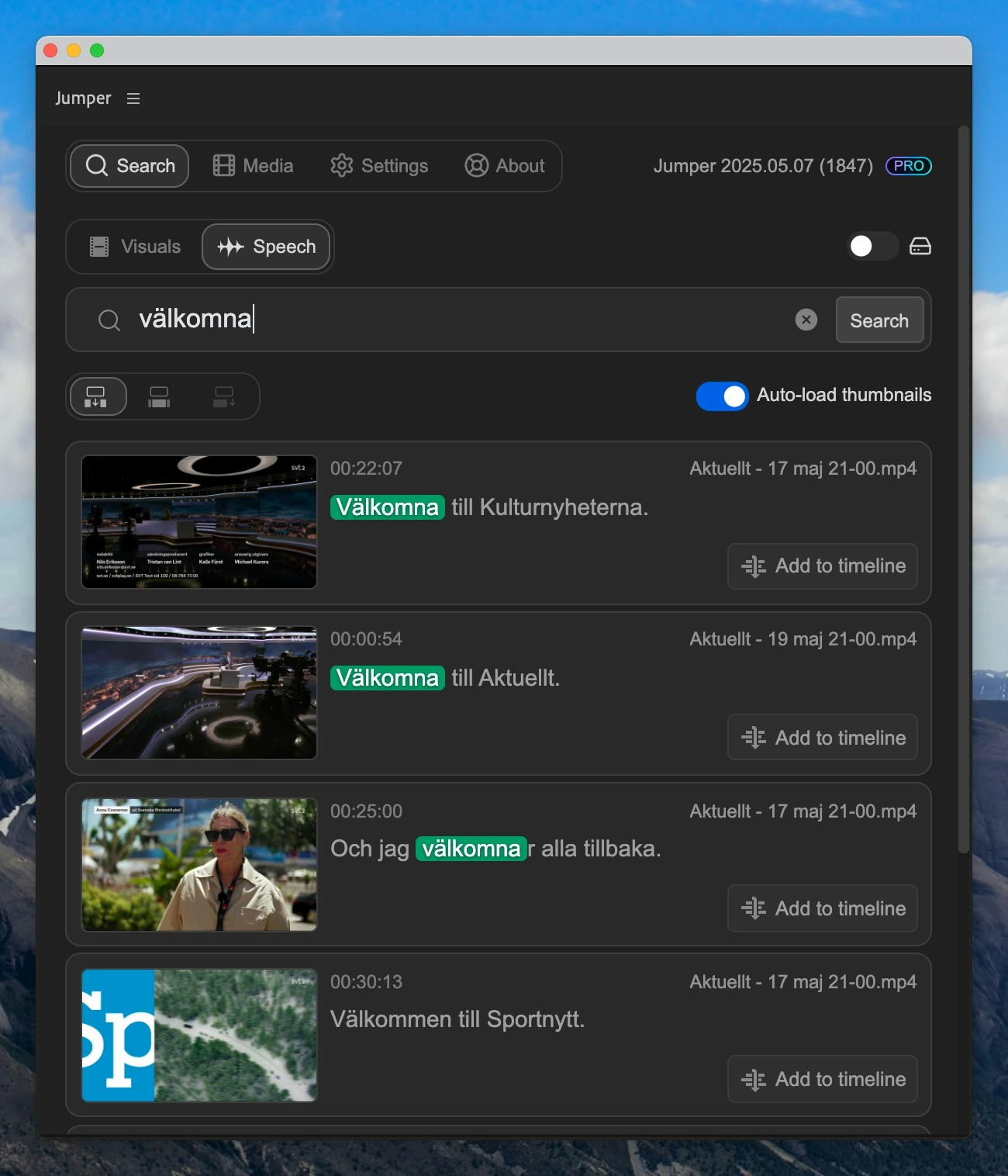 Switching to the Speech search, you can use the Search bar to search for any word or phrase. The matching results will be displayed below the search bar. Exact matches are highlighted in green.
Clicking a result will open up the scene in the Source Monitor.
Clicking `Add to timeline` will add it to your timeline.
**Show in script** on a result opens the [Script Editor](/guides/script-editor) for that file’s full transcription.
## Export results (Standalone)
In [Jumper Standalone](/standalone-app), visual and speech search results include an export control. Use it to export trimmed subclips as video files, or export results as CSV. Exported subclips are saved to the directory set in [Settings](/interface/settings-tab#export-subclips-directory). NLE integrations use **Add to timeline** instead.
## Context Picker
The Context Picker is where you view and manage the context of your search, ie. the files and/or bins you want to search in.
Here you can also toggle the [Search All Analyzed Media](/interface/search-tab#search-all-analyzed-media) option.
Switching to the Speech search, you can use the Search bar to search for any word or phrase. The matching results will be displayed below the search bar. Exact matches are highlighted in green.
Clicking a result will open up the scene in the Source Monitor.
Clicking `Add to timeline` will add it to your timeline.
**Show in script** on a result opens the [Script Editor](/guides/script-editor) for that file’s full transcription.
## Export results (Standalone)
In [Jumper Standalone](/standalone-app), visual and speech search results include an export control. Use it to export trimmed subclips as video files, or export results as CSV. Exported subclips are saved to the directory set in [Settings](/interface/settings-tab#export-subclips-directory). NLE integrations use **Add to timeline** instead.
## Context Picker
The Context Picker is where you view and manage the context of your search, ie. the files and/or bins you want to search in.
Here you can also toggle the [Search All Analyzed Media](/interface/search-tab#search-all-analyzed-media) option.
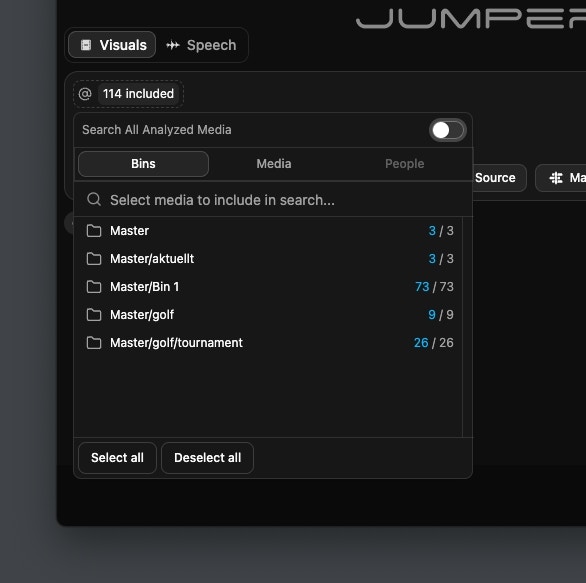 ## Search All Analyzed Media
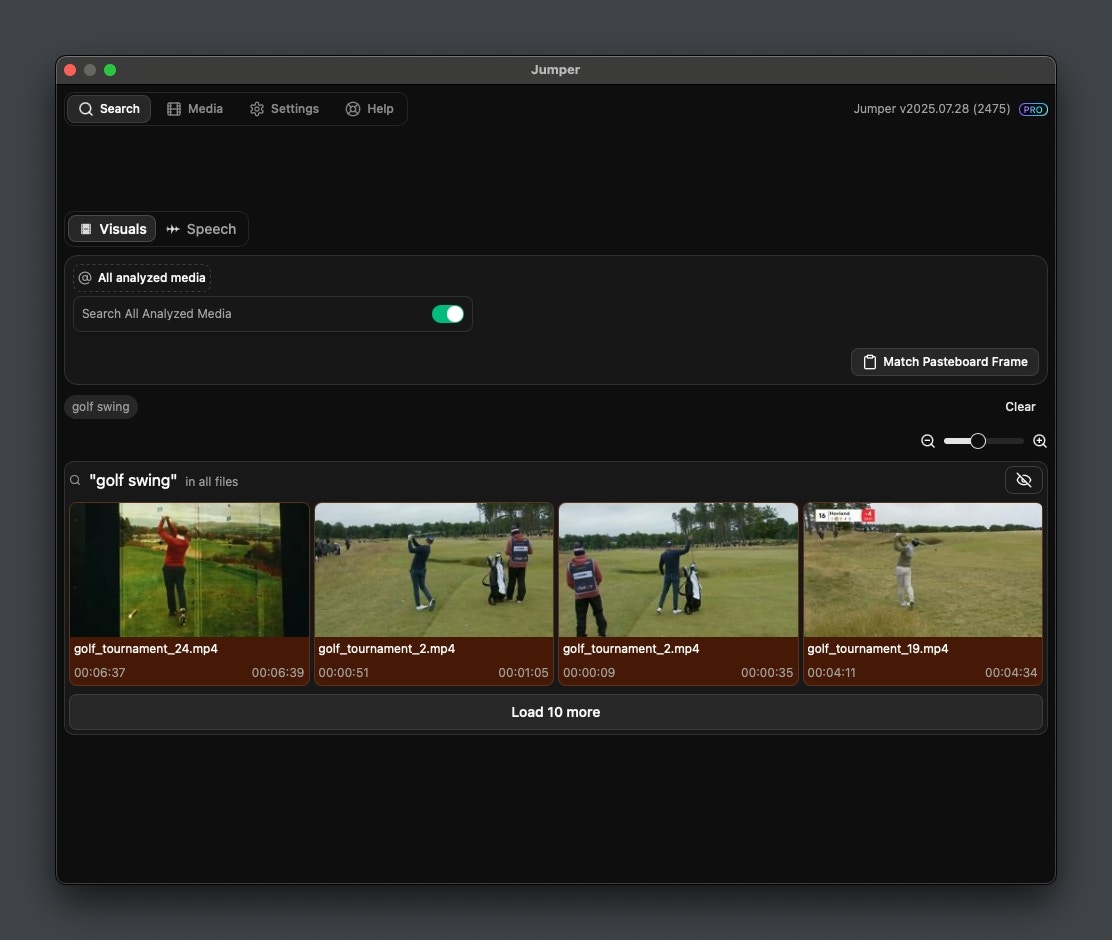
If switched on, Jumper will search in any analyzed media you have, even if it's not in the currently open project.
Results from media outside of the current project have an amber background in the Result View.
## Search All Analyzed Media
If switched on, Jumper will search in any analyzed media you have, even if it's not in the currently open project.
Results from media outside of the current project have an amber background in the Result View.