> ## Documentation Index
> Fetch the complete documentation index at: https://docs.getjumper.io/llms.txt
> Use this file to discover all available pages before exploring further.
# Quickstart
> Get started with Jumper in minutes
## Download the latest version
| **Editing Software** | **Minimum Version Required** |
| ---------------------------------------------------------------------------- | :--------------------------- |
| Premiere Pro | v24.0.0+ |
| Final Cut Pro | 10.6.5+ |
| DaVinci Resolve Studio Paid version | 19.0.3+ |
| Avid Media Composer | 2023.8+ |
See [Compatibility](/compatibility) for more details.
## Launch Jumper
When you first launch Jumper, you will be greeted with the following screen.
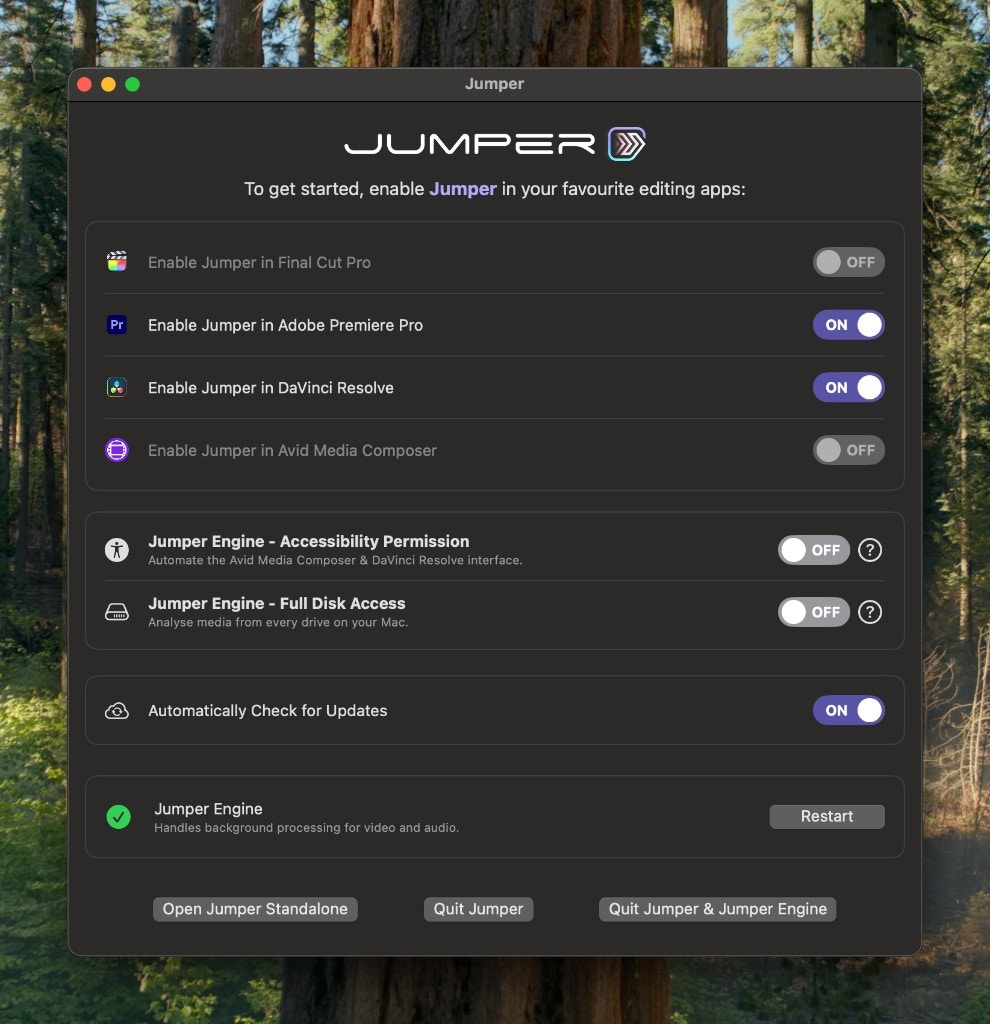 Use the switches to toggle Jumper for your intended editing software.
In order for Jumper to work properly in FCP, you will need to toggle on these Permissions:
* Accessibility Permission
* Full Disk Access
Go to the full FCP installation guide
Start Jumper from the start menu.
Use the switches to toggle Jumper for your intended editing software.
In order for Jumper to work properly in FCP, you will need to toggle on these Permissions:
* Accessibility Permission
* Full Disk Access
Go to the full FCP installation guide
Start Jumper from the start menu.
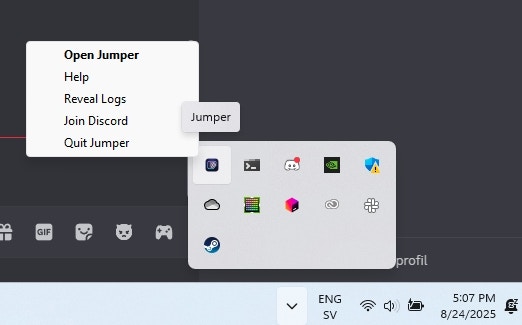
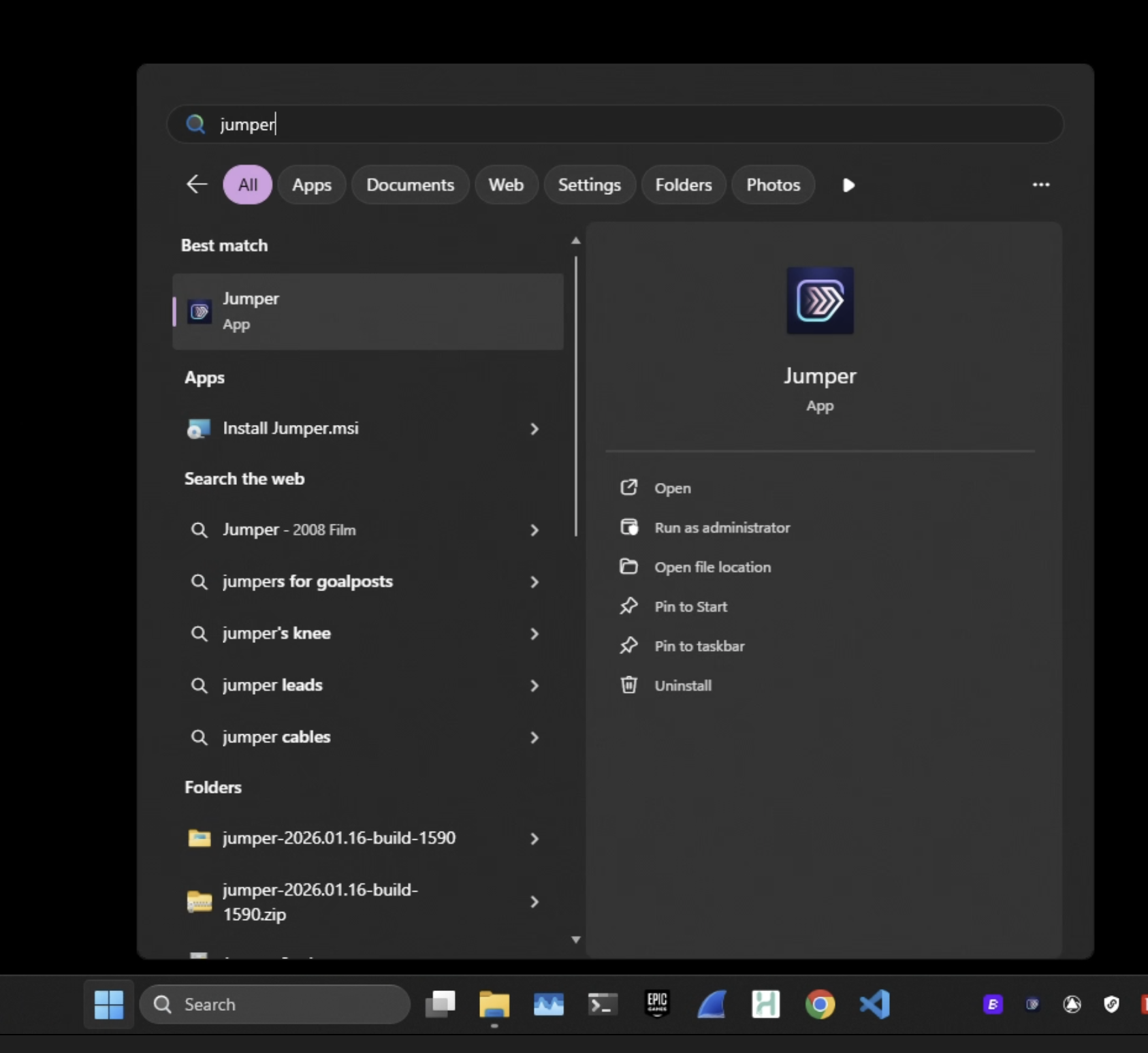 The Jumper icon will appear in your taskbar and/or system tray when the application is running.

 ## Open the extension in your editing software
The method of opening the Jumper extension differs depending on the editing software.
| **Editing Software** | **Menu to open Jumper extension** |
| ----------------------- | :-------------------------------------------------------------------------------- |
| **Premiere Pro** | **Window -> Extensions -> Jumper** |
| **Final Cut Pro** | **Window -> Extensions -> Jumper** |
| **DaVinci Resolve** | **Workspace -> Workflow Integrations -> Jumper** |
| **Avid Media Composer** | **Extensions -> Jumper**
## Open the extension in your editing software
The method of opening the Jumper extension differs depending on the editing software.
| **Editing Software** | **Menu to open Jumper extension** |
| ----------------------- | :-------------------------------------------------------------------------------- |
| **Premiere Pro** | **Window -> Extensions -> Jumper** |
| **Final Cut Pro** | **Window -> Extensions -> Jumper** |
| **DaVinci Resolve** | **Workspace -> Workflow Integrations -> Jumper** |
| **Avid Media Composer** | **Extensions -> Jumper**
*In older versions:*
**Tools -> Jumper** |
You can also open the [Jumper Standalone App](/standalone-app) by clicking the Jumper icon in the menu bar (macOS) or system tray (Windows).
## Follow the onboarding
Follow the onboarding to set up the extension.
You will need either a free trial license key or a paid license key to use Jumper.
Try it out for free
Available in Standard or Pro
## Analyze media
Before you can search your media, you need to [analyze](/core-concepts/processing) it.
In the [Media tab](/interface/media-tab), mark your media for visual, speech and/or face detection analysis and click the button to start the analysis.
## Search your media
Once the media is analyzed, you can start searching in the [Search tab](/interface/search-tab).
Happy Jumping!