> ## Documentation Index
> Fetch the complete documentation index at: https://docs.getjumper.io/llms.txt
> Use this file to discover all available pages before exploring further.
# Standalone App
> Use Jumper outside your editing software to search, analyze, and manage your workflow
 ## Overview
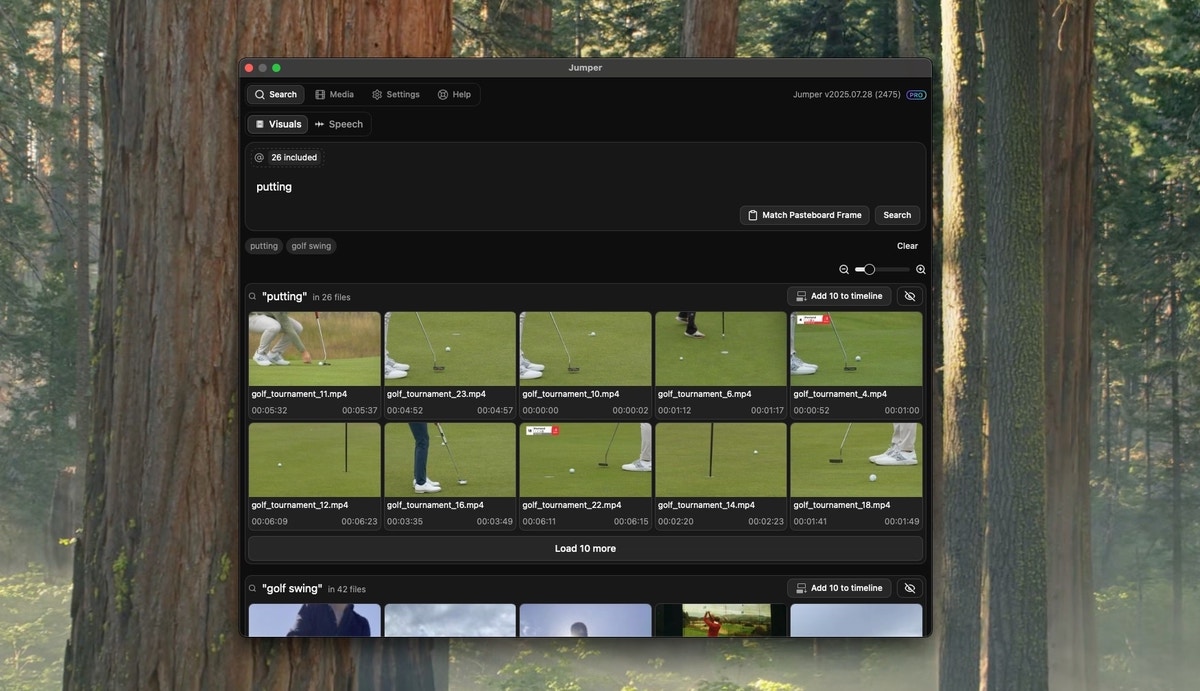
Jumper Standalone is an application that lets you use Jumper's powerful search and manage analysis without opening your editing software. You can ingest and manage analysis of your footage before you even start a project.
The Standalone app includes all the same features you get with Jumper's editing software integrations like visual search, speech search, face detection, and more. The only difference is that you can't do any of the editing-related features like adding to timeline, search from monitor/timeline, etc.
Jumper Standalone can be handy for pre-production workflows from devices/users that don't typically work with an editing software.
## Export search results
In Standalone, you can export directly from visual and speech search results without opening an NLE.
In the [Settings tab](/interface/settings-tab#export-subclips-directory), open **Export subclips directory** and choose where exported files should be saved.
Perform a [visual](/interface/search-tab#visual-search) or [speech](/interface/search-tab#speech-search) search as usual.
Use the export control in the search results to export matching scenes as trimmed video files. Jumper cuts each result to its detected in and out points and saves them to your export directory.
Drag the exported files into Premiere Pro, Final Cut Pro, DaVinci Resolve, Avid Media Composer, or any other editor.
You can also export search results as CSV for spreadsheets or review workflows.
## Included with Every License
Jumper Standalone is included with every Jumper license at no additional cost. If you have Jumper installed, you already have access to the Standalone app.
## Platform Support
Jumper Standalone runs on both **Windows** and **macOS**.
## Opening Jumper Standalone
First make sure you have launched Jumper.app or Jumper.exe.
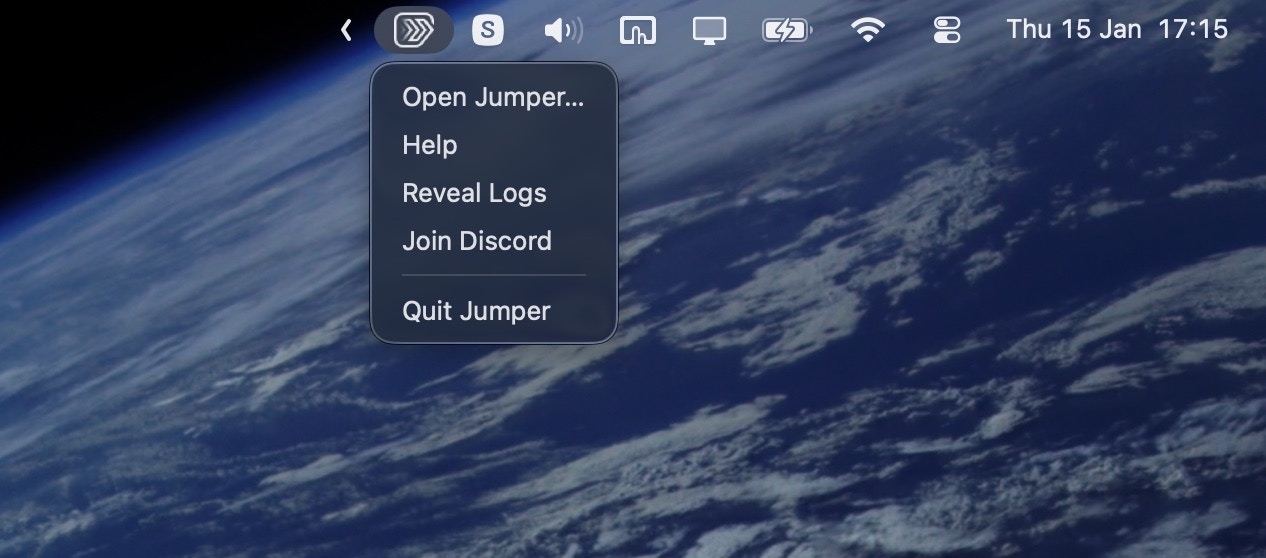
You'll see a Jumper menubar item in the top right corner of the screen. Click it to open the Jumper Standalone app.
## Overview
Jumper Standalone is an application that lets you use Jumper's powerful search and manage analysis without opening your editing software. You can ingest and manage analysis of your footage before you even start a project.
The Standalone app includes all the same features you get with Jumper's editing software integrations like visual search, speech search, face detection, and more. The only difference is that you can't do any of the editing-related features like adding to timeline, search from monitor/timeline, etc.
Jumper Standalone can be handy for pre-production workflows from devices/users that don't typically work with an editing software.
## Export search results
In Standalone, you can export directly from visual and speech search results without opening an NLE.
In the [Settings tab](/interface/settings-tab#export-subclips-directory), open **Export subclips directory** and choose where exported files should be saved.
Perform a [visual](/interface/search-tab#visual-search) or [speech](/interface/search-tab#speech-search) search as usual.
Use the export control in the search results to export matching scenes as trimmed video files. Jumper cuts each result to its detected in and out points and saves them to your export directory.
Drag the exported files into Premiere Pro, Final Cut Pro, DaVinci Resolve, Avid Media Composer, or any other editor.
You can also export search results as CSV for spreadsheets or review workflows.
## Included with Every License
Jumper Standalone is included with every Jumper license at no additional cost. If you have Jumper installed, you already have access to the Standalone app.
## Platform Support
Jumper Standalone runs on both **Windows** and **macOS**.
## Opening Jumper Standalone
First make sure you have launched Jumper.app or Jumper.exe.
You'll see a Jumper menubar item in the top right corner of the screen. Click it to open the Jumper Standalone app.
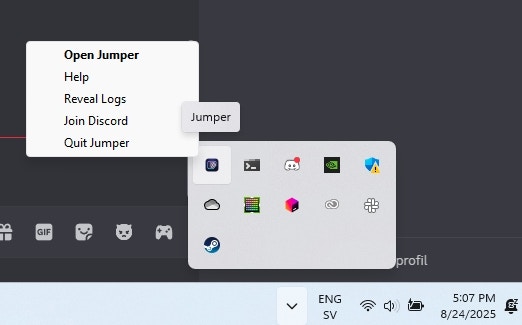
 You'll see a Jumper system tray icon in the bottom right corner of the screen. Click it to open the Jumper Standalone app.