> ## Documentation Index
> Fetch the complete documentation index at: https://docs.getjumper.io/llms.txt
> Use this file to discover all available pages before exploring further.
# Your first agentic editing export
> Export clips from Jumper using an AI agent in a few simple steps
export const ChatStatus = ({children}) => {
return ;
};
export const ChatResponse = ({children}) => {
return ;
};
export const ChatMessage = ({children}) => {
return ;
};
export const Chat = ({children}) => {
return ;
};
This tutorial walks you through your first agentic editing workflow: asking an AI agent to search for footage, review its plan, and export clips you can drop straight into your NLE.
For background on what agentic editing is, see [Agentic editing](/core-concepts/agentic-editing).
## Before you begin
* **Jumper** is running with [media analyzed](/core-concepts/processing)
* An **AI agent** (Claude or Codex) is [connected](/interface/settings-tab#ai-agent)
Claude Cowork currently does not reliably pick up the Jumper integration. For this tutorial, use Claude Code Desktop, Claude Code CLI, or Codex.
Open your AI agent (Claude Code Desktop, Claude Code CLI, or Codex) and describe what you're looking for in plain language. For example:
okay use Jumper to search in \~/Downloads/jumper test movies/, I want a varied sequence with calm landscape shots and other nature related topics. Lets aim for 20 clips
Tell the agent which media to search if it matters (e.g. a specific folder path).
The agent will run some checks, and then come back with a plan: which media it will search, the query it will run, and what it will export.
okay use Jumper to search in \~/Downloads/jumper test movies/, I want a varied sequence with calm landscape shots and other nature related topics. Lets aim for 20 clips
Worked for 10s
Here's my plan:
Run multiple visual searches with varied queries across the folder:
* Calm water, ocean waves, beach
* Mountains, valleys
* Desert, dunes
* Sunrise, golden hour
* Village, countryside, pastoral
* Forests, trees, greenery
* Sky, clouds
Collect \~20 clips by running several searches, then deduplicating and picking the strongest results.
* Export as timeline XML or export individual clips to a folder.
Question: Do you want the sequence as timeline XML or individual clips to a folder?
lets export the clips to a folder
Review the plan and approve it when you're ready. The agent will then execute the search and export steps.
In this case, we'll ask the agent to export the clips to a folder.
The agent uses Jumper to search your analyzed media, finds matching clips, and exports them as individual files to a folder you specified (or a default location).
You don't need to click through Jumper yourself, the agent handles the search and export.
lets export the clips to a folder
Worked for 32s
All 20 clips have been exported as individual MP4 files to:
**`~/Downloads/jumper test movies/landscape_clips`**
**Folder structure:**
| Subfolder | Clips |
| ------------ | ------- |
| `ocean/` | 4 clips |
| `mountains/` | 4 clips |
| `desert/` | 4 clips |
| `sunrise/` | 4 clips |
| `village/` | 4 clips |
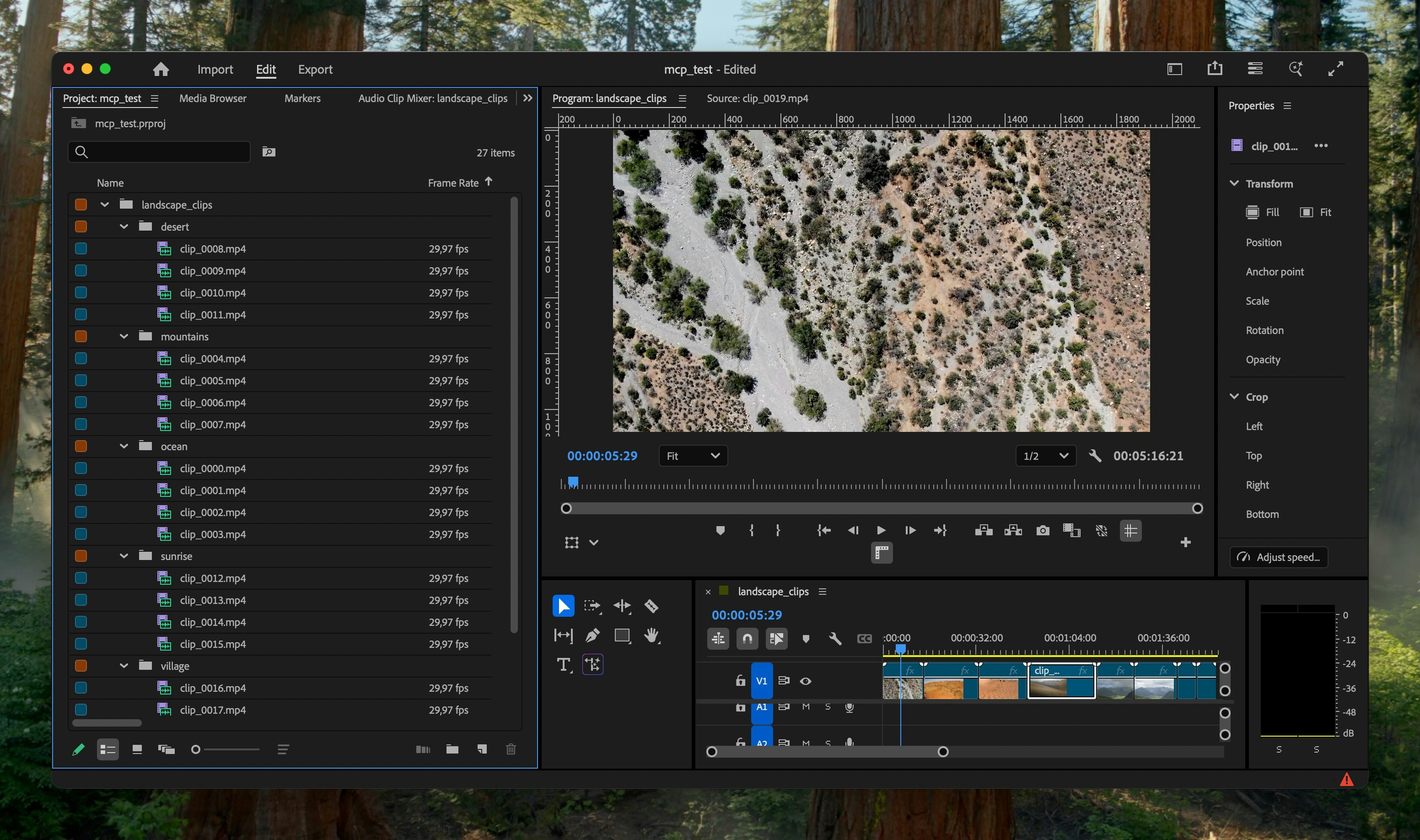
Each file is a trimmed clip you can import into Premiere and arrange however you like.
Open the folder with the exported clips and drag it into Premiere Pro, Final Cut Pro, DaVinci Resolve, or Avid Media Composer. The clips are ready to use.
 ## Timeline round-trip
Once you are comfortable exporting clips, try a round-trip workflow: the agent reads your active timeline in Premiere Pro, DaVinci Resolve, or Avid Media Composer, searches your analyzed media, and sends an updated timeline back.
Make sure the timeline you want to edit is active in Premiere Pro, DaVinci Resolve, or Avid Media Composer.
Describe the edit you want in plain language. For example:
Use Jumper to read my current Premiere timeline, find better b-roll for each clip from
## Timeline round-trip
Once you are comfortable exporting clips, try a round-trip workflow: the agent reads your active timeline in Premiere Pro, DaVinci Resolve, or Avid Media Composer, searches your analyzed media, and sends an updated timeline back.
Make sure the timeline you want to edit is active in Premiere Pro, DaVinci Resolve, or Avid Media Composer.
Describe the edit you want in plain language. For example:
Use Jumper to read my current Premiere timeline, find better b-roll for each clip from \~/day1\_footage/, and update the timeline with the strongest matches.
When the agent finishes, review the updated sequence in your NLE before locking the cut.
For background on what the agent can access, see [Agentic editing](/core-concepts/agentic-editing#timeline-import-and-export).
## Resulting sequence
Here's the resulting sequence from the above workflow. 20 clips exported by the agent and dropped into Premiere:
## What's next?
* Ask the agent to search for people (make sure you have faces detected and named in the [People tab](/interface/people-tab))
* Ask the agent to search in transcriptions to cut the best parts of an interview
* Generate a b-roll sequence from a specific voiceover track
* Ask the agent to export a sequence (Premiere XML, FCPXML) instead of individual files
* Ask the agent to read your active NLE timeline, swap clips based on search results, and send the updated timeline back
* Run multiple agent tasks in parallel for different projects
For more on what agents can do, see [Agentic editing](/core-concepts/agentic-editing).