

Overview
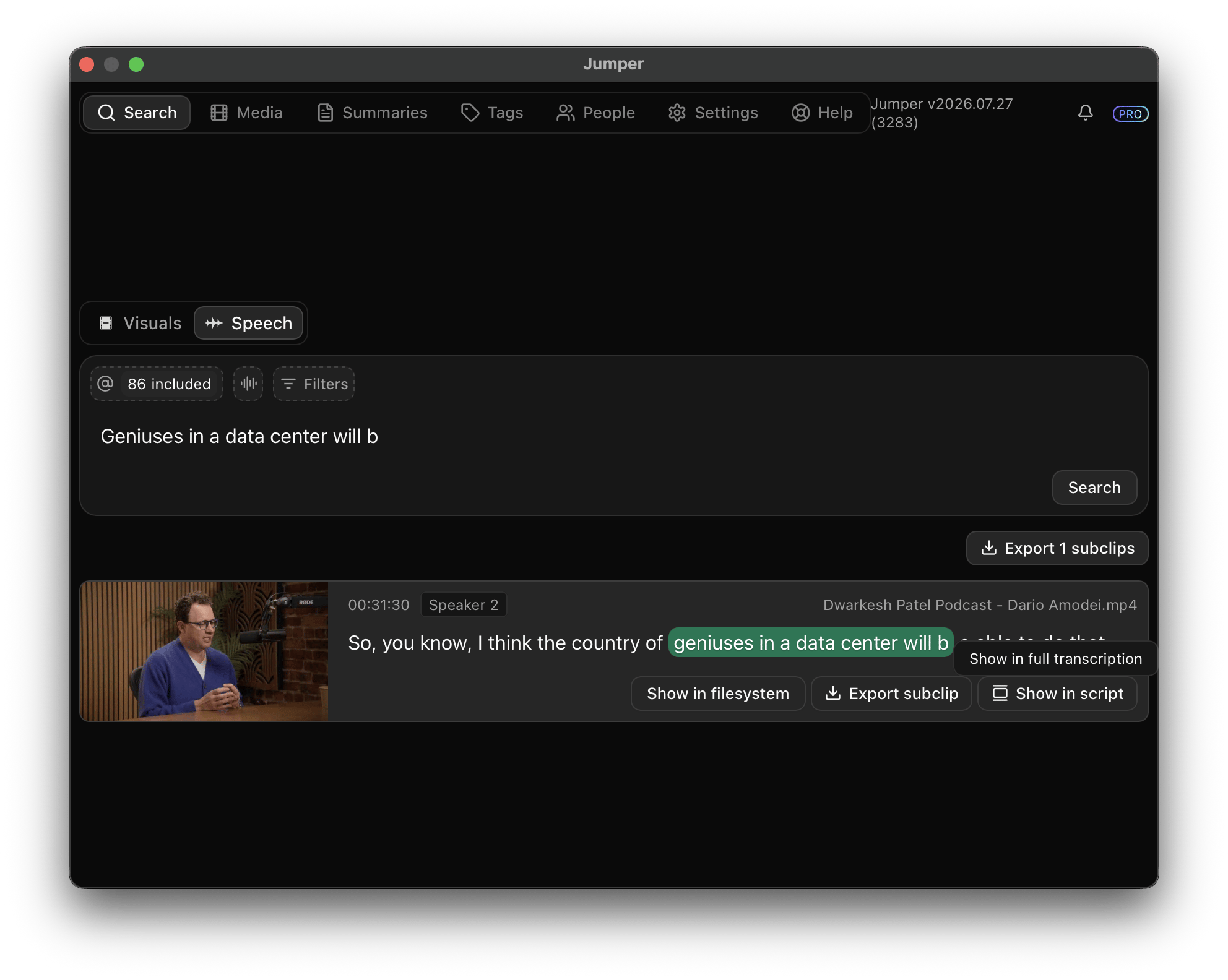
Speech search finds words and phrases in transcribed dialogue. Results show the matching line, timecode, source file, and detected speaker. When speaker detection is enabled, Jumper labels voices as Speaker 1, Speaker 2, and so on. Name these speakers to filter later searches.How transcription works
Jumper’s speech models convert dialogue into timestamped text during speech analysis. The analysis:- Converts speech to text with timestamps
- Stores the transcript for searching
- Runs entirely on your local machine
Audio channels
You can transcribe one or more selected audio channels. Set which channels to transcribe per file in the Media tab. This is useful when dialogue is split across channels, such as a separate lavalier per speaker. When several channels contain the same dialogue, Jumper merges the transcripts and removes the duplicate speech, so a phrase picked up by two mics doesn’t show up twice in your results.Speaker detection
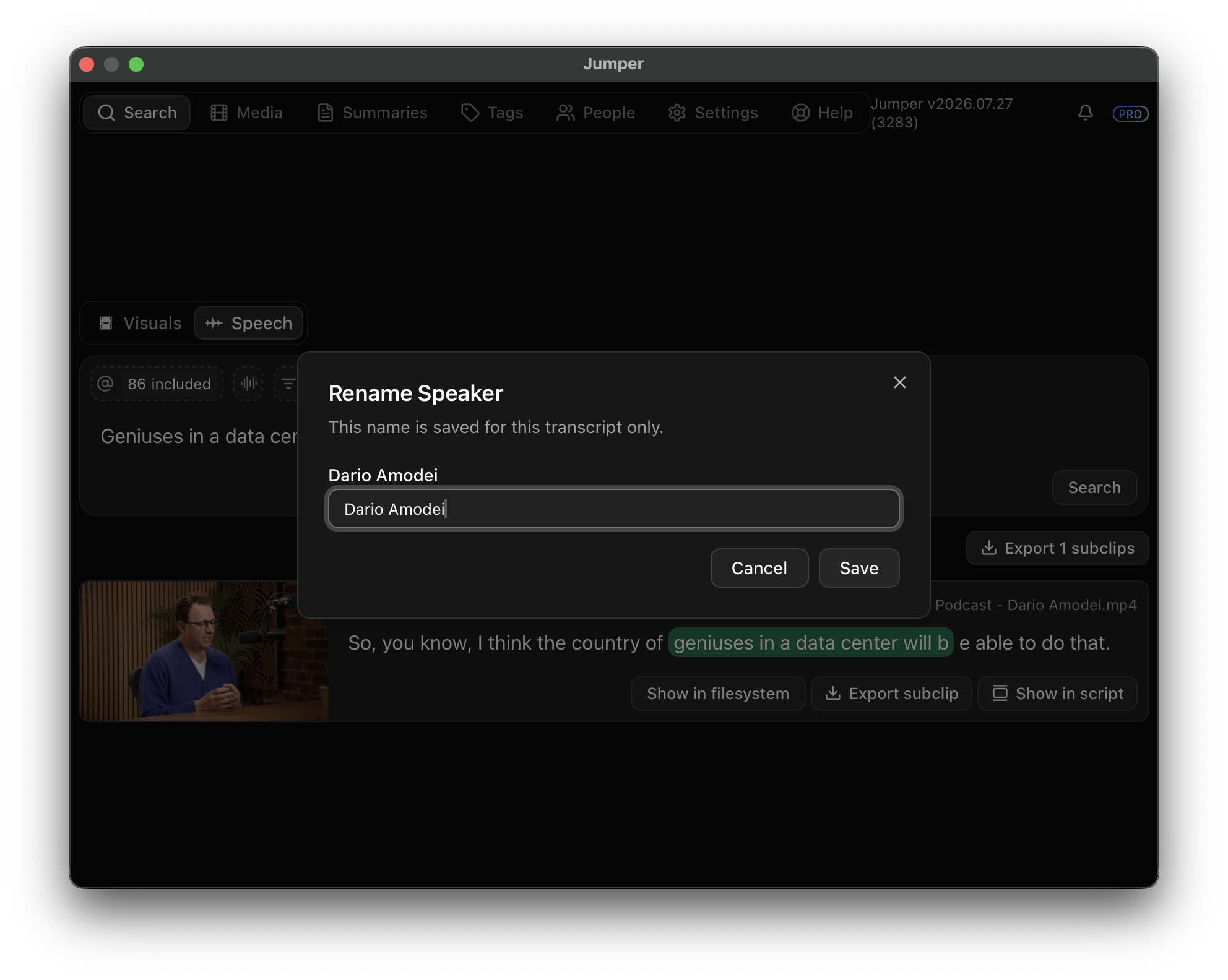
Speaker detection is on by default. Jumper separates voices and assigns labels such as Speaker 1 and Speaker 2. To name a detected speaker:- Run a Speech search.
- Click the speaker label on a result.
- Enter the speaker’s name and click Save.
If you know the cast size, set the expected speaker count before analysis to Auto, 1, 2, 3, 4, or 5+. A close count can improve detection. Overlapping speech and very short lines can still be mislabeled, so review the results and rename speakers where needed.
How search works
Jumper searches the transcripts of your analyzed media and ranks exact and fuzzy matches.- Exact matches contain the word or phrase you entered.
- Fuzzy matches include close spellings and similar-sounding words.
Open a result in the full transcript
Click Show in script on a result. Jumper switches to the dedicated Script tab, opens the full transcript, and takes you to the matching line. From there, review the surrounding dialogue, remove unwanted segments, jump to source timecodes, add selects to the timeline, or export the transcript.Language support
Jumper supports more than 100 languages and language variants. Select the spoken language before analysis so Jumper can route the audio to the appropriate speech model. For a complete list of supported languages, see Supported Languages.Transcription files
Speech analysis generates two plain text transcript files for each media file. Right-click the file in the Media tab to open its transcript or locate its speech analysis files.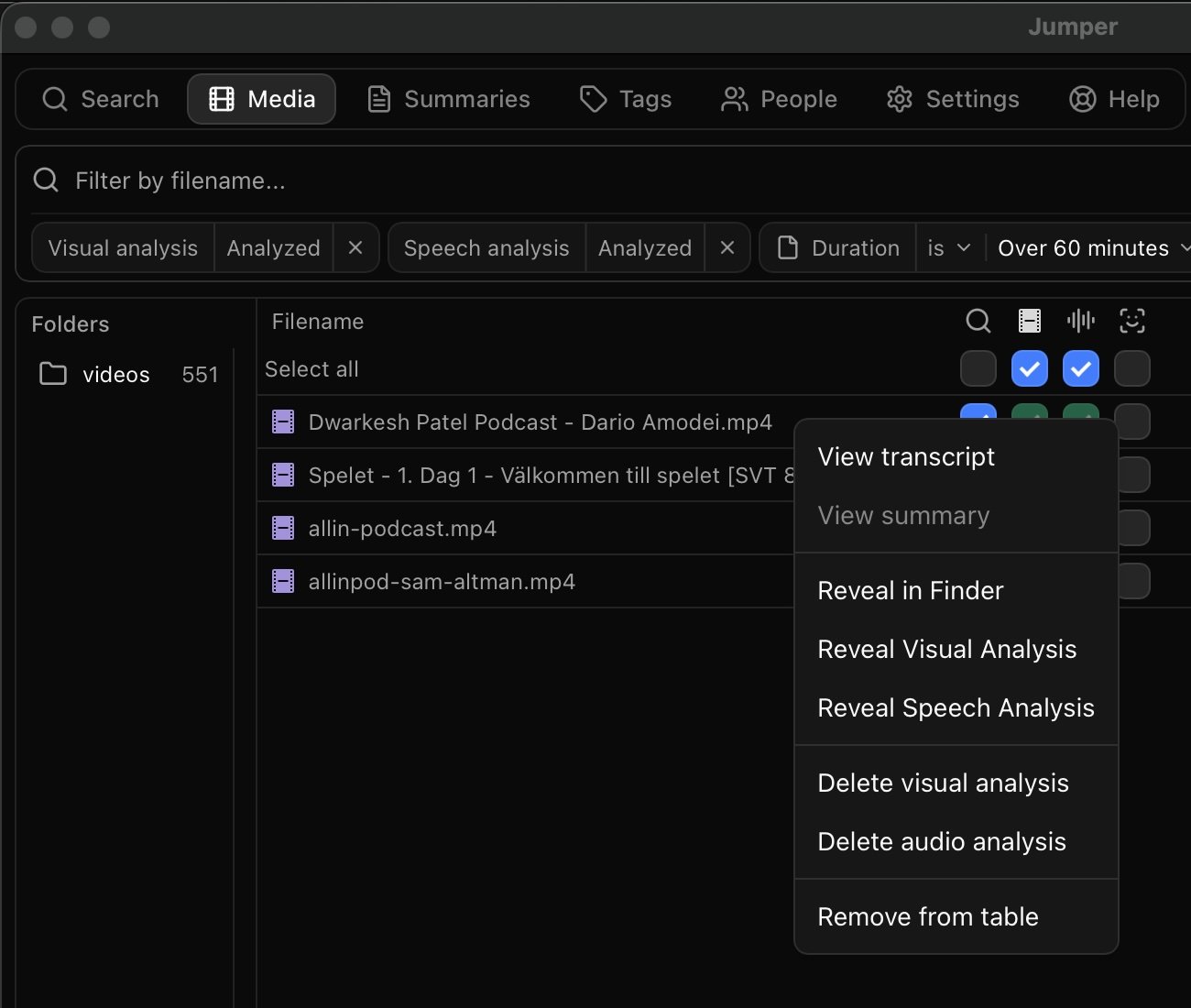
- View transcript switches to the Script tab and opens the file’s full transcript.
- Reveal Speech Analysis opens the speech analysis folder in Finder.
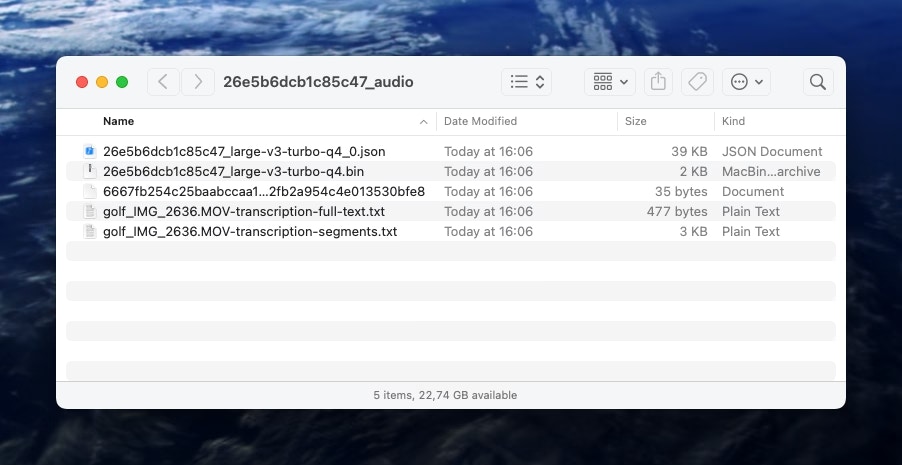
transcription-full-text.txtcontains the complete transcript.transcription-segments.txtsplits the transcript into timestamped segments.
- Review or edit the transcriptions outside of Jumper
- Share transcriptions with others
- Use the transcriptions in other applications
- Verify what was transcribed
Frequently Asked Questions
Can Jumper distinguish who said what (speaker diarization)?
Can Jumper distinguish who said what (speaker diarization)?
Yes. Jumper detects speakers, lets you name them per transcript, and lets you filter Speech searches by named speaker. See Speaker detection.
Can Jumper transcribe more than one audio channel?
Can Jumper transcribe more than one audio channel?
Yes. Select one or more channels. When the same dialogue appears on multiple channels, Jumper merges the transcripts and removes duplicate speech. See Audio channels.