

Overview
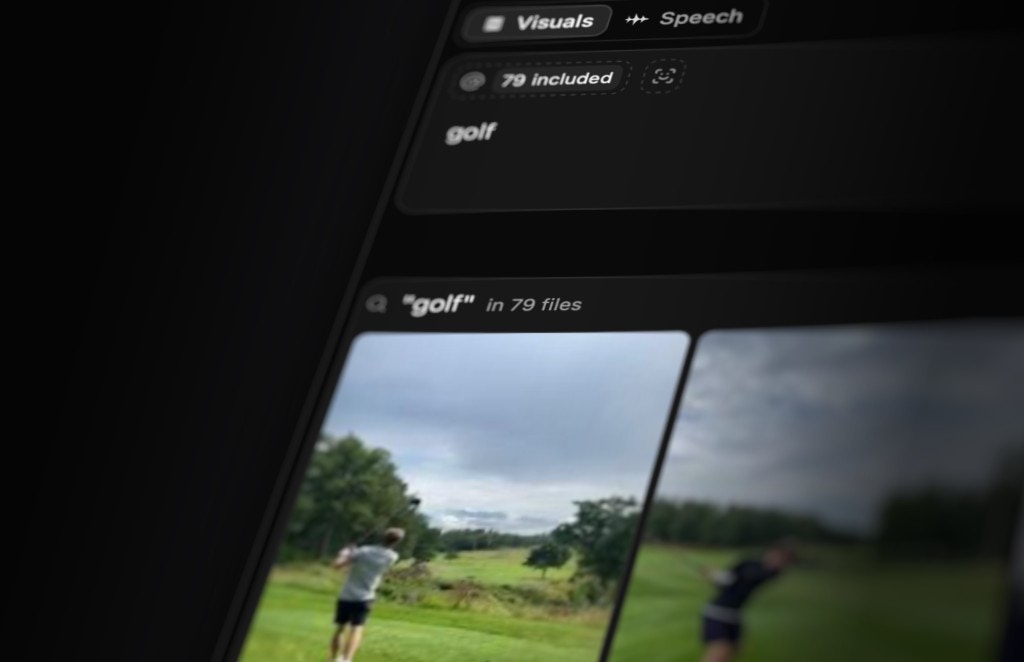
Visual search is Jumper’s core capability for finding specific visual content in your footage. Unlike traditional keyword-based search, visual search uses advanced machine learning models (specifically Visual Search Models) to understand the semantic meaning of what you’re looking for and match it to frames in your media. When you perform a visual search, Jumper analyzes your query (whether text or an image) and compares it against the visual understanding it has already extracted from your analyzed footage. This allows you to find content based on what things look like or what’s happening in the scene, not just metadata or filenames.Visual search does not rely on manual keyword tags or technical metadata to understand what is pictured. Jumper analyzes the actual visual content of your footage, so you can search for visible concepts without labeling every shot first. You can separately use metadata filters to narrow which source files are searched.
Text-based search
Text-based visual search lets you describe what you’re looking for using natural language. Jumper’s visual search models understand the semantic meaning of your query and find frames that match that meaning, even when the exact words don’t appear in the footage.How it works
When you search for something like “a person walking through a door,” the model understands:- What “a person” looks like visually
- What “walking” means in terms of motion and pose
- What “a door” is and how it appears in different contexts
- How these elements relate to each other in a scene
Language support
Text-based search works best in English, but if you’ve analyzed your footage with a multilingual model, Jumper can understand search queries in approximately 80 languages. The model recognizes the same visual concepts regardless of the language you use to describe them. For example, searching forwhite cat, gato blanco, or 白い猫 will likely return the same results because the model understands these are all descriptions of the same visual concept.
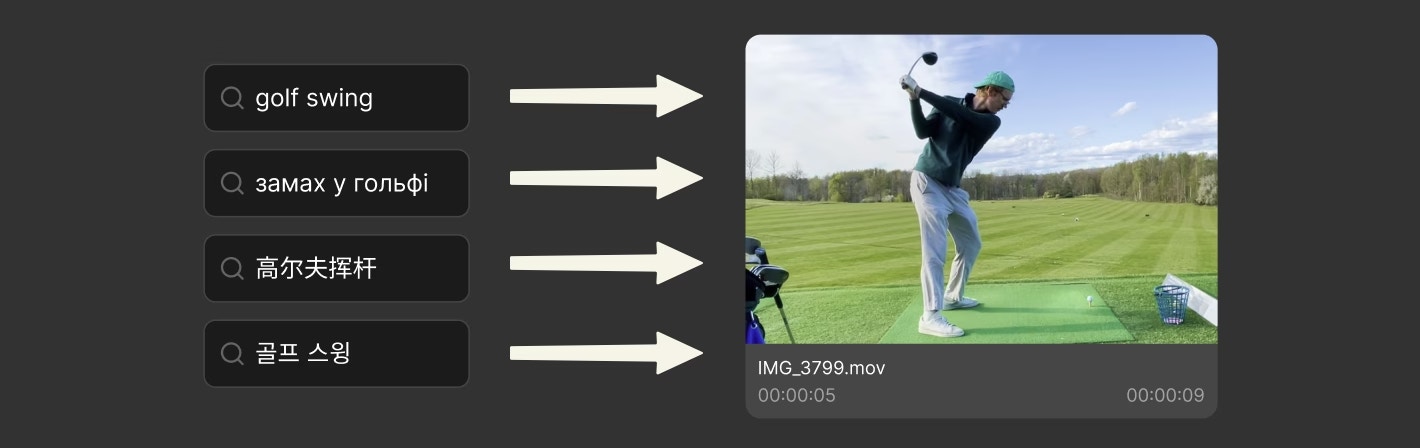
With a multilingual model, you can search in other languages.
Image-based search
Image-based search works differently from text search. Instead of describing what you’re looking for with words, you provide an image, and Jumper finds scenes in your footage that are visually similar to that image.How it works
When you search by image, Jumper’s models analyze the visual characteristics of your search image (colors, composition, objects, people, settings, and overall visual style) and find frames in your footage that share similar visual properties. This works well for finding:- More footage of the same person (even from different angles or lighting)
- Similar locations or settings
- Shots with matching visual style or composition
- Objects or scenes that look similar but might be described differently
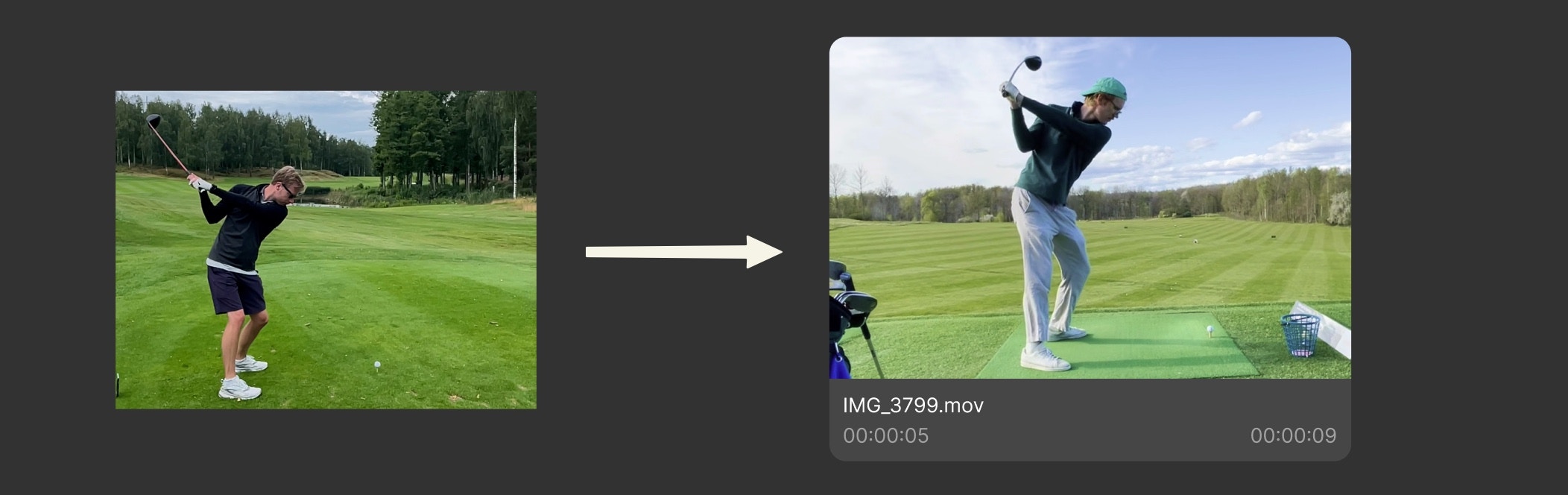
Image sources
Jumper provides several ways to use images for search, each designed for different workflow scenarios:Scene detection and search results
When Jumper performs a visual search, it returns results as scenes; segments of media files with a defined start time and end time. Each scene represents a continuous portion of a file where the search query matches the visual content.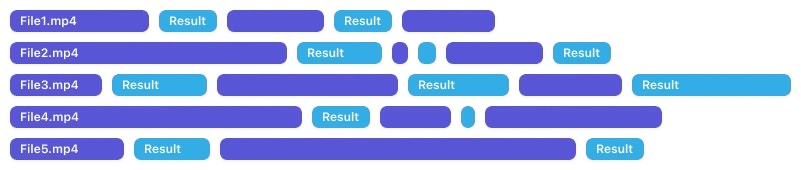
Related
Search best practices
Tips and tricks for getting the best search results in Jumper
Interface: Search tab
Learn about the Search tab in Jumper