Overview
This guide outlines the essential information needed to report issues effectively, ensuring quick and accurate solutions for any challenges you encounter with Jumper.Read the FAQ
Some of the most commonly asked questions
Make a Feature request
Have an idea of how we could make Jumper better?
Join the Discord
Ask your question to the community and get in contact with other users.
Send us an email
You can always reach us at hello@getjumper.io
Accessing log files
Sending us your log files along with a description of the issue can help us find the cause more quickly.Export logs from Jumper
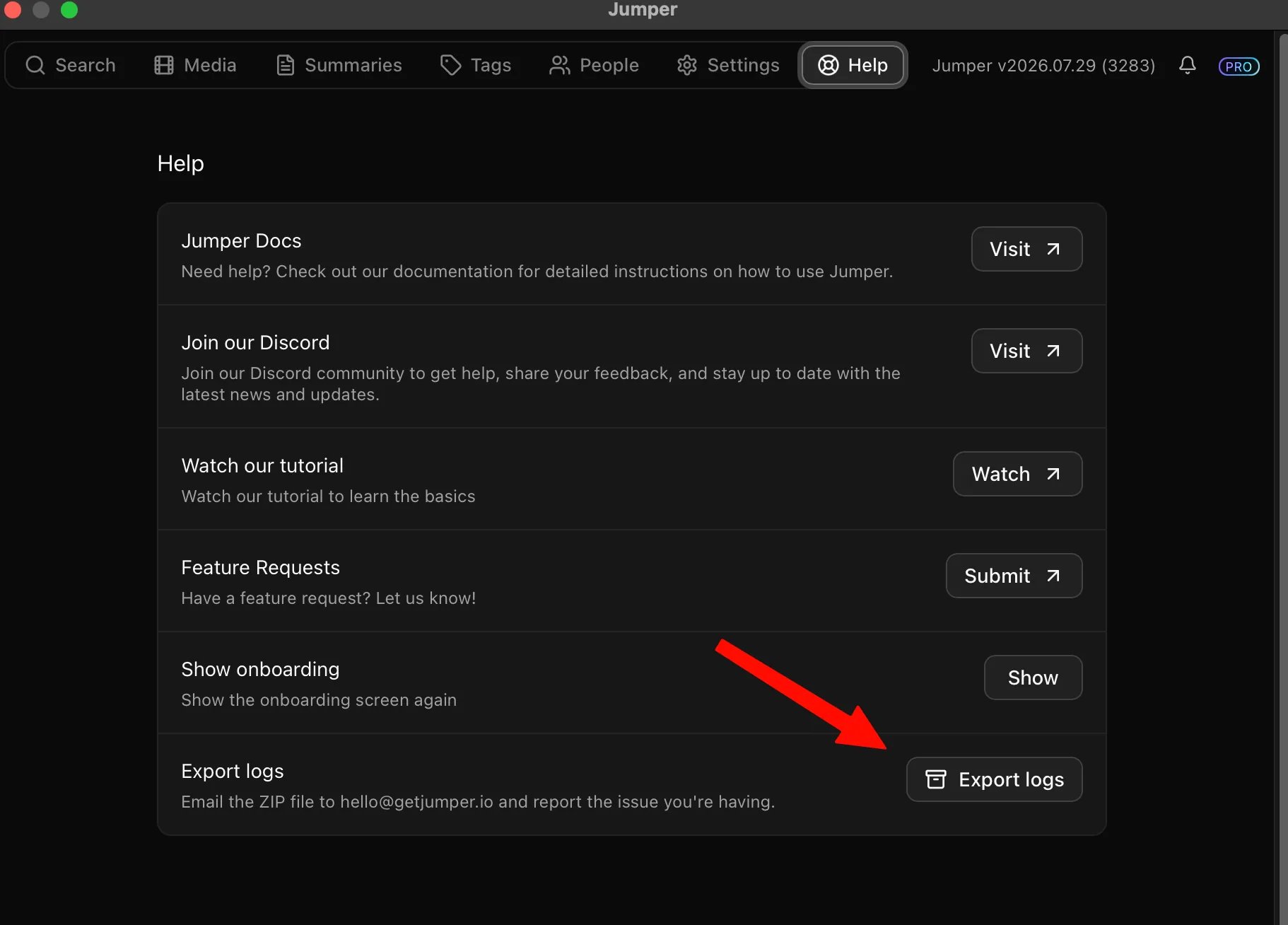
If Jumper opens, the easiest way to collect all of your logs is from the Help tab:1
Open the Help tab
Open Jumper and select Help.
2
Export the logs
Select Export logs. Jumper creates a ZIP file on your Desktop containing all of the log files.
3
Email the ZIP file
Attach the ZIP file to an email to hello@getjumper.io and briefly explain the issue you are experiencing.
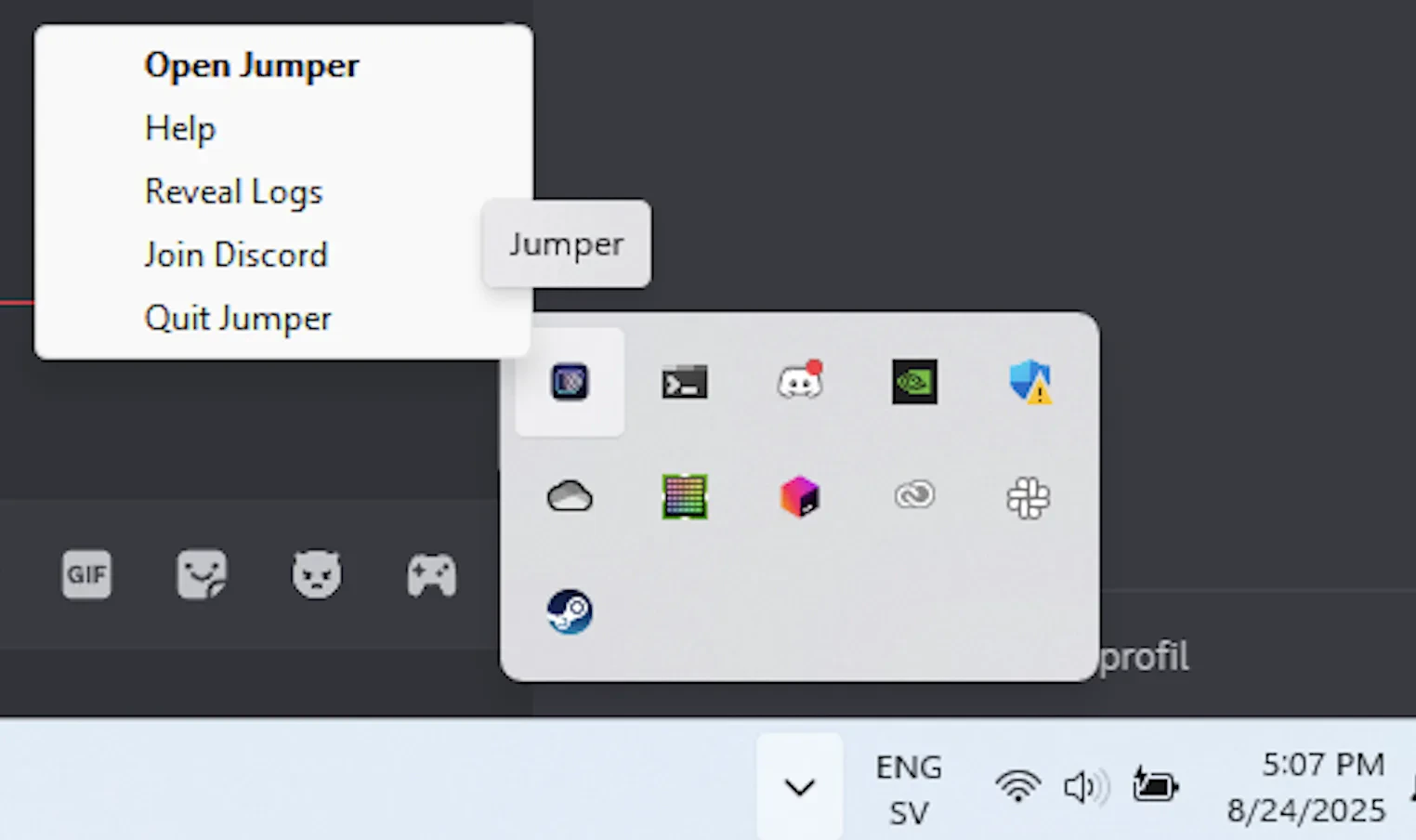
If Jumper does not open, use one of the manual methods below to access the log files.
Find log files manually
- macOS
- Windows
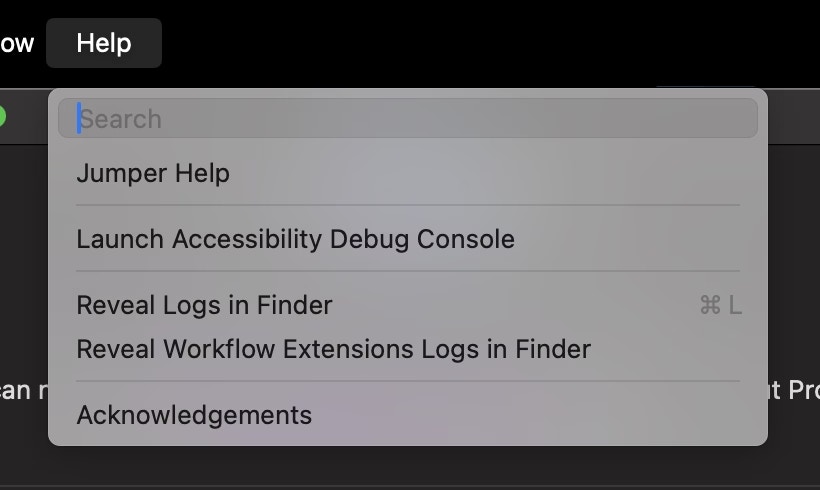
If Jumper opens, select Help > Reveal Logs in Finder from the macOS menu bar.