

Shared analysis requires Jumper Pro or Enterprise on each workstation that reads analysis data created on another machine. Enterprise also lets you restrict which analysis folders each license can use.
Overview
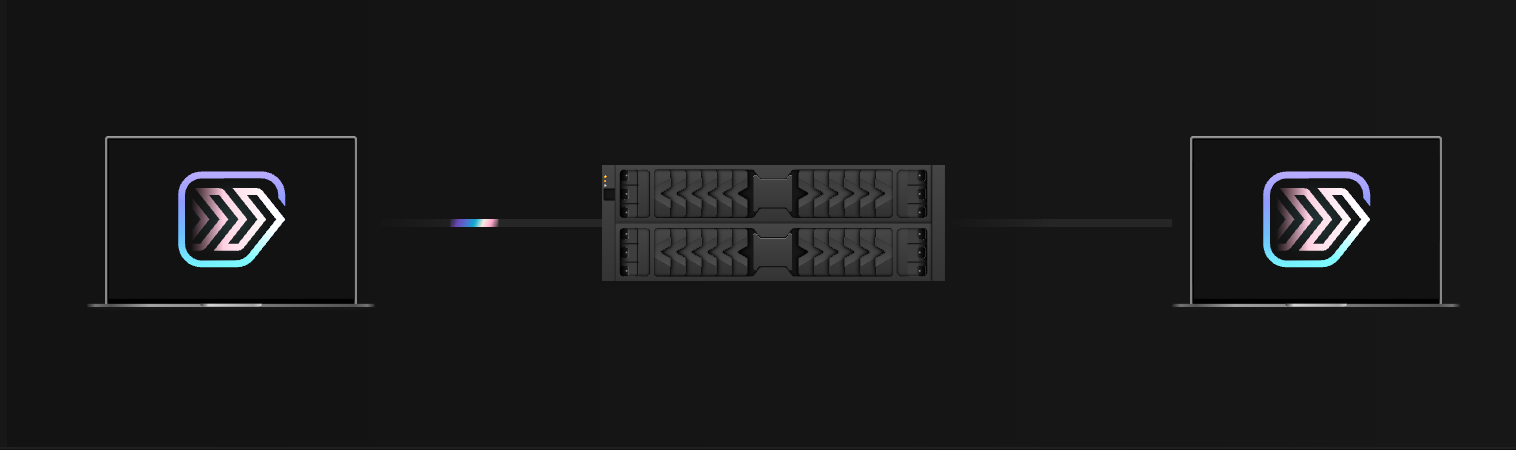
Shared analysis allows multiple Jumper users and devices to work with the same analysis data by storing it on a networked drive. When you configure Jumper to use a shared analysis folder on a network location (like a NAS, shared server, or cloud storage), all analysis data from every user and device gets stored centrally. This means:- No duplicate analysis: Media analyzed on one device shows up as analyzed (with a green checkmark ) when imported on another device
- Shared workload: Multiple users can analyze different media files to the same location, distributing the analysis work across your team
- Centralized storage: All analysis files are stored in one location, making backup and management easier
- Dedicated analysis workflow: Set up a dedicated computer to analyze incoming footage automatically. Editors and assistant editors can pull media into their editing software and it’s already analyzed and searchable.
Setting up a shared analysis folder
1
Choose a network location
Select a location on a networked drive where you want to store all analysis files. This can be:
- A Network Attached Storage (NAS) device
- A shared server or network drive
- Cloud storage services like Dropbox or Google Drive (when synced locally)
- Any other network-accessible location
2
Configure permissions
Give the users working on this production read and write permissions to its shared analysis directory. Their devices need to be able to:
- Read existing analysis files
- Write new analysis files
- Access the directory reliably
3
Set the analysis folder on each device
On each device where Jumper is installed:
- Open the Settings tab in Jumper
- Find the Analysis folder section
- Click the Folder button to browse
- Navigate to and select the shared network location
- Make sure all devices point to the same directory (the exact path may differ on different operating systems, but it should resolve to the same network location)
4
Verify access
Test that each device can:
- Access the shared folder
- See analysis files created by other devices
- Create new analysis files that other devices can read
Confidential footage and project-specific analysis folders
For confidential or pre-release material that should only be accessible to specific team members, use project-specific analysis folders instead of a single folder shared across productions. Analysis data can include thumbnails and transcripts that reveal the footage, so protect it along with the source media.How it works
Store each production’s analysis in a subfolder of its project directory, and configure storage permissions so only the authorized team can access both the media and the analysis. Check permission inheritance on your storage; placing files beside restricted media does not by itself guarantee matching access. Example workflow:- All material for a show is stored in a project folder on network storage (e.g.,
/Network/Projects/ShowName/) - User permissions are configured so only authorized editors can access this folder
- Set the analysis folder to a subfolder within the project directory (e.g.,
/Network/Projects/ShowName/Analysis/) - Users without proper credentials cannot access the analysis files, maintaining the same security boundaries as the footage itself
Swarm analysis
When multiple devices are configured to analyze media to the same shared location, Jumper will automatically coordinate between them to perform swarm analysis i.e. analyzing media files in parallel across multiple computers. This means Jumper will:- Automatically allocate media files to analyze between the available devices
- Manage concurrent analysis to avoid conflicts
How do I enable swarm analysis?
How do I enable swarm analysis?
You don’t have to do anything, it’s enabled by default.
Troubleshooting
Media shows as unanalyzed on other devices
Media shows as unanalyzed on other devices
Check the analysis folder path: Make sure that the
Analysis folder is set to the same directory on all devices. The exact path to the directory might differ on different devices (e.g., /Volumes/SharedDrive/Analysis on macOS vs \\server\share\Analysis on Windows), but it should resolve to the same network location.Verify file visibility: Check that analysis files created on one device are visible on other devices. If files aren’t appearing, there may be a sync delay (for cloud storage) or a mounting issue (for network drives).Permission errors when analyzing
Permission errors when analyzing
Check directory permissions: Make sure that the users working on this production have read and write permissions on its analysis directory.Verify network credentials: Ensure that all devices have the necessary network credentials to access the shared location. Some network drives may require authentication.
Slow search performance
Slow search performance
Network speed: Performance on a Network Attached Storage (NAS) is heavily dependent on your network speed. 10GbE connections have been tested to work well, but slower network connections may result in slower search responses.Local caching: Jumper may cache some data locally, but frequent access to analysis files on the network can be slower than local storage. Consider the trade-off between shared access and performance for your workflow.