

Before you begin
- Jumper is installed and running locally
- You have media analyzed in Jumper if you want to test a real search right away
- You want the model and Jumper tool calls to stay on your machine
Step-by-step
1
Download LM Studio
Go to lmstudio.ai and download the build for your operating system.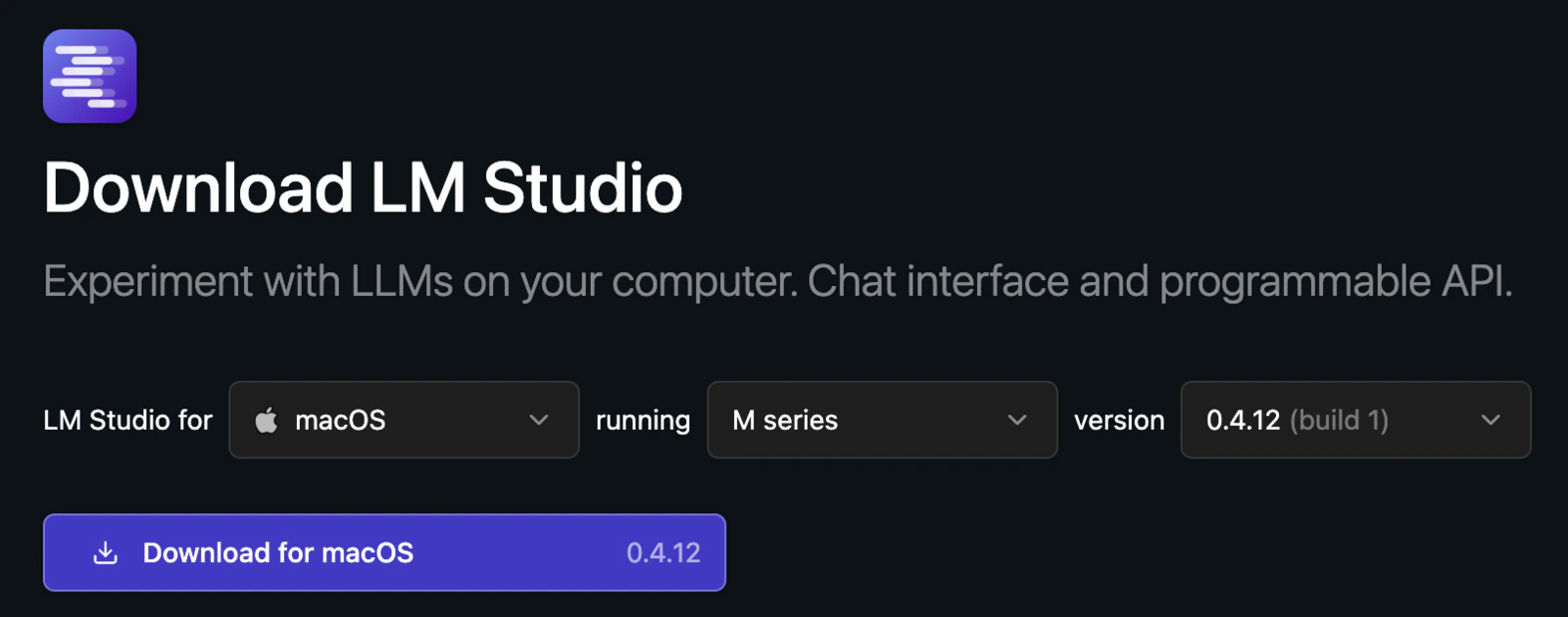
2
Check which Gemma size fits your machine
Before downloading a large model, search for 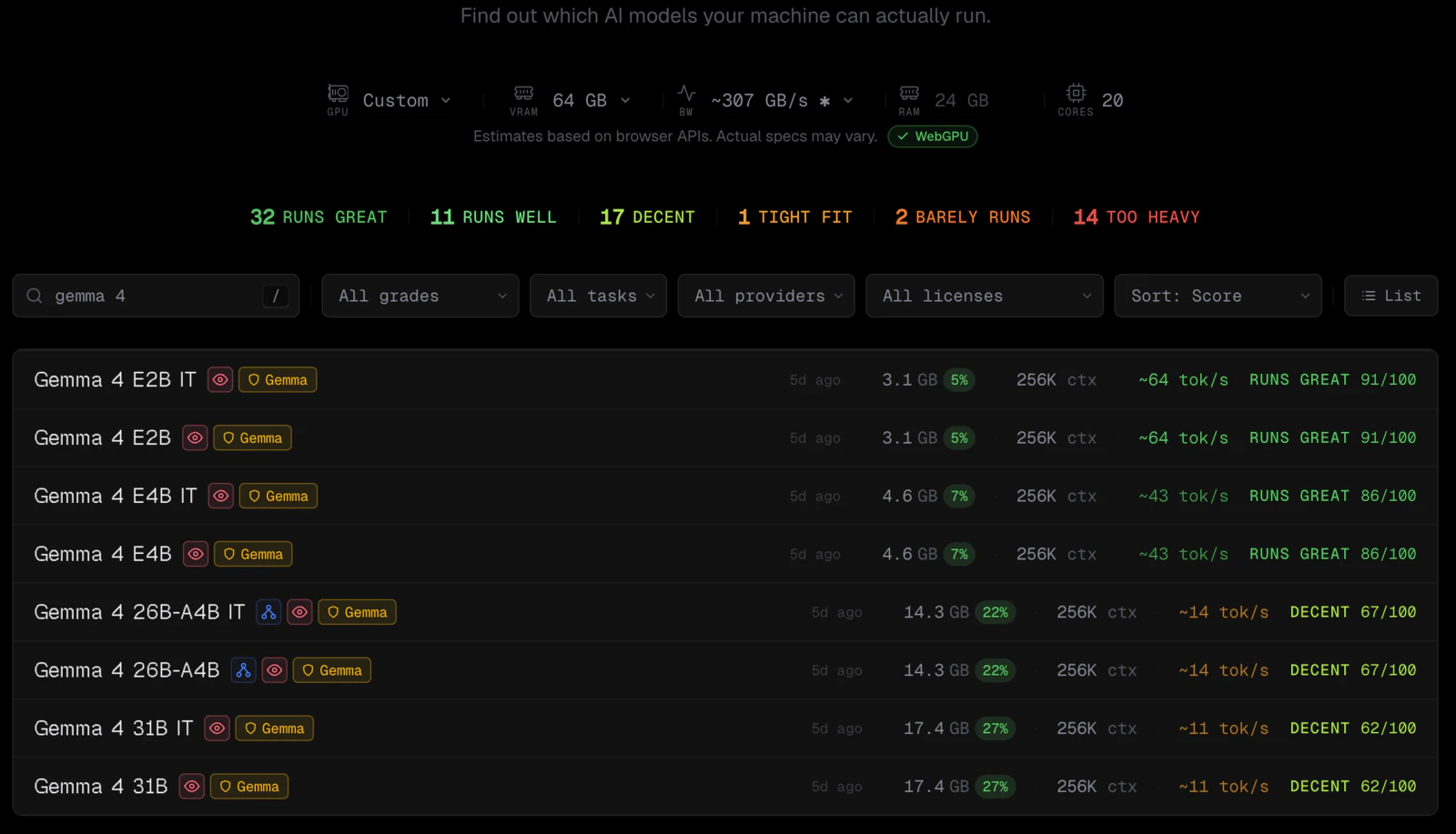
gemma 4 on canirun.ai and see which sizes are realistic for your hardware.The little red eye icon marks models with Vision support, which is required for the Jumper workflow.3
Open LM Studio's model search
Open LM Studio and click the robot icon in the left sidebar (Model Search).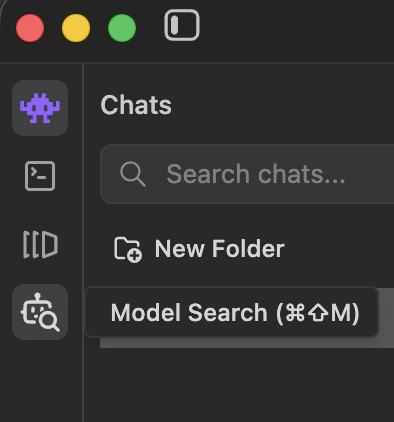
4
Search for a Gemma 4 model and download it
Search for 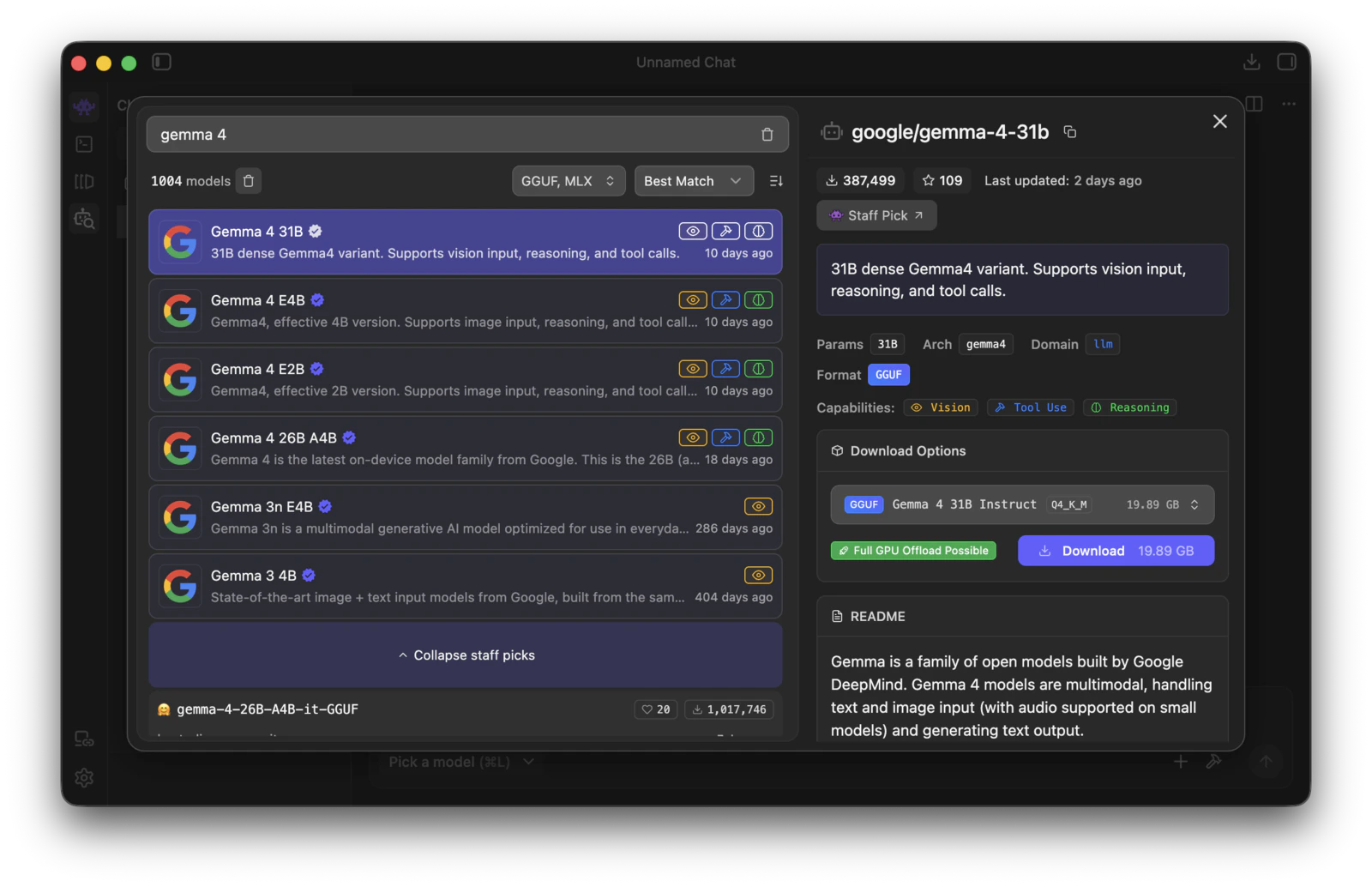
gemma 4 and pick a model that shows the capabilities you want. For Jumper, Tool Use and Vision are the key capabilities.5
Choose load parameters
Once the download finishes, open the model picker, turn on Manually choose model load parameters, and then click the model you want to load.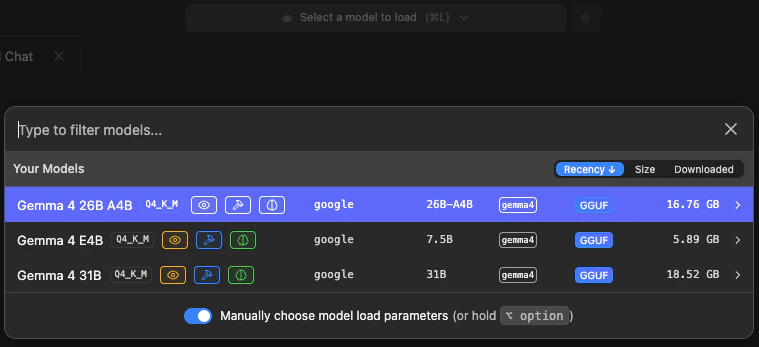
6
Confirm the load settings
In the load settings view, you will most likely want to increase Context Length. In this example it is set to the maximum value, and Remember settings is enabled so you do not have to repeat this every time you load the model.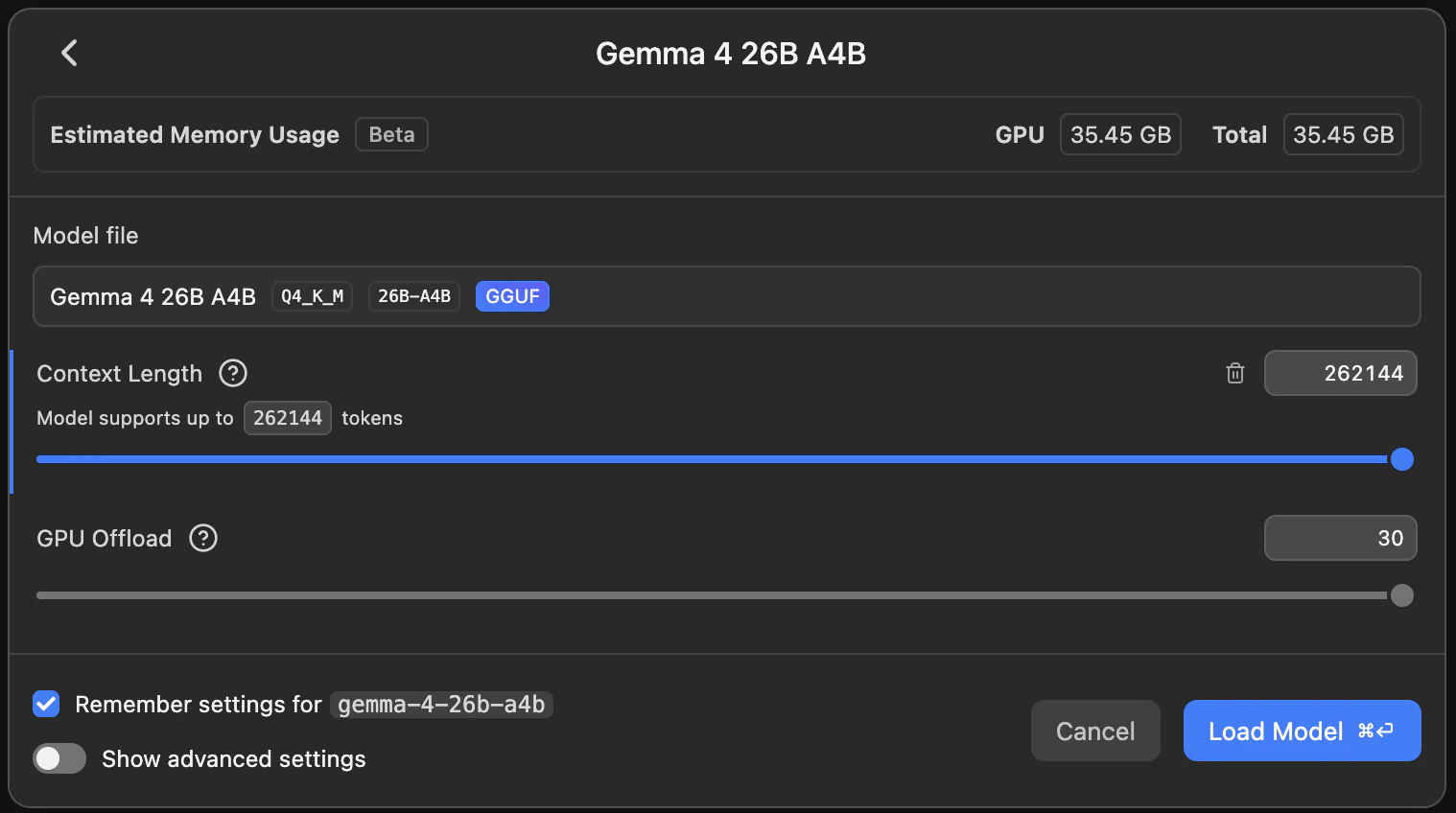
7
Open the MCP configuration
In LM Studio chat, open Integrations, click the 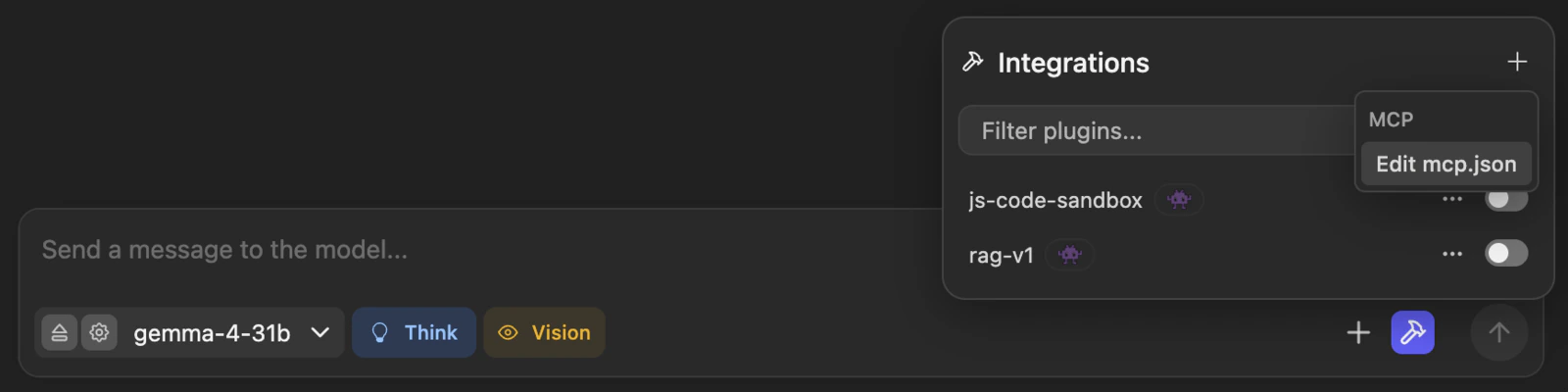
+ menu, and choose Edit mcp.json.8
Add the Jumper MCP server
Add the Jumper server to 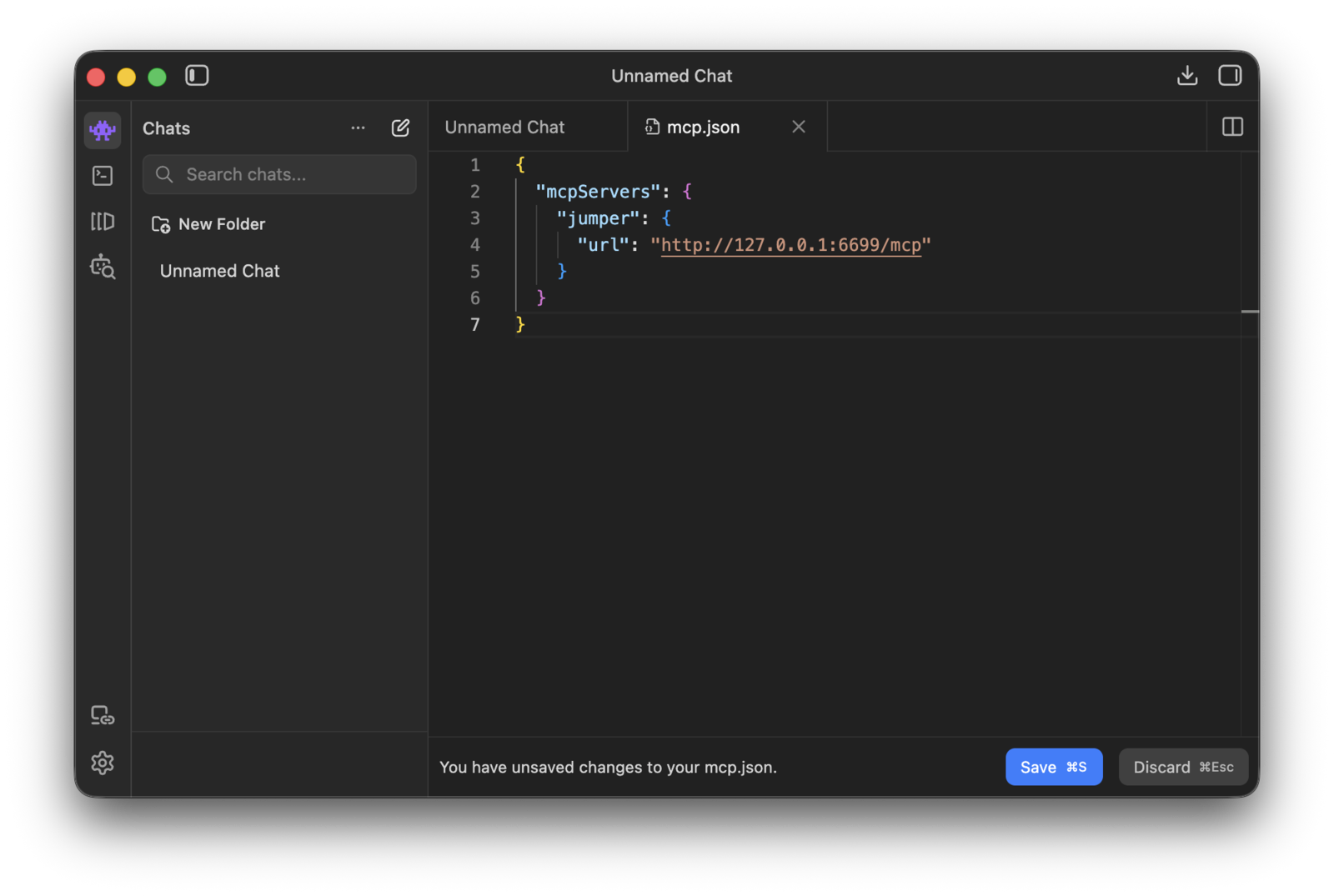
mcp.json and save the file:9
Enable the Jumper integration
After saving, LM Studio reloads its MCP servers. Open Integrations and turn on 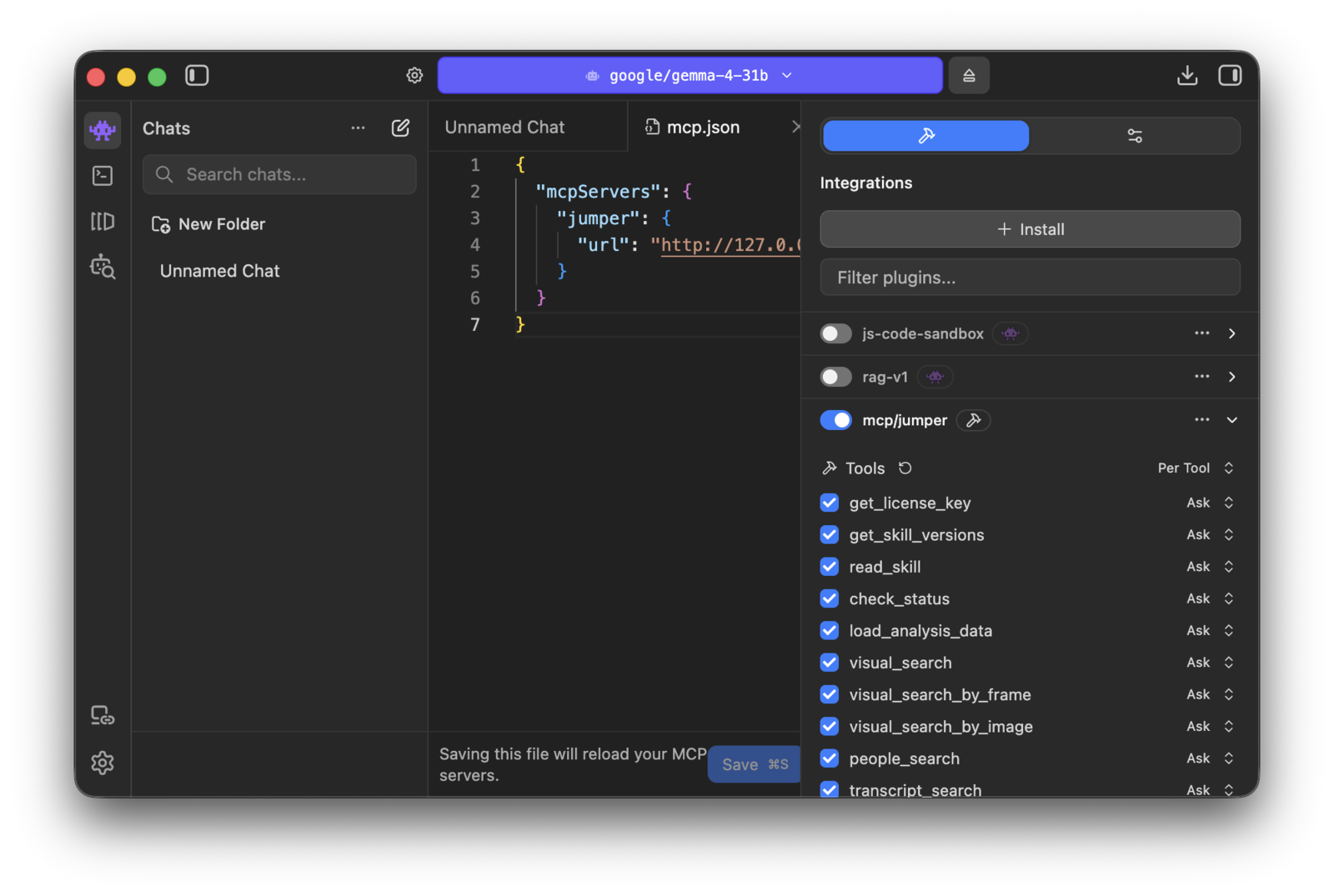
mcp/jumper.10
Make sure Jumper is active in the chat
Open or start a chat and confirm that 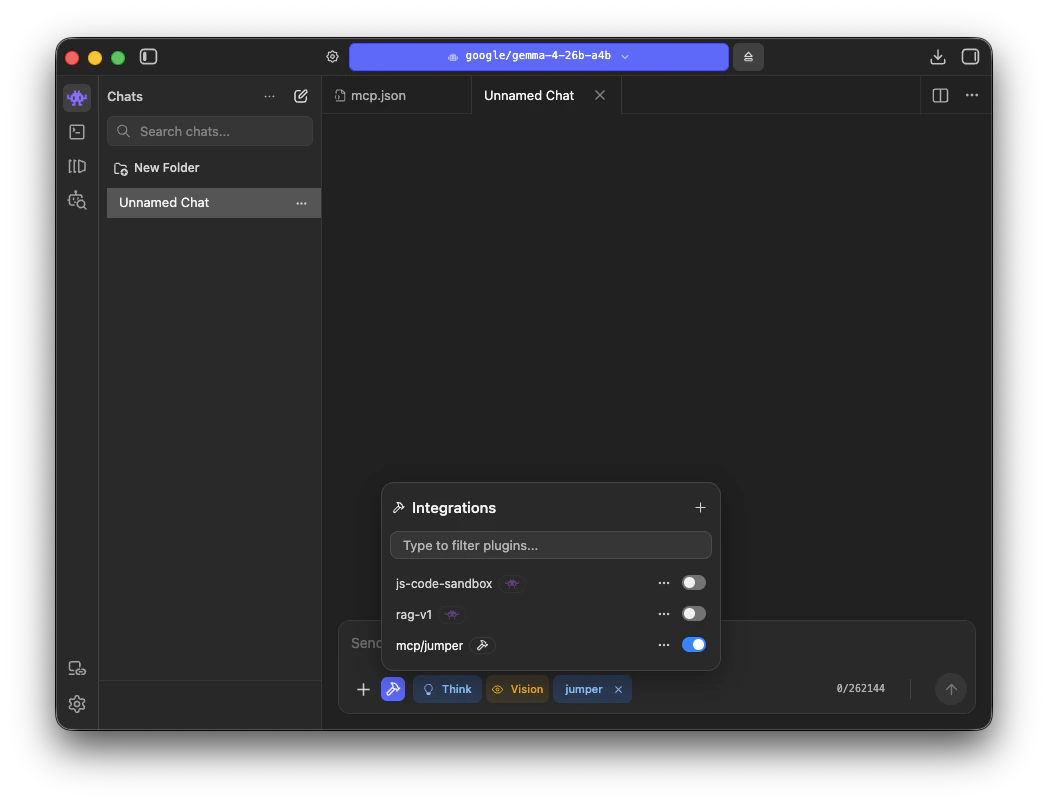
jumper is attached in the composer before you send a prompt.11
Start LM Studio's local server
Open the menu bar icon and choose Start Server on Port 1234.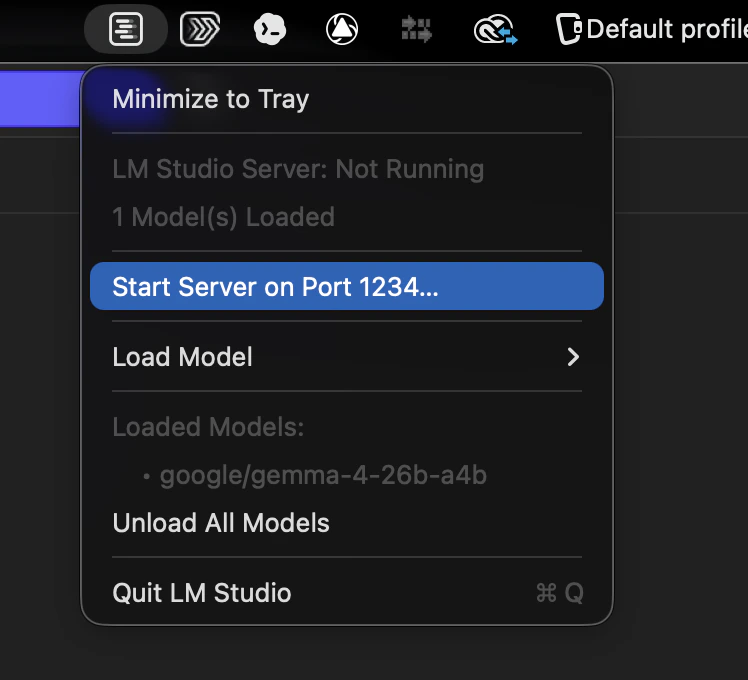
12
Add an API token if the server requires one
LM Studio 0.4 and newer can require an API token for every request to its local server. This is off by default.To check, click Model Server in LM Studio’s left sidebar, then Server Settings. If Require Authentication is off, skip this step.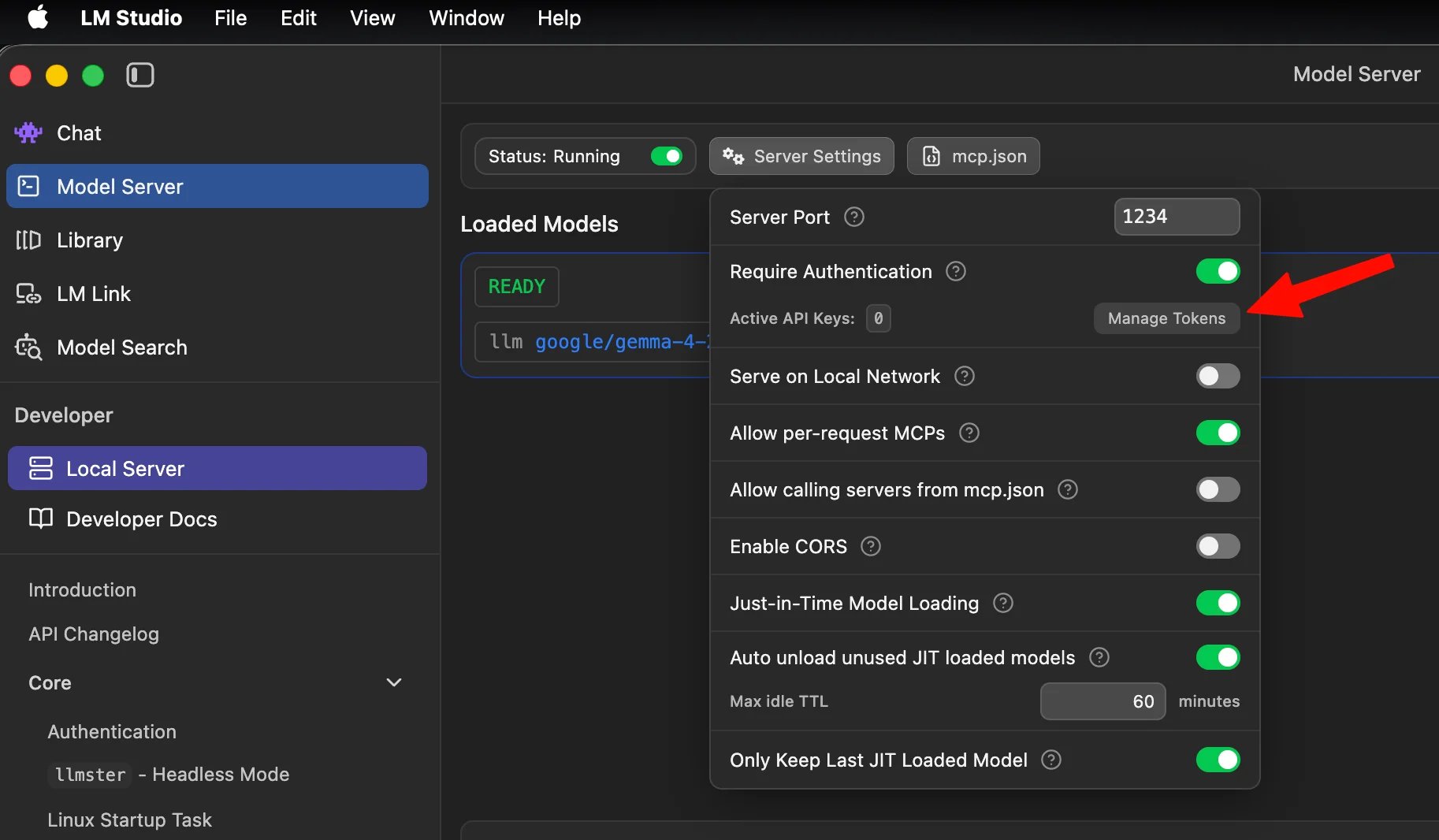
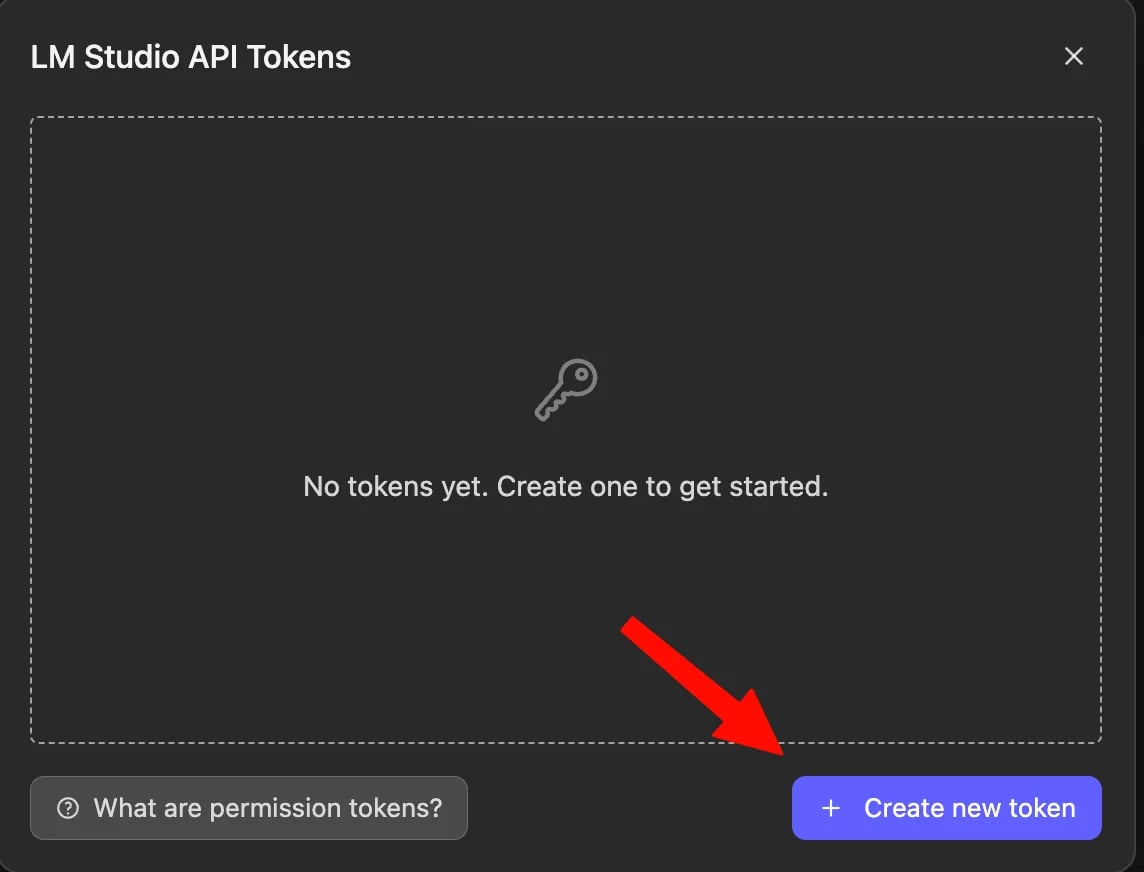
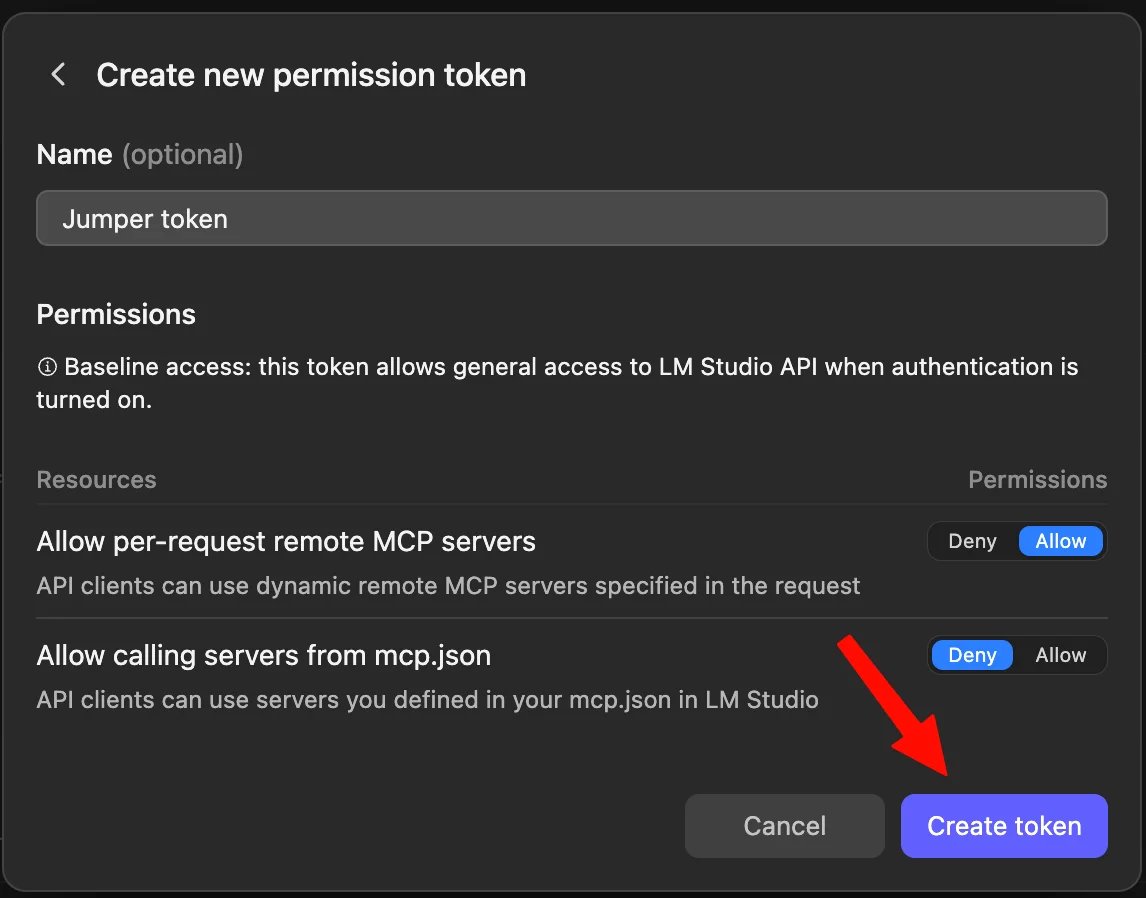
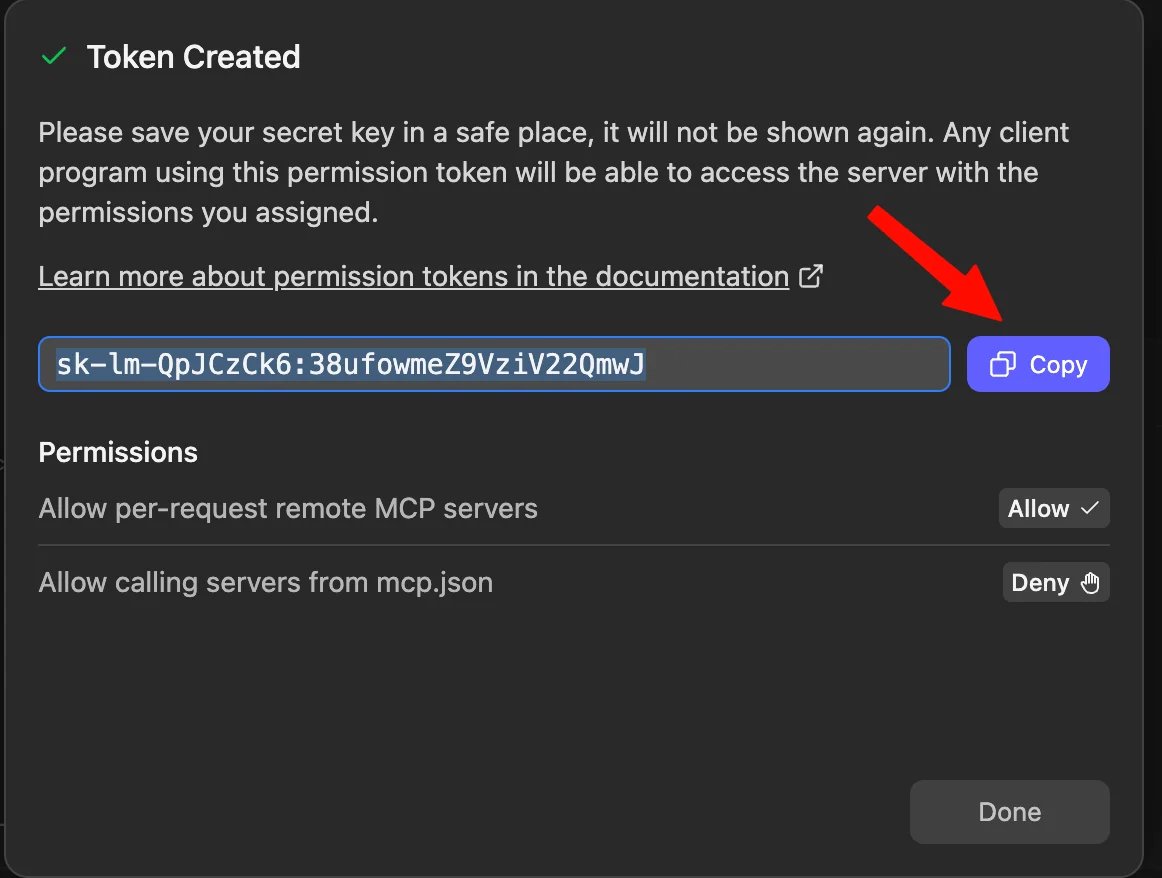
Jumper token. The default permissions are enough for Jumper. Click Create token.mcp.json again. The mcp.json button next to Server Settings opens it. Add a headers block to the jumper entry, with Bearer in front of your token:13
Verify that LM Studio can use Jumper
Ask a simple question like 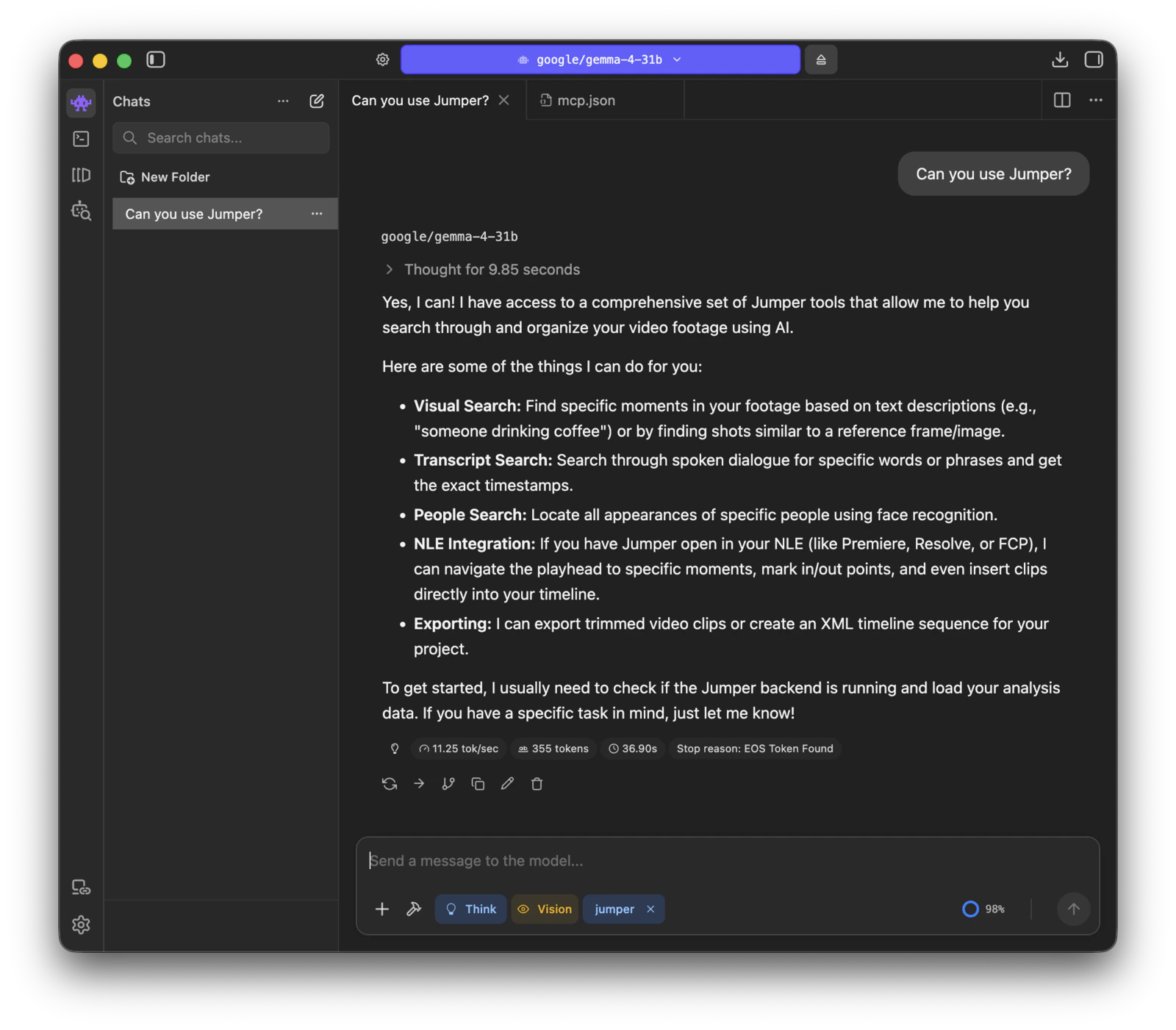
Can you use Jumper? or give it a real search request. A healthy setup should answer using the available Jumper tools instead of acting like it has no integration.Timeline workflows
Withmcp/jumper enabled, LM Studio agents can also read timelines from Premiere Pro, DaVinci Resolve, and Avid Media Composer and send edited timelines back. See Timeline import and export for examples.
Troubleshooting
mcp/jumperdoes not appear in Integrations: Check that yourmcp.jsonis valid JSON and that Jumper is running locally onhttp://127.0.0.1:6699.- The model behaves like it has no tools: Make sure
mcp/jumperis enabled in Integrations and thatjumperis attached in the current chat composer. - The agent can search but does a poor job judging which shots are the best matches: Make sure LM Studio’s local server is running on
http://127.0.0.1:1234. - The agent reports “LM Studio requires an API token”: The local server requires authentication, and
mcp.jsonhas no token. Follow the Add an API token if the server requires one step above. - The agent reports “LM Studio rejected the API token”: The token in
mcp.jsonis wrong or was deleted. Create a new one under Manage Tokens and replace the old value, keepingBearerin front of it. - The model is too slow or does not load: Choose a smaller Gemma 4 variant or lower the context length in LM Studio’s load settings.
Related

Bionic
The same setup in Bionic, our recommended agent app
All local agent guides
Other agent apps you can use with Jumper
Agentic editing
Overview of how AI agents use Jumper through MCP
Agentic editing and data privacy
What stays local and what the model actually receives