

Instructions
- macOS
- Windows
1
Ensure permissions are set
Make sure that Jumper is installed, and 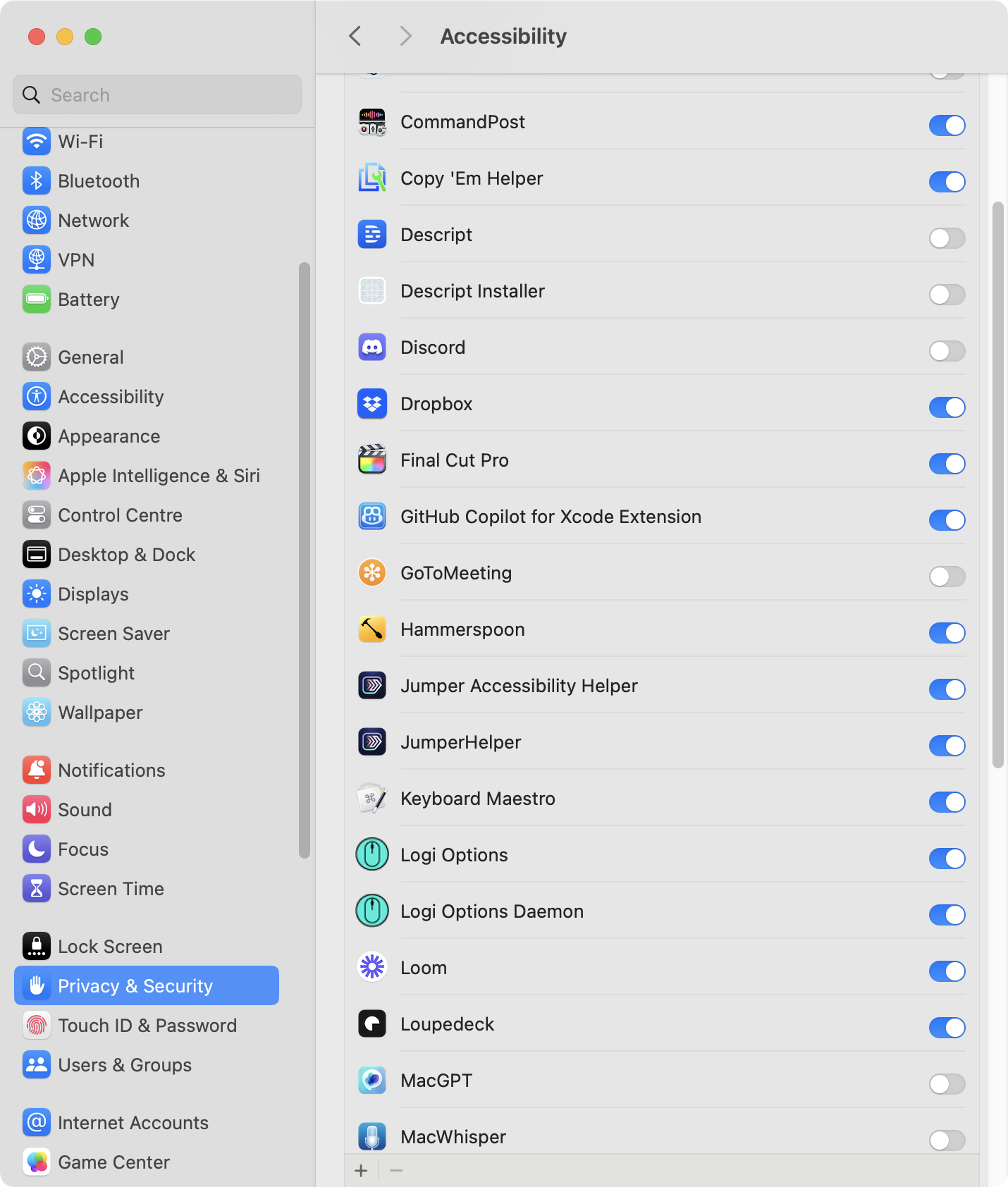
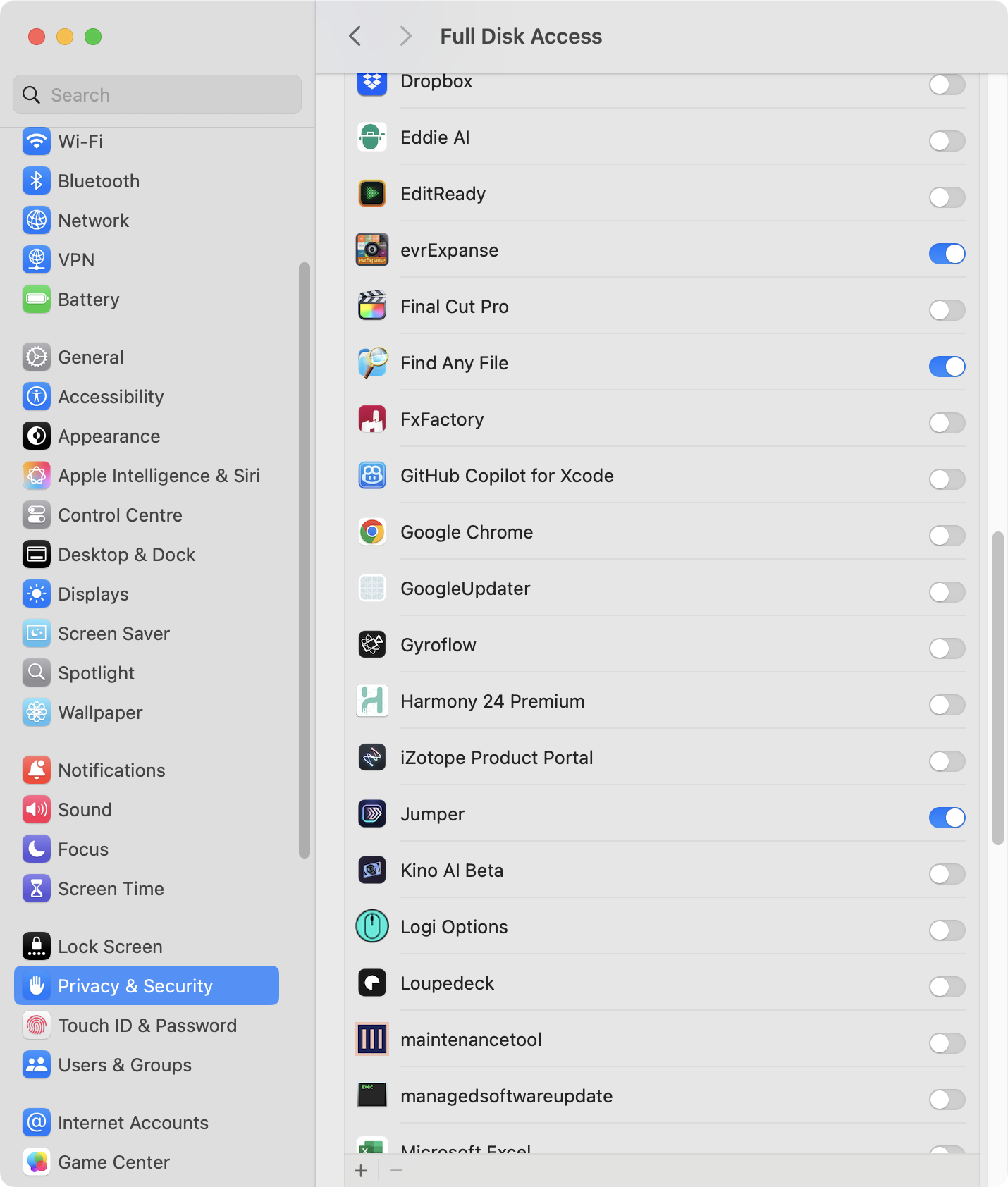
JumperHelper has Accessibility Permission, and Jumper.app has Full Disk Access. If you install Jumper for DaVinci Resolve, it will prompt you for these.2
Launch Jumper
Launch 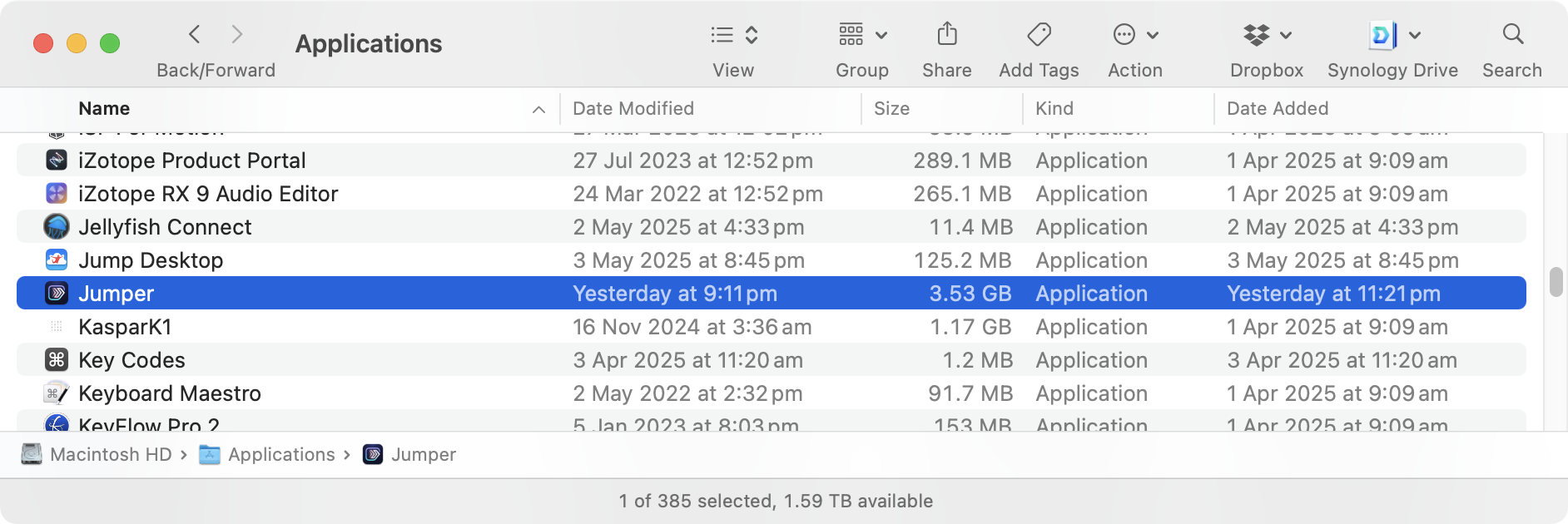
Jumper.app from your Application folder.3
Enable Jumper in DaVinci Resolve
Click the Enable Jumper in DaVinci Resolve toggle: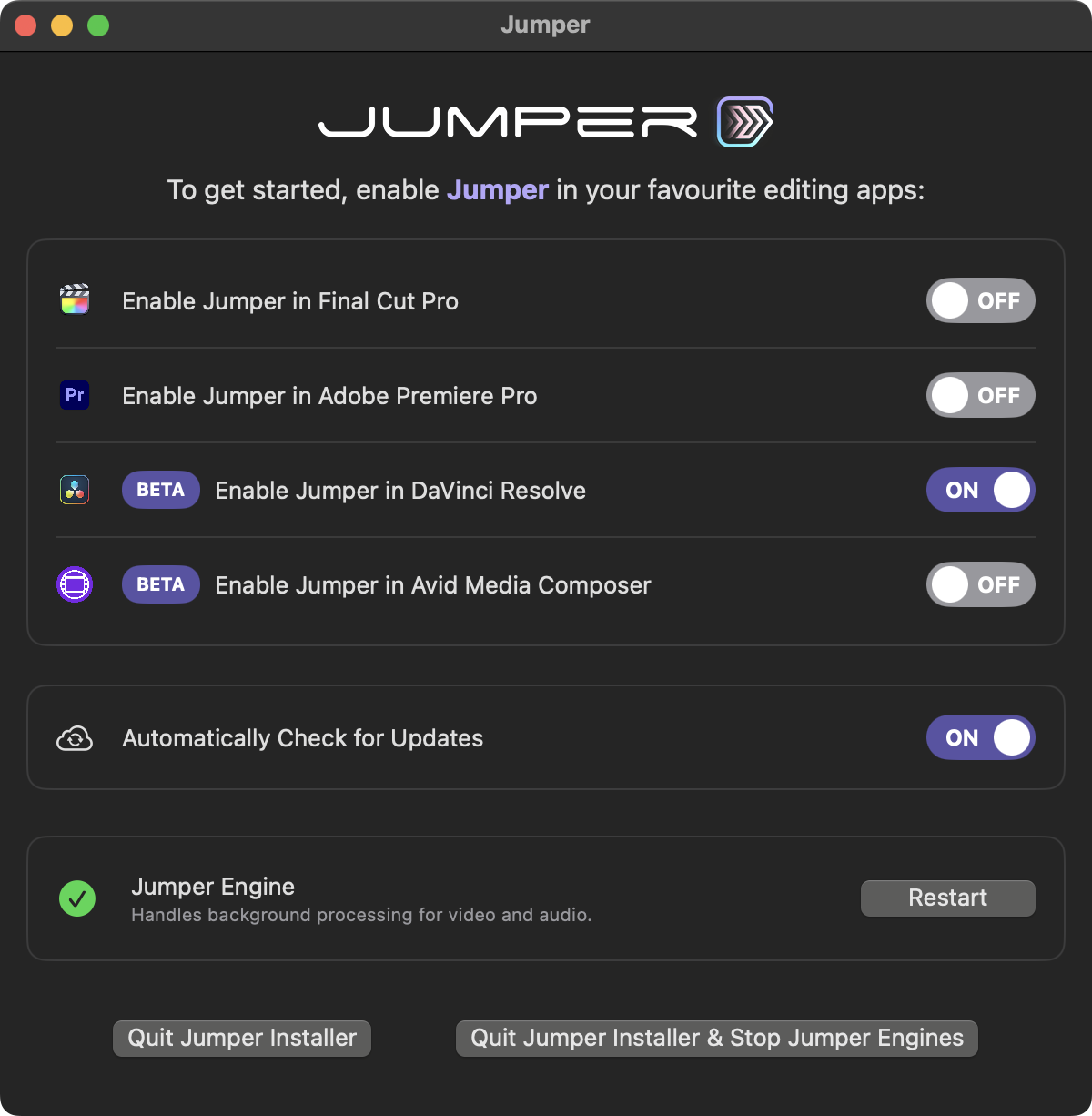
4
Launch DaVinci Resolve
Launch DaVinci Resolve.Create a new Project or open an existing Project.
5
Configure External Scripting
Go to DaVinci Resolve -> Preferences from the menubar.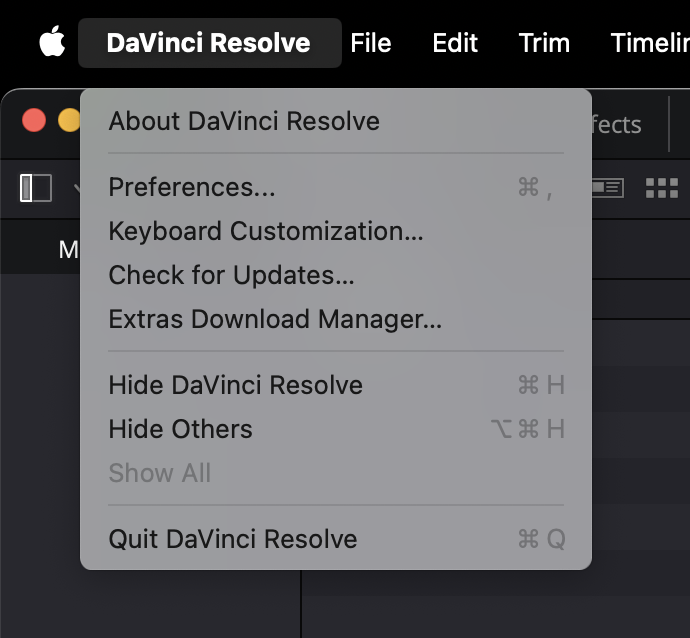
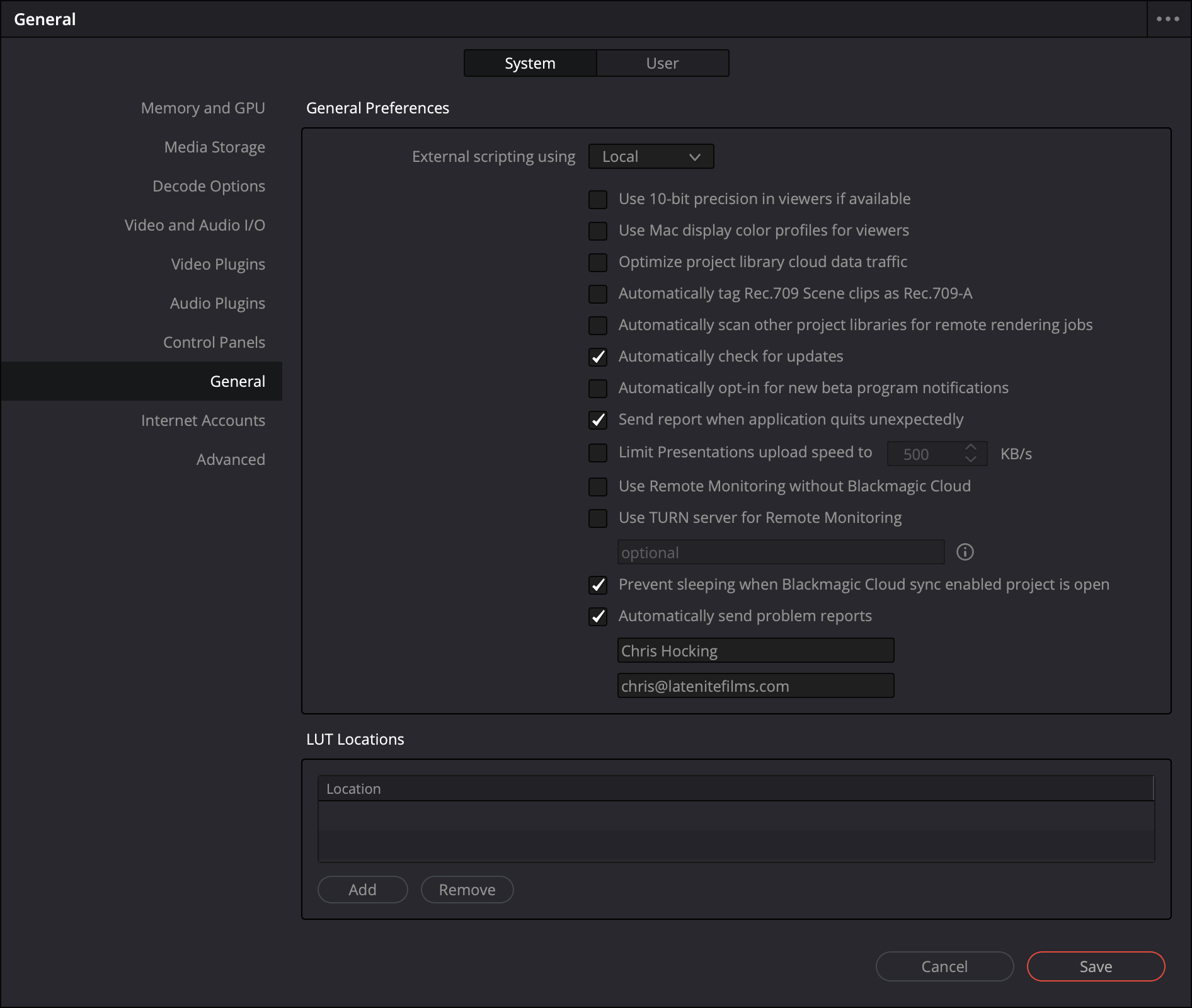
6
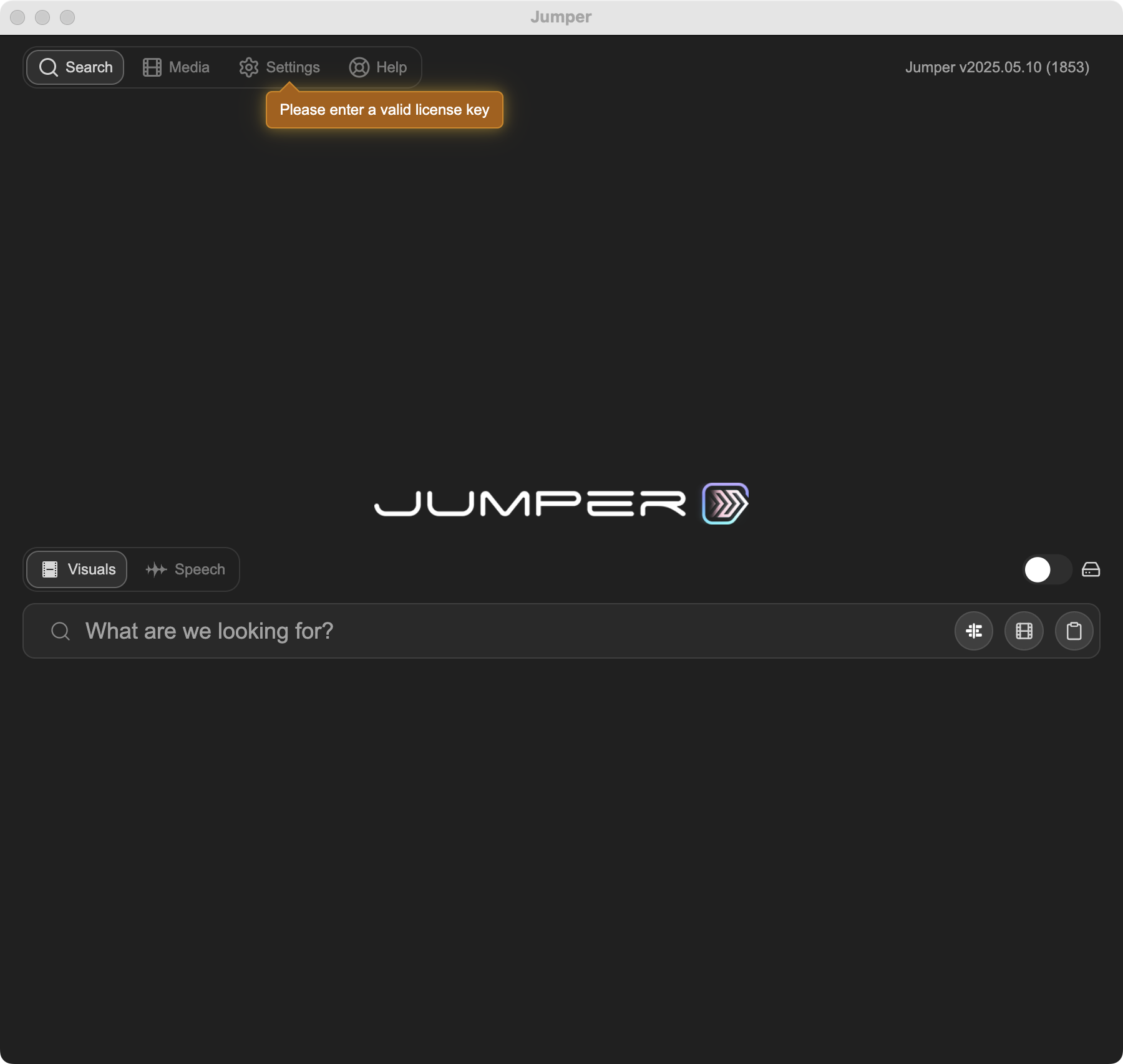
Launch Jumper from DaVinci Resolve
You can now launch Jumper from the Workspace -> Workflow Integrations -> Jumper menubar.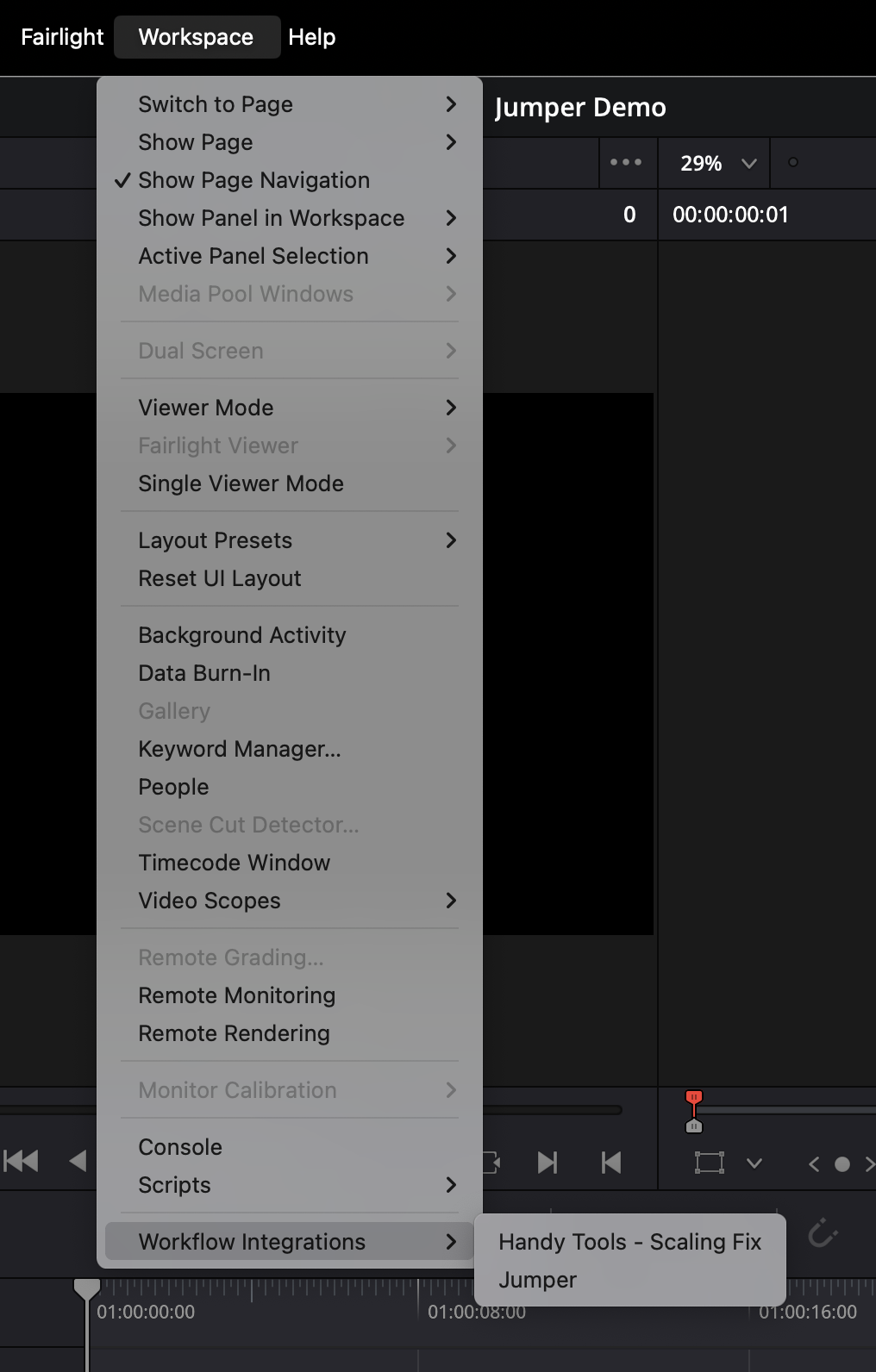
Required shortcuts
Jumper relies on default DaVinci Resolve shortcuts and menu paths to work around gaps in the Resolve API. If you use custom keyboard shortcuts, these features may not work correctly.
DaVinci Resolve must be set to English for the menu automation (Workspace -> Active Panel Selection -> Source Viewer) to work.