

Summary Analysis requires a Jumper Pro license.
Before you begin
- The file must have completed visual analysis.
- Speech analysis and face analysis are optional, but they can add useful dialogue and character context.
- Naming recognized people in the People tab can make the result more useful.
- An AI summarization model must be downloaded to your computer. Choose Small, Medium, Large, or Extra large. The model runs locally with the rest of Jumper’s analysis.
Create the analysis
1
Open the Media tab
Open Media and make sure the footage has completed visual analysis.
2
Choose a batch or an individual file
For a batch, select the media and use the Summary Analysis document control. For one file, use its configuration gear.
3
Name the analysis
Enter a meaningful Analysis name that describes its editorial use, such as “Day 2 interviews — documentary research” or “Championship final — highlight moments.”
4
Choose a model size
Select Small, Medium, Large, or Extra large. Download the selected AI summarization model if it is not already available locally.
5
Choose what the summary will be used for
Select a built-in purpose to give the analysis an editorial lens, or choose Use only my instructions when you want the analysis guided only by your own directions and priorities.
6
Add a Specific goal
Optionally describe the question or deliverable you have in mind. Keep it concrete, such as “Identify the strongest conflict and reversal beats for a 90-second trailer.”
7
Set your priorities
Under Pay extra attention to, select the areas that matter most to the edit, such as strong dialogue, reactions, people and relationships, themes, reveals, action, or atmosphere.
8
Add optional context and evidence
If useful, add Footage context, choose a Summary collection, include the transcript, select an output language, and allow named-person evidence from face analysis.
9
Add and process the analysis
Add the analysis, then start processing the selected media.
10
Explore the result
Open Summaries. Start with the overview, then navigate into progressively more detailed sections, source time ranges, and source previews.
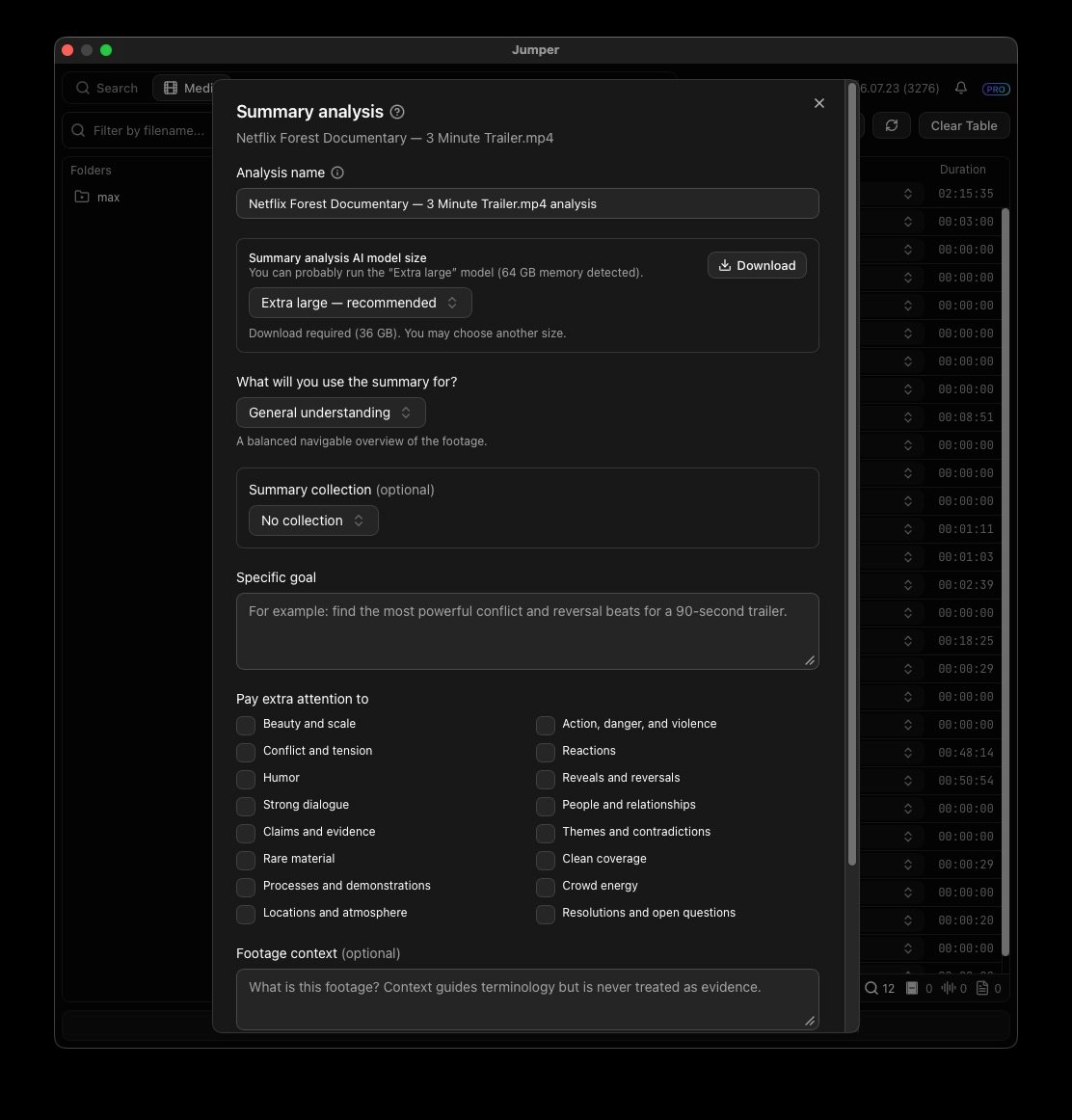
Summary Analysis settings for an individual media file
Purpose and Specific goal
Use these settings together when you configure the analysis:
Choose the purpose closest to the work, then use Specific goal to make it particular to this footage and deliverable.
Next steps
- Create another analysis of the same file with a different goal. Later runs can reuse the initial observations from the first analysis.
- Group related analyses in a Summary collection when you want to compare material across files.
- Hand the result to an AI agent for research or selects work. Treat the summary as navigation context, not final source evidence.