

The Admin Panel is available with Jumper Enterprise, which includes everything in Pro plus centrally managed license policies, configurations, and company single sign-on (SSO).
How it fits together
The Admin Panel has four sections:- Licenses: assign policies to individual licenses or several licenses at once.
- Policies: control which Jumper tabs and analysis folders those licenses can use.
- Configuration: send a prepared Jumper setup to selected licenses.
- Company SSO: connect your organization’s identity provider for company sign-in.
Simplify editor onboarding
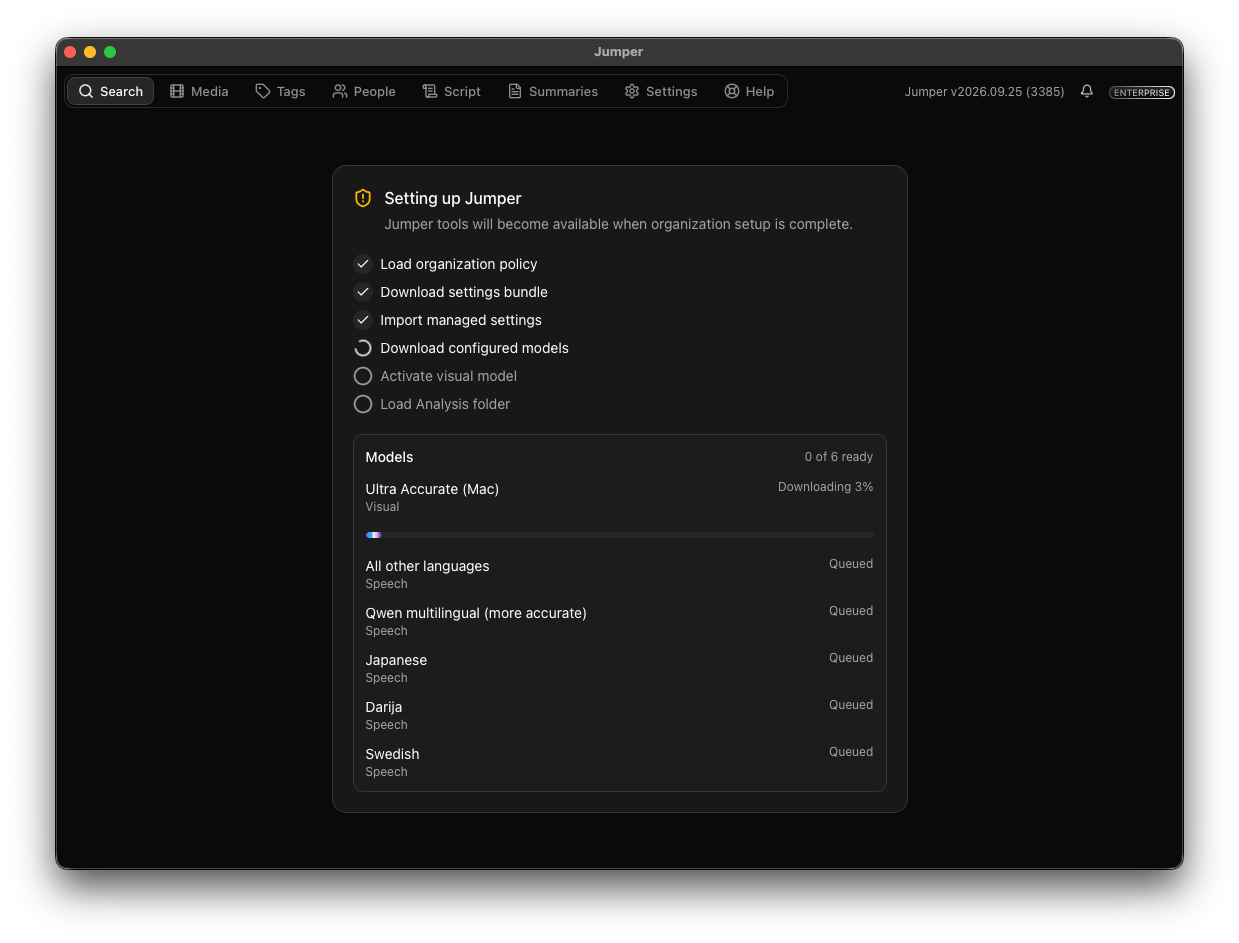
An admin or assistant editor prepares the media, models, analysis, people and speaker names, and UI settings once, then sends the configuration to the editors’ licenses. Editors activate their license and Jumper applies the setup automatically, including downloading the configured models. Once setup finishes, editors can search the prepared footage. Give them access to Search and Tag Collections so they can find clips, save selects, and use those collections to narrow later searches.Restrict access to sensitive productions
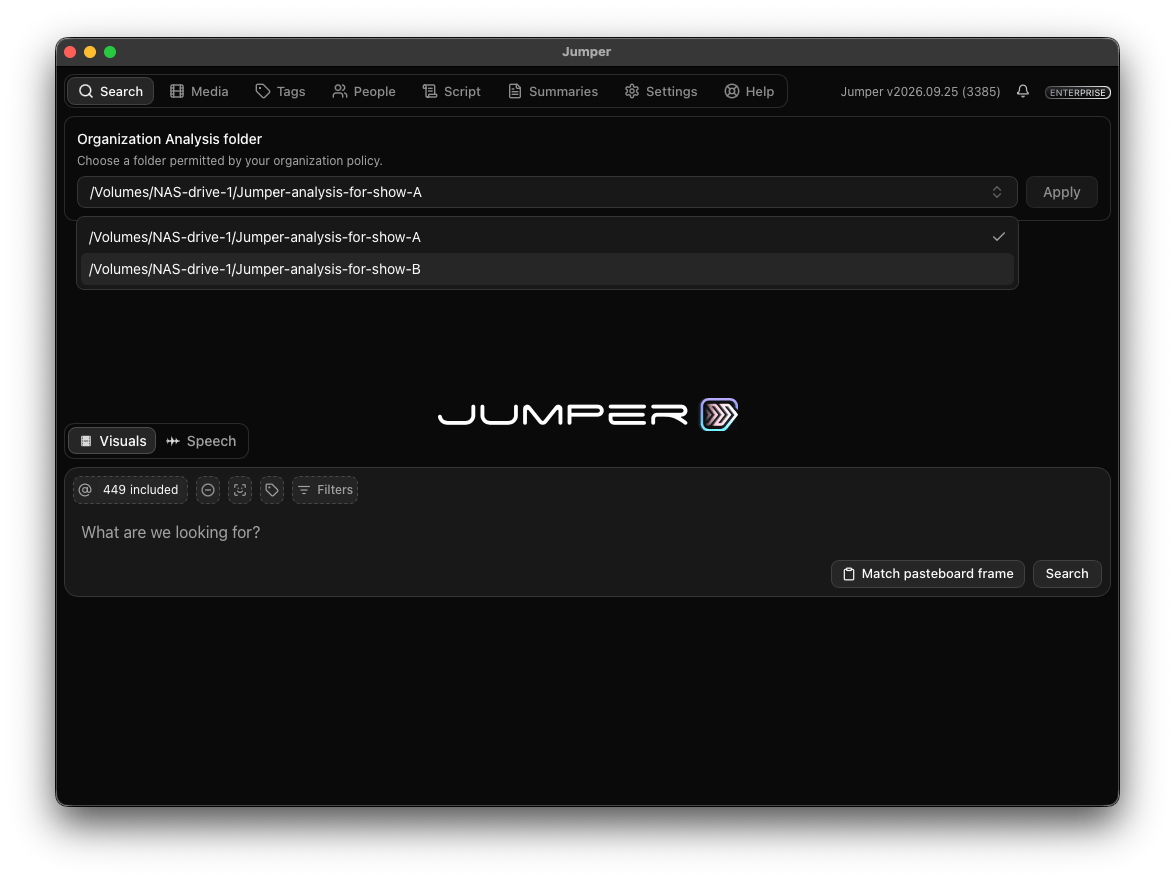
Editors in the same facility may work on different shows with different access requirements. Analysis folders can contain thumbnails, transcripts, and other information from the footage, so access to those folders matters even when the original media is restricted. Keep each production’s analysis in a separate folder and assign policies that allow only the folders each license needs. An editor working on Show A can be limited to Show A’s analysis, while another editor has access to Show B. Set matching permissions on your shared storage as well. See confidential footage and project-specific analysis folders.Choose the features each role can use
Keep analysis and setup controls with the team responsible for them. For example, enable Search, Tags, and Help for editors while disabling Media, People, and Settings. This keeps the interface focused on finding footage and prevents those licenses from starting analysis, regrouping face collections, or changing models through those controls. Assistant editors can retain the tabs they need to analyze new footage, manage face collections, and maintain the setup. Policies control access by tab. Search still allows editors to rename transcript speakers, and Tags lets them save and update Tag Collections.What the editor sees
On a new machine, the editor opens Jumper, enters their assigned Enterprise license key, and clicks Apply. Jumper then runs the organization setup automatically:- Load the license’s organization policy.
- Download the settings bundle and import the managed settings.
- Download the configured models and activate the visual model.
- Load an allowed analysis folder.
In progress: Remote Viewing and a floating license server. These features are not yet available. The existing custom license server lets clients validate their individual license keys through a local server. It does not provide a pool of floating seats.
Set it up
Open and sign in
Open the Admin Panel and set the admin password.
Prepare the editor setup
Configure Jumper on the admin’s machine.
Create and assign access policies
Control tabs and analysis folders per license.
Send a configuration
Distribute the prepared setup to licenses.
Configure company SSO
Connect your identity provider.