

Subclips and grouped/multicam clips are supported in Media Composer 2025.12.2 and 2026.8. Requires Jumper build 3361 (Apple silicon) / 3362 (Intel) on macOS, or build 1628 on Windows, or later.
Transcoded MXF in Avid MediaFiles
If the MXF has already been analyzed
When Jumper has already analyzed the MXF files, MOB ID metadata is calculated during analysis. You can skip Scan MXF Metadata for those files and load them directly.1
Configure shared metadata (multi-machine setups)
If multiple machines work on the same footage, set a shared directory in Settings under Shared MXF Metadata. Use the same path on every machine, including the machine that ran analysis.
2
Select clips in a bin
Select the clips you want to load.
3
Load Media
Click Load Media -> All Selected Clips (or All Visible Clips, All Bins).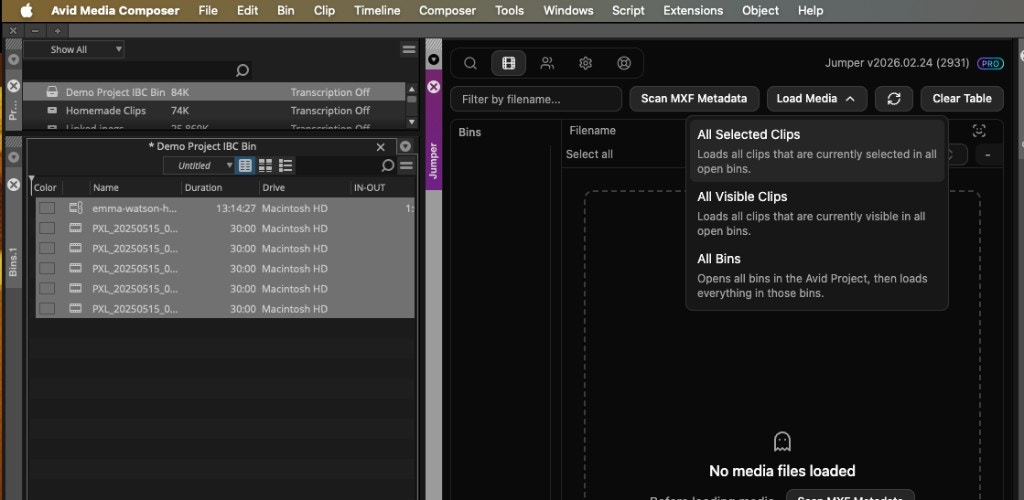
If the MXF has not been analyzed
You still need to scan before Jumper can link bin clips to the MXF files.1
Configure shared scan (optional)
To share scan results across multiple machines, set a shared directory in Settings under Shared MXF Metadata. Use the same path on every machine.
2
Scan MXF Metadata
Click Scan MXF Metadata in the Media tab (next to the filename filter).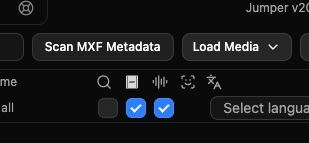
3
Select clips in a bin
Select the clips you want to load.
4
Load Media
Click Load Media -> All Selected Clips (or All Visible Clips, All Bins).